Smootify Studio. Webflow and Astro, with Claude inside.
The desktop app for every Smootify site, in Webflow or in Astro, with Claude working inside it. Claude builds pages from Figma, writes custom scripts and fixes what you note on the site. Studio keeps each Webflow site’s CMS in step with Shopify, and puts each Astro site online on Cloudflare.
macOS and Windows. Claude runs on your own Claude account, and syncing works without it.
Studio for Astro sitesComing from the 1.x app?
Studio does not replace Smootify Desktop Syncer: it installs next to it. On a Mac, delete the old app after installing Studio, so the sign-in link always opens Studio. On Windows, uninstall the 1.x app before installing Studio. Your session and the settings of your sites stay as they are.
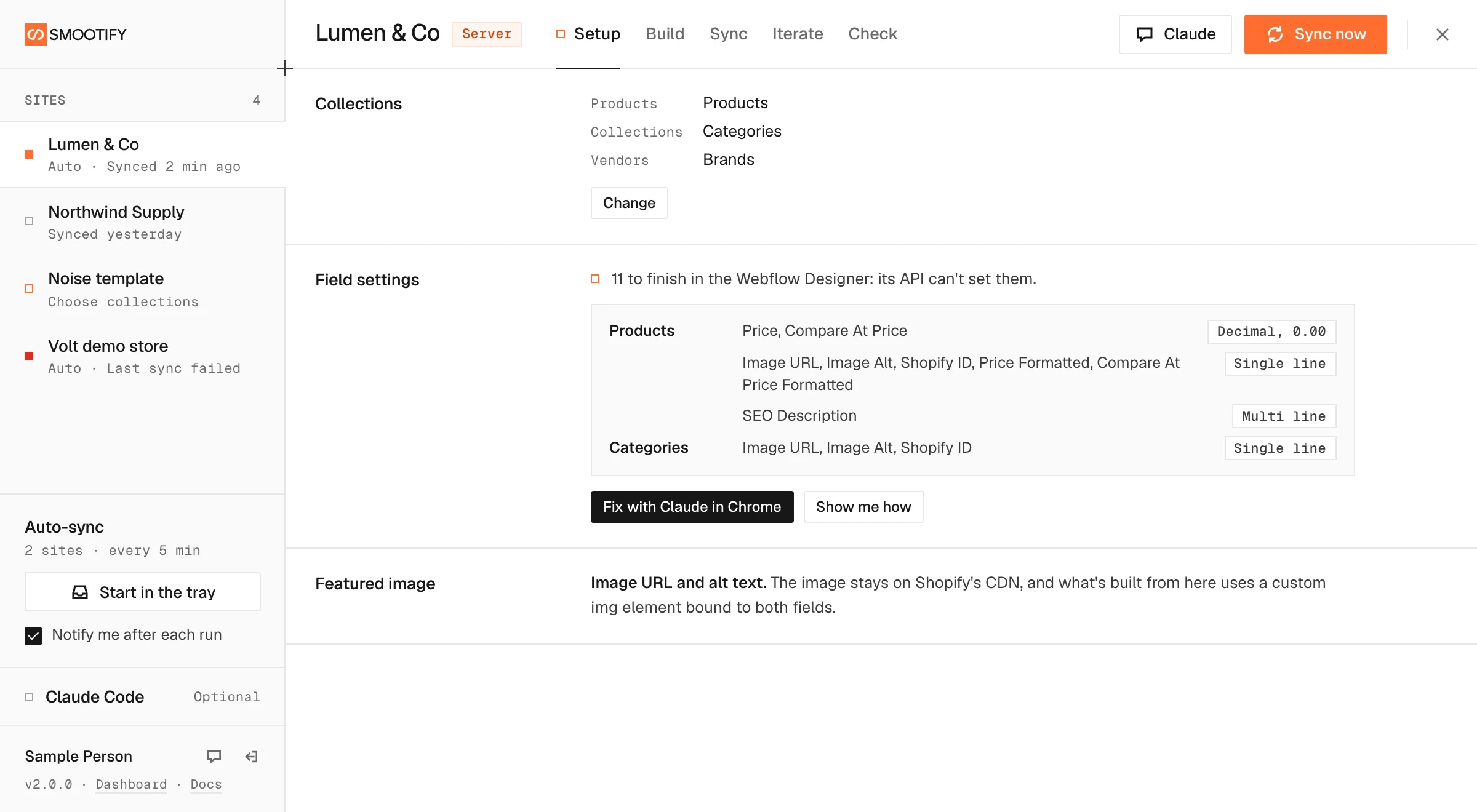
Preview of the 2.0 app, with sample sites.
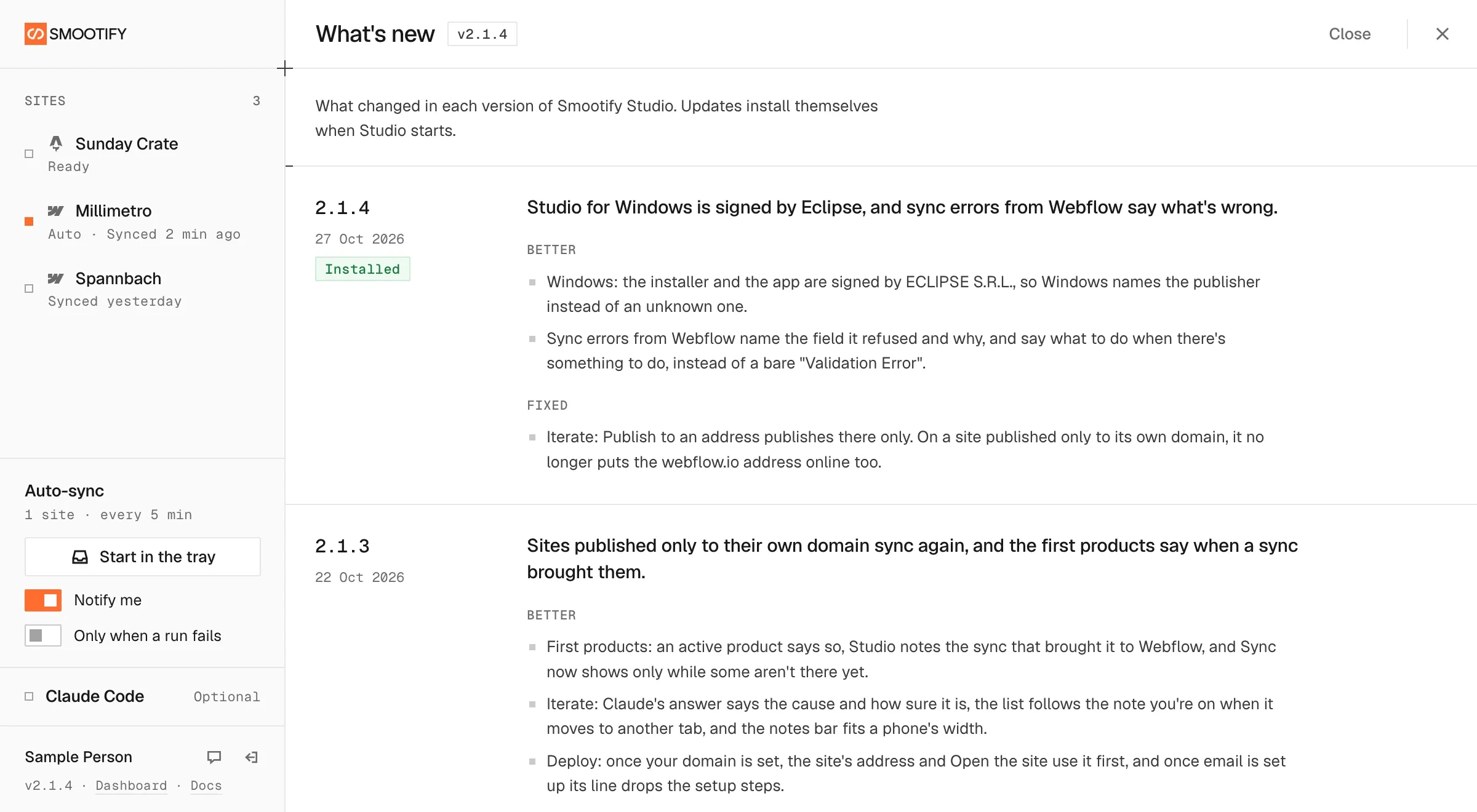
Claude, inside the app where you run your stores.
No copying code between windows, no explaining your site from scratch. Studio starts Claude with Smootify’s skills and the site it’s working on, so it already knows the markup, the events and the store before it writes a line.
Writes the site’s scripts
Start a script and Claude opens in the app, in the script’s folder, with Smootify’s custom-script skill and the site’s details already loaded. It asks what the script should do, then writes it.
Builds pages from Figma
In Build, Claude builds the site’s pages from its Figma file with Smootify’s skills: in the Webflow Designer, or as .astro components in the Astro project.
Fixes what you note on the site
In Iterate, click an element of the site and say what is wrong. Claude reads the note, fixes the site in Webflow or in the Astro project’s code, and answers in the note, with the cause and how sure it is. It never publishes.
Audits a site
In Check, Audit with Claude opens Claude in the site’s folder with Smootify’s site-audit skill. It reviews the site and leaves the report there, as a dated file you can send to the client.
Proposes the first products
For a new store, Claude asks about the catalog, reads the store and proposes products as cards: accept them, ask for a change or reject them, then Studio creates the accepted ones and syncs them.
Finishes the Webflow setup
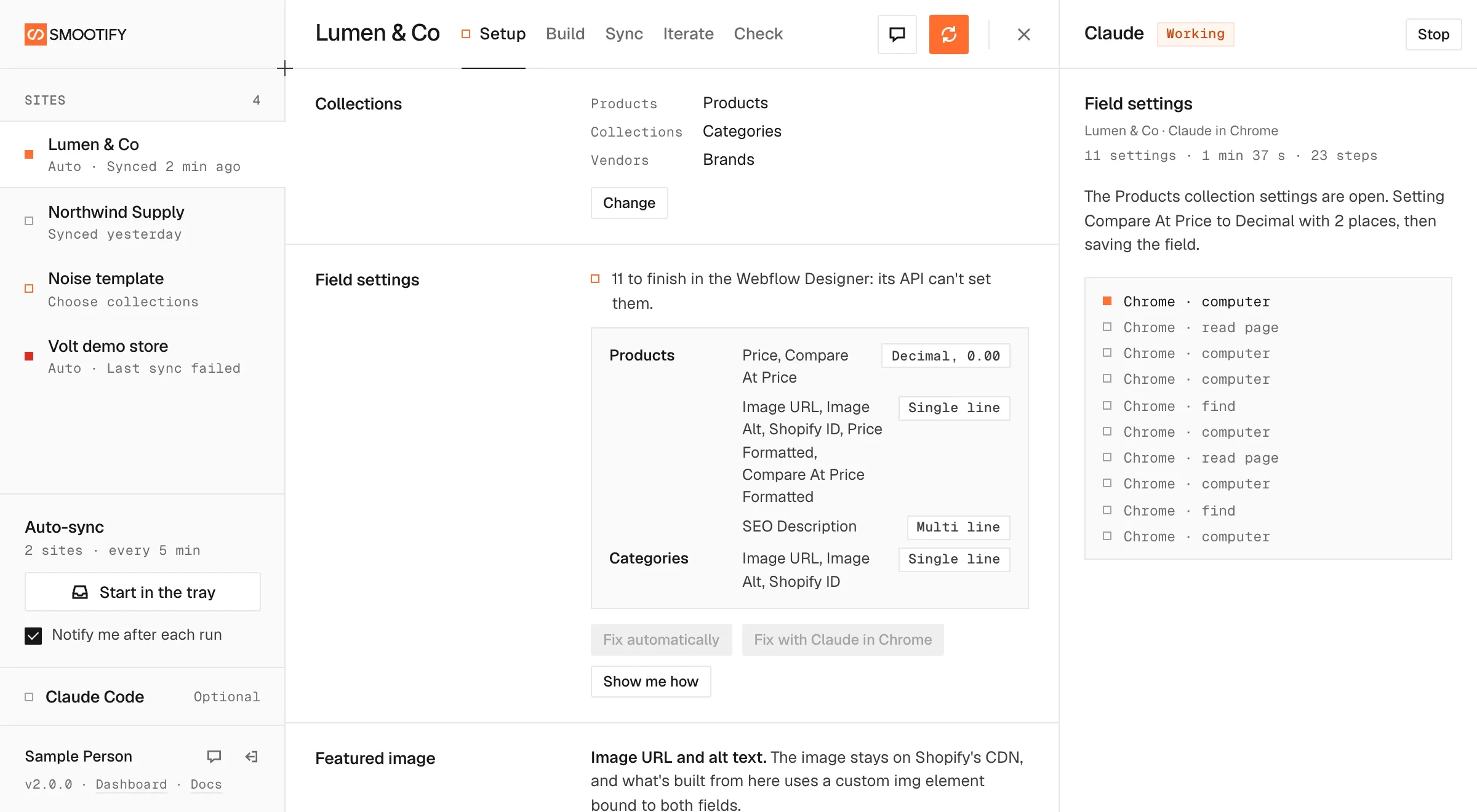
The CMS field settings Webflow’s API can’t change, Claude sets in the Designer for you through Claude in Chrome, one field at a time, while you watch the steps.
Has a Claude for each site
The Claude button at the top of every site, in every tab, opens Claude Code in the site’s folder with no task set: ask about the markup, fix a page that doesn’t work, change the site through Webflow’s MCP or in the Astro project, or work through what the audit found. It runs in a tab next to the audit, so the rest of Studio stays free. It is your own Claude Code, on your Claude account: Studio never reads your sign-in.
Knows the site before you ask
Each time Claude opens on a site, Studio writes it the site’s brief: the Webflow site and its Designer link, the addresses, the Shopify store and plan, the CMS collections and what each Smootify skill does. Studio asks it to tell you what it will change in Webflow before changing it, and to leave publishing to you.
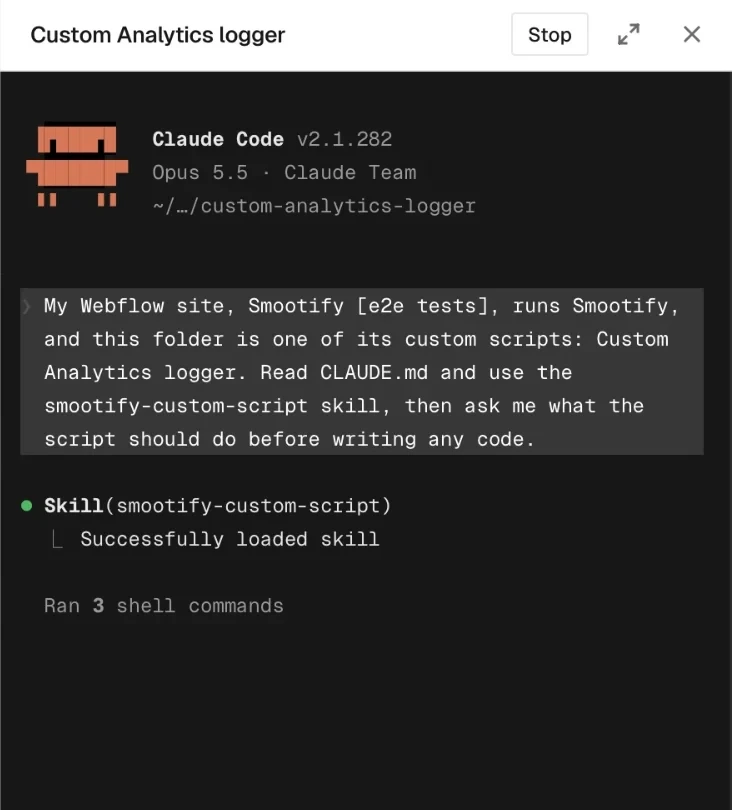
One app for Webflow sites and Astro sites.
Every site in the sidebar has the sections its front end needs. An Astro site has no Setup and no Sync: its pages read Shopify when the site is built, or when a page is asked for.
Webflow sites
- Setup
- Build
- Sync
- Iterate
- Check
Studio finishes the CMS setup, syncs Shopify into the Webflow CMS with a backup before every full sync, and Claude works on the site through Webflow’s MCP.
Astro sites
- Build
- Iterate
- Check
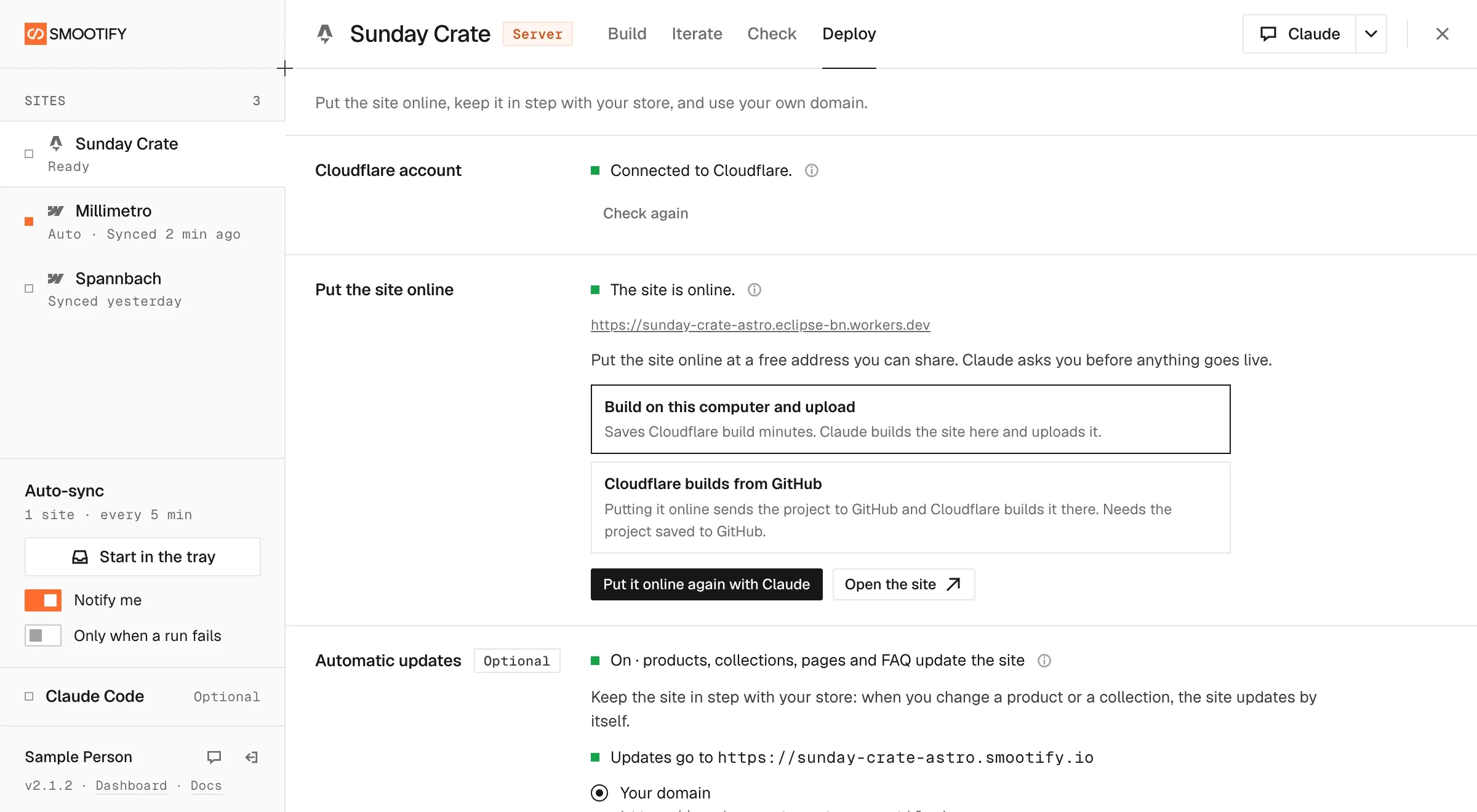
- Deploy
Studio creates the Astro project, Claude builds it from Figma, and Deploy puts it on Cloudflare on your own domain. Shopify keeps it up to date, so there is no Setup and no Sync.
An Astro site, from Figma to your own domain.
Studio writes the project, Claude builds the pages, and Deploy puts the site on Cloudflare. After that, Shopify keeps it up to date.
- Create the project. In Build, Studio writes the site’s Astro project with Smootify set up: @smootify/astro, the Cloudflare adapter, and static or on-demand pages. Then it starts the dev server.
- Build it from Figma. The Figma steps of Build work for Astro too: Claude writes the pages into the project with Smootify’s build skill.
- Deploy. The last section puts the site on Cloudflare, first on a free workers.dev address, then on your own domain. For each project, build on your computer and Claude uploads it, asking before each step, or let Cloudflare build from GitHub: you create the site from the repository once in Cloudflare, and each Put it online sends the project to GitHub.
- Automatic updates. Shopify tells the site when the store changes, and the site updates itself. On-demand pages refresh only what changed, however you build. A static site rebuilds on Cloudflare, so it needs Cloudflare to build from GitHub and a deploy hook, which Studio asks for.
- Iterate and Check. Review notes and the site audit work on Astro sites too. A fixed note says whether the fix is only in the code, on the dev server or already online.
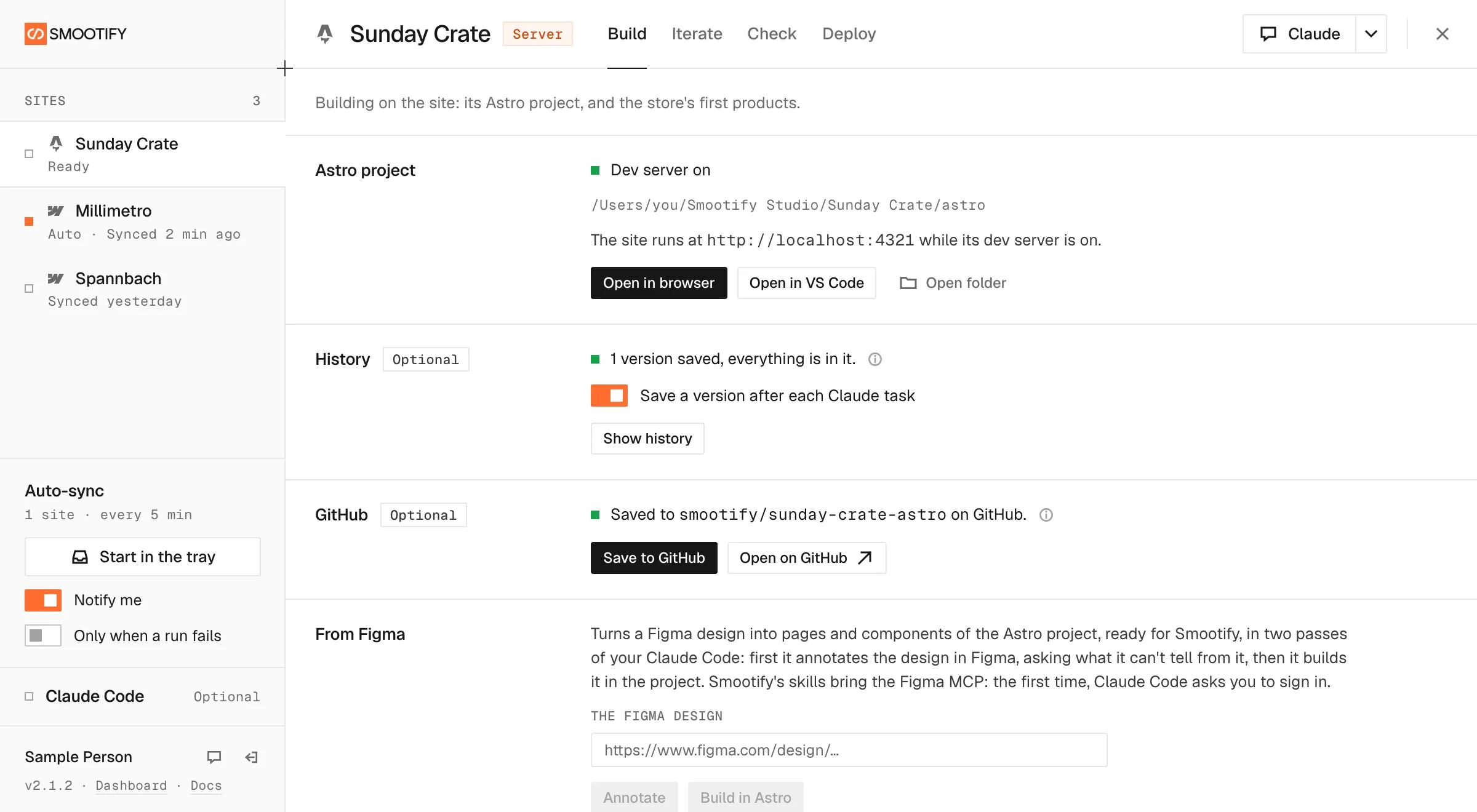
Project history. Studio saves a version of the project after each task Claude does. Undo goes back to the last one, and Save to GitHub keeps the project in your repository.
Update project. When Smootify changes what Studio writes, Update project brings an older Astro project to the new version. Claude shows the plan and asks before it starts.
What it needs. Free works on localhost and on workers.dev addresses. Your own domain needs Lite, and server add-ons need Server. Cloudflare’s Workers Free plan is enough to deploy; Workers Paid, about $5 a month, is only for email from forms.
All your sites, and how each one is doing.
Every Smootify site you work on sits in the sidebar with its state: synced two minutes ago, never synced, collections still to choose, last sync failed. You see which one needs you before a client does.
Auto-sync
Pick the sites and the app syncs them every five minutes. Products, collections, vendors and metafields go from Shopify into the Webflow CMS; variants and stock stay live on the page.
Runs in the tray
Start it in the tray and forget it. The window is for when something needs a decision.
Tells you after each run
A notification after every sync, so a failed run doesn’t wait for someone to notice a wrong price.
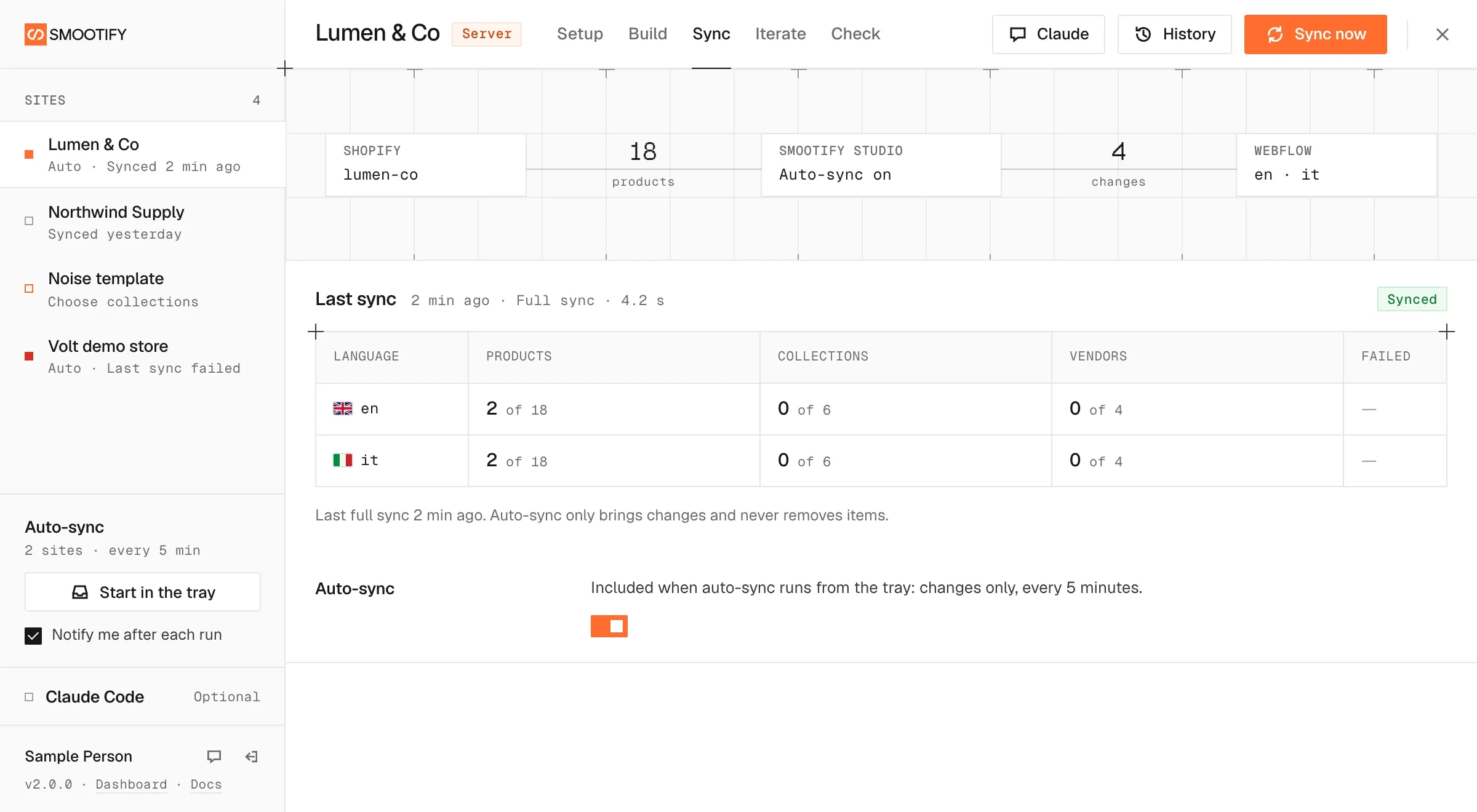
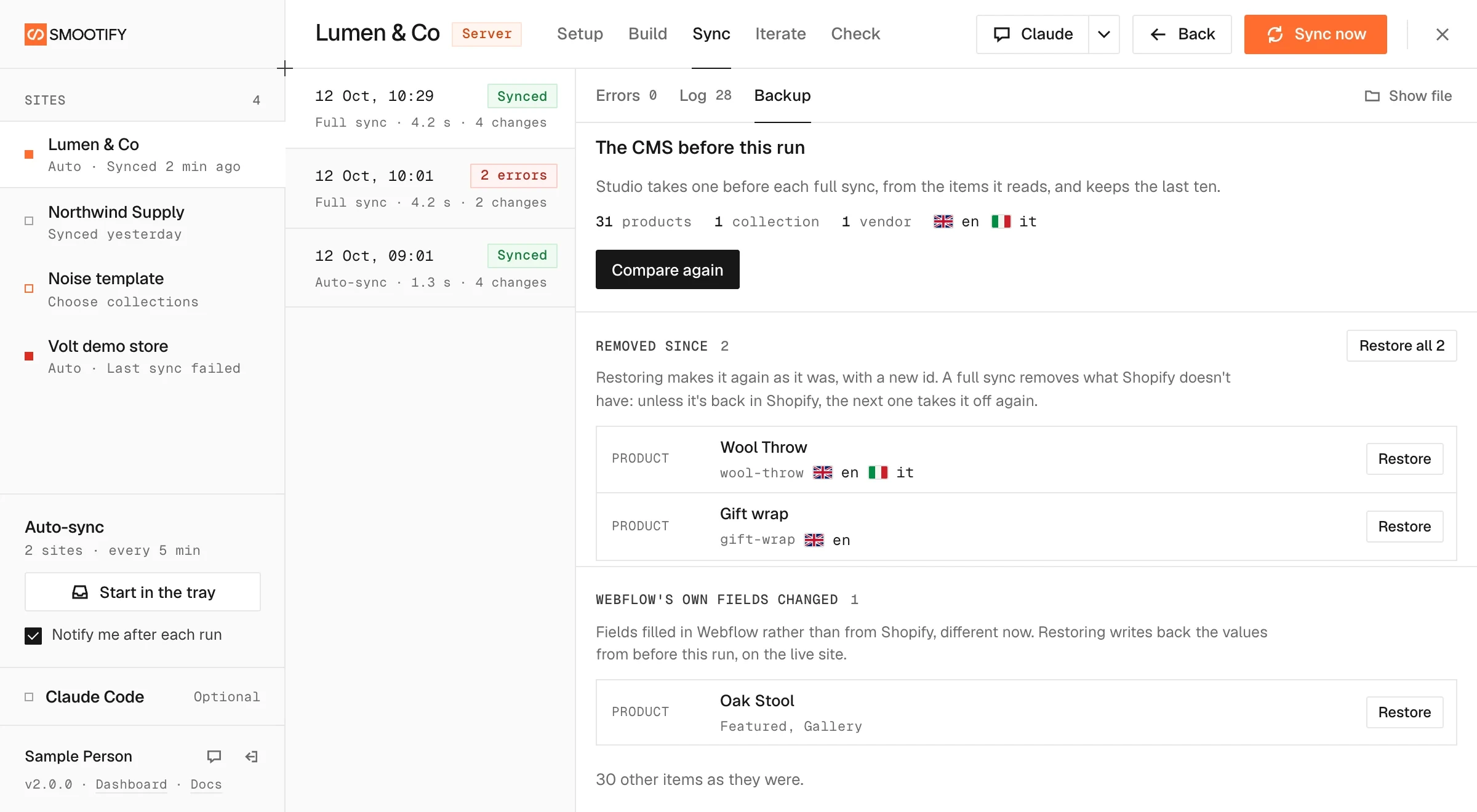
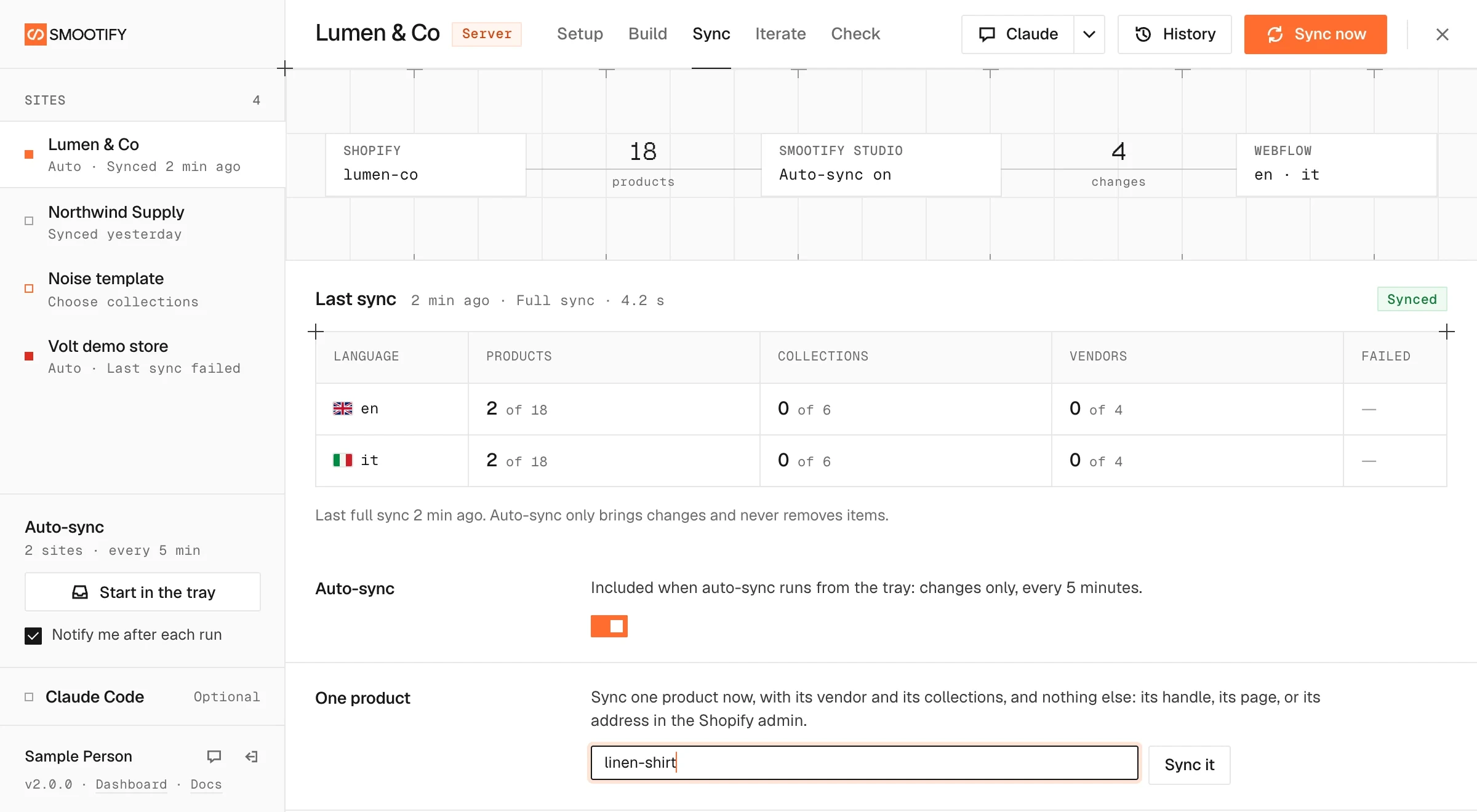
A backup before every full sync. One product when that’s all you need.
A full sync makes the CMS match Shopify, so it also removes what Shopify no longer has. Studio saves the CMS first, and lets you bring back what you need.
- Backup. Before every full sync, by hand or automatic, Studio saves the three collections it has just read, every item in every language. It keeps the last ten, and saves nothing new when nothing changed. The scheduled changes-only runs never remove anything, so they don’t need one.
- Compare with the site now. In a run’s Backup tab, Studio lists the items removed since and the items whose own fields, the ones you fill in Webflow, changed.
- Restore. One item or all of them: they come back as they were, with a new id, and drafts stay drafts. A later full sync removes again whatever Shopify doesn’t have.
- Sync one product. Paste the product’s handle, its page on your site or its address in the Shopify admin. Studio writes that product with its vendor and collections and nothing else: it removes nothing and leaves the next changes-only sync where it was.
The part of the setup Webflow’s API can’t do.
The sync needs some CMS fields set just so: prices as decimals with two places, Shopify ID and image URL as single lines, the SEO description as multi-line. Webflow’s API can’t change those settings, so they used to be a checklist in the Designer. Studio lists them per collection and finishes them for you.
Fix with Claude in Chrome
Your own Claude works the Webflow settings in your Chrome, with the Claude in Chrome extension.
Show me how
The same fields as a checklist, if you would rather click through the Designer yourself.
Featured image, your way. Studio fills either Webflow’s Image field or an Image URL field that keeps the picture on Shopify’s CDN, with its alt text; when a collection has both, it asks which one to use.
Custom scripts, one folder per site.
When a site needs behavior no component covers, a size guide or an analytics logger, Studio gives it a script with its own folder. Claude writes it with Smootify’s skill and the site’s details, so it knows the markup and the events before it writes a line.
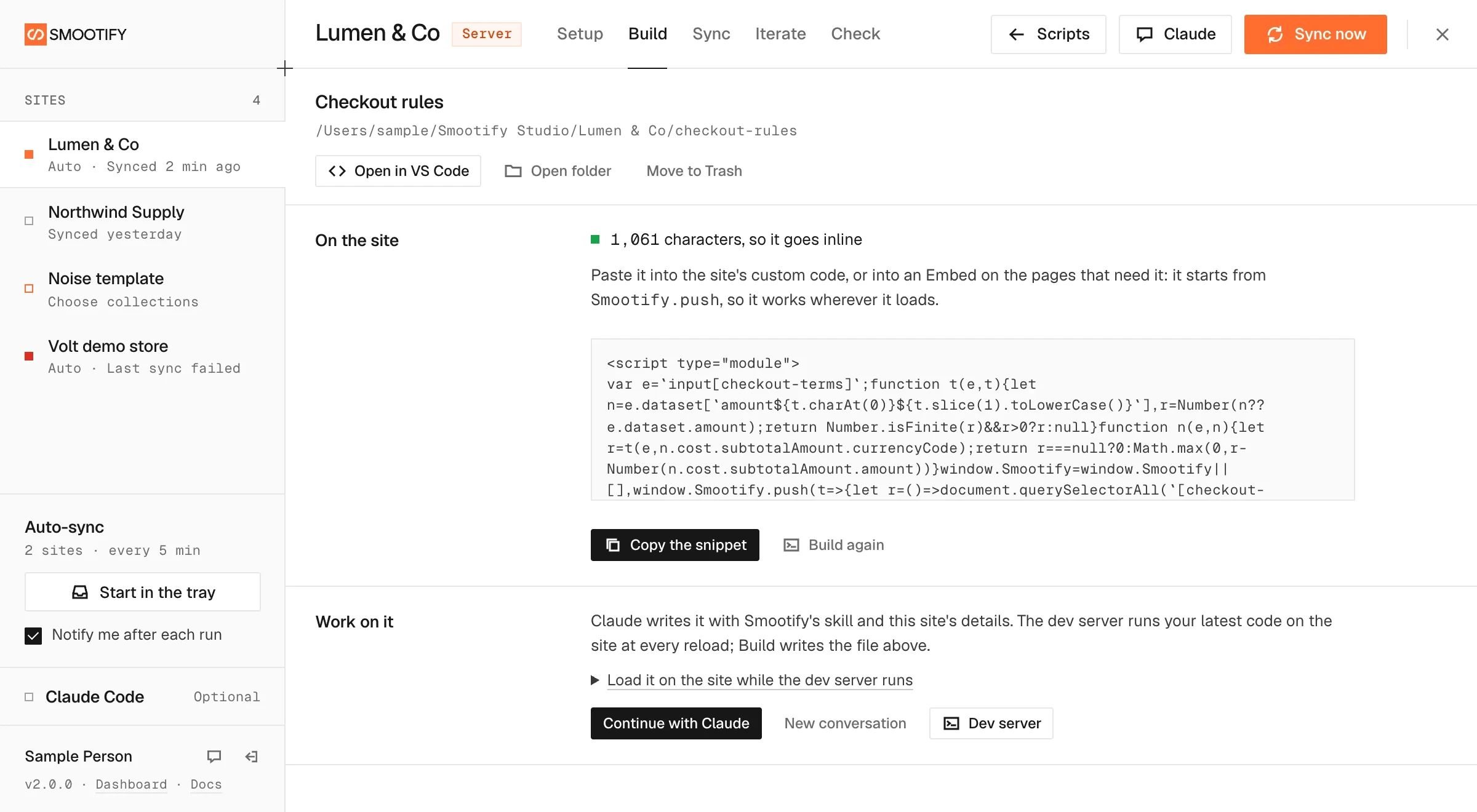
- Write with Claude. A conversation opens in the app, started in the script’s folder with the Smootify custom-script skill loaded. It asks what the script should do before writing any code.
- Try it on the site. The dev server runs your latest code on the real site at every reload. No publishing to see a change.
- Build. One click turns the source into the single file the site loads: type-checked, then minified into one module.
- Or open it yourself. Open the folder in VS Code or in a terminal whenever you want to take over.
A new store, its first products.
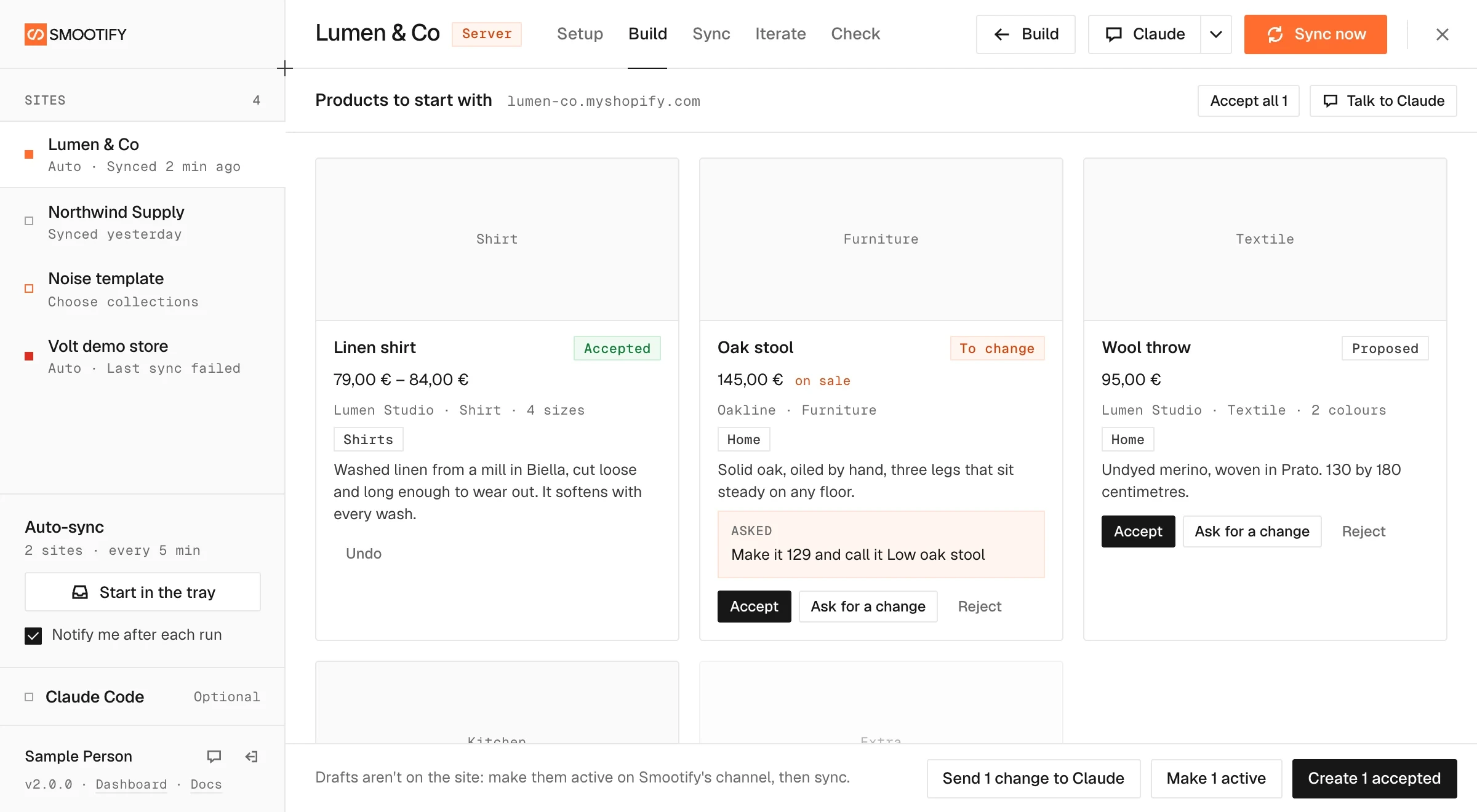
Starting a store from nothing? Claude interviews you about the catalog, reads the store and proposes the first products. You decide on each one.
- Tell Claude about the catalog. It asks what you sell and reads the store read-only, then writes its proposals as cards.
- Accept, change or reject. Each card is a product: accept it, send Claude a change, or drop it.
- Create, publish, sync. Studio creates the accepted products as drafts, makes them active and visible to Smootify, then syncs them into the CMS.
What it needs. Claude Code signed in, and Shopify’s AI Toolkit in Claude Code: the Products row offers to install it, and you sign in to the store through the toolkit with permission to create products.
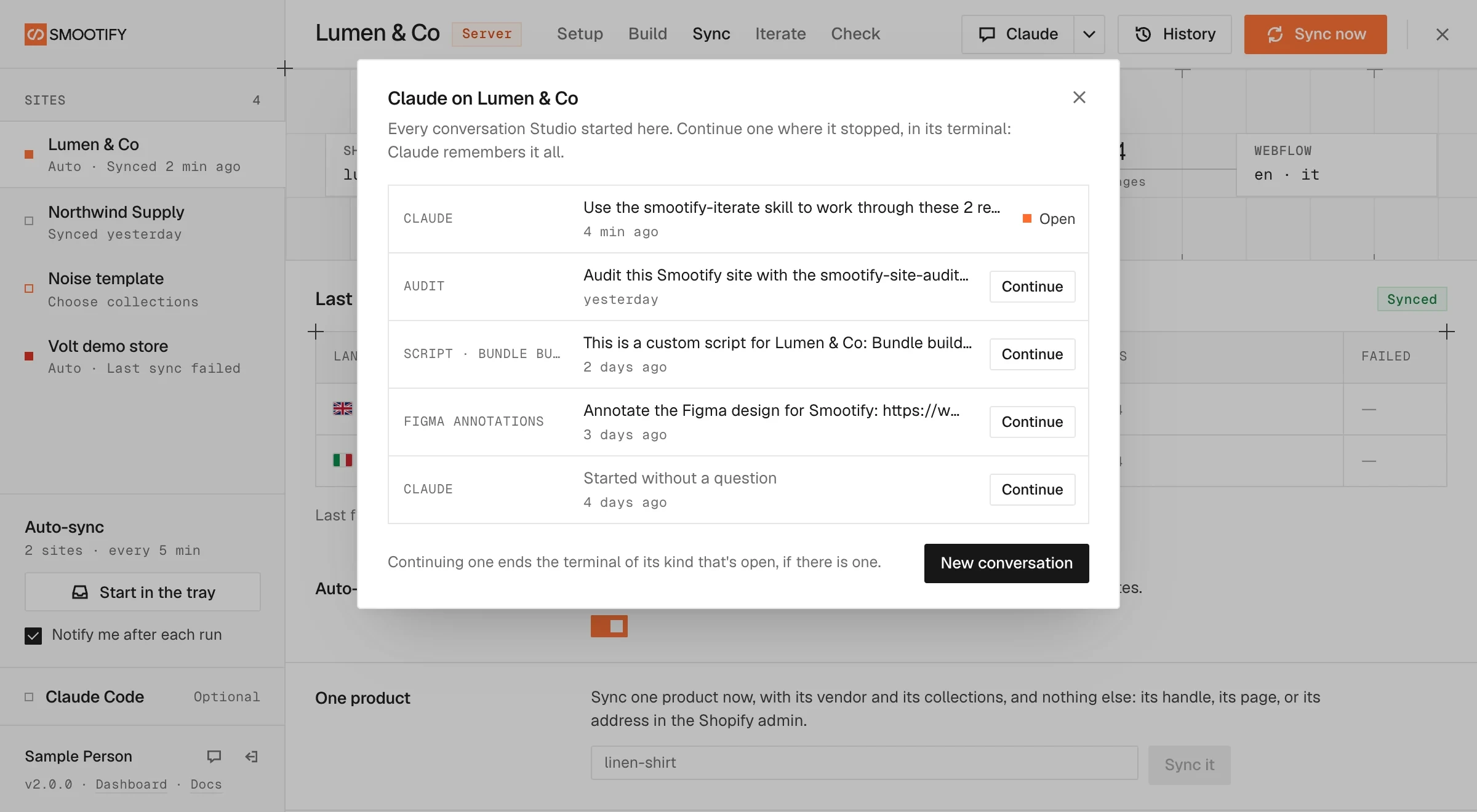
Say what’s wrong. Claude fixes it.
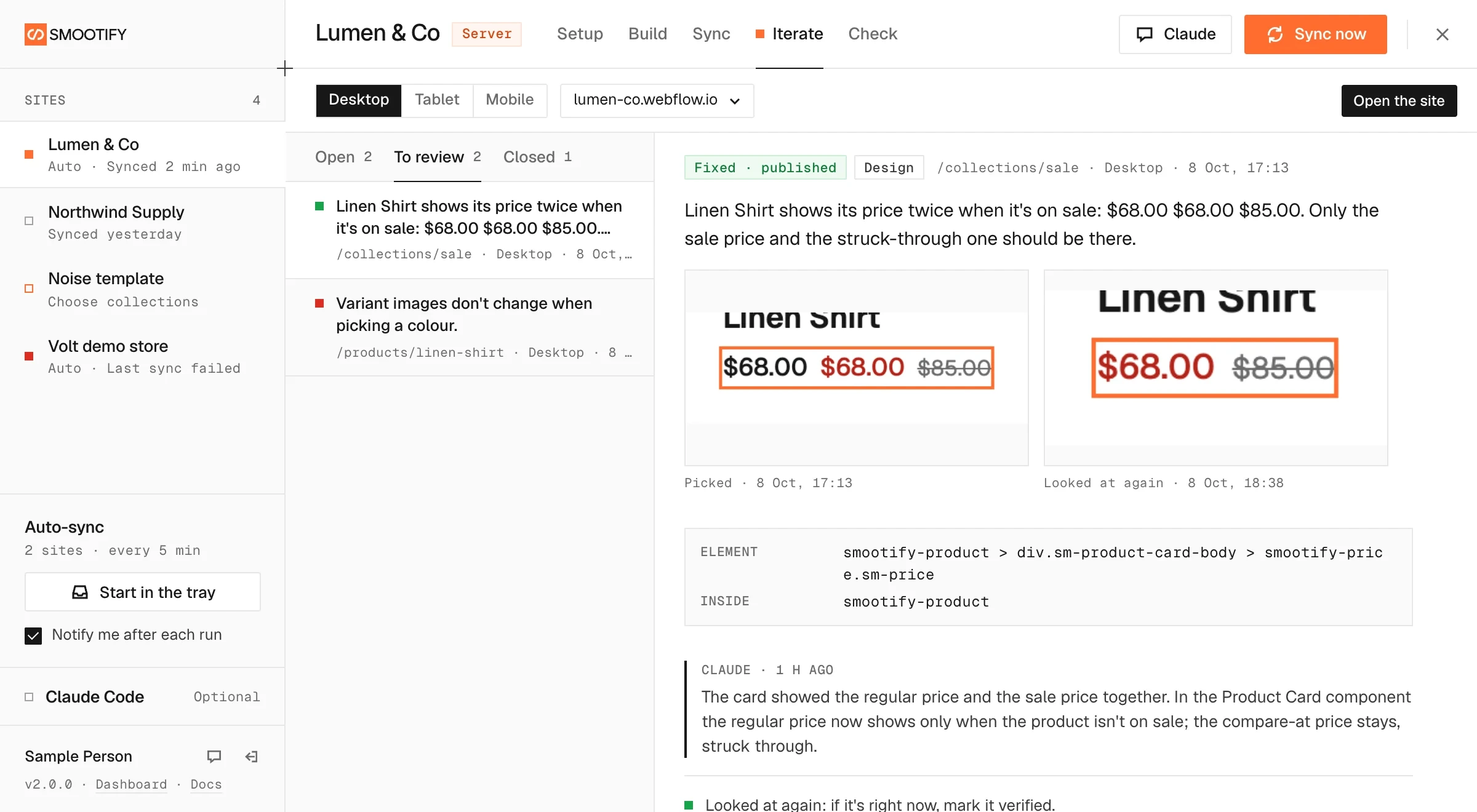
Review the published site the way a client would. Click what looks wrong, write it in a sentence, and send the notes to the site’s Claude. It fixes the site in Webflow and answers in each note.
- Open the site. The published site opens in its own browser window, at desktop, tablet or phone width, with a notes bar at the bottom. Your Webflow login stays untouched.
- Click it, say it. Pick the element and write what is wrong. Studio keeps the rest: screenshots, the element, the Smootify markup around it and the page’s errors.
- Send to Claude. Claude checks the site first, fixes it in Webflow and answers inside the note, with the cause and how sure it is. It never publishes.
- Look at it again. After you publish, Studio takes a new screenshot of the element: mark it verified, or reopen it with the reason.
On an Astro site. Choose the address to review: your domain, the deployed address or the dev server, which Studio starts if it isn’t running. Studio remembers it for each site. Claude fixes the project’s code and never deploys, and each note says whether the fix is only in the code, on the dev server or already online.
When it’s Smootify’s side. If the cause is Smootify itself, the note says so, and Send to Smootify opens the support chat with the report ready.

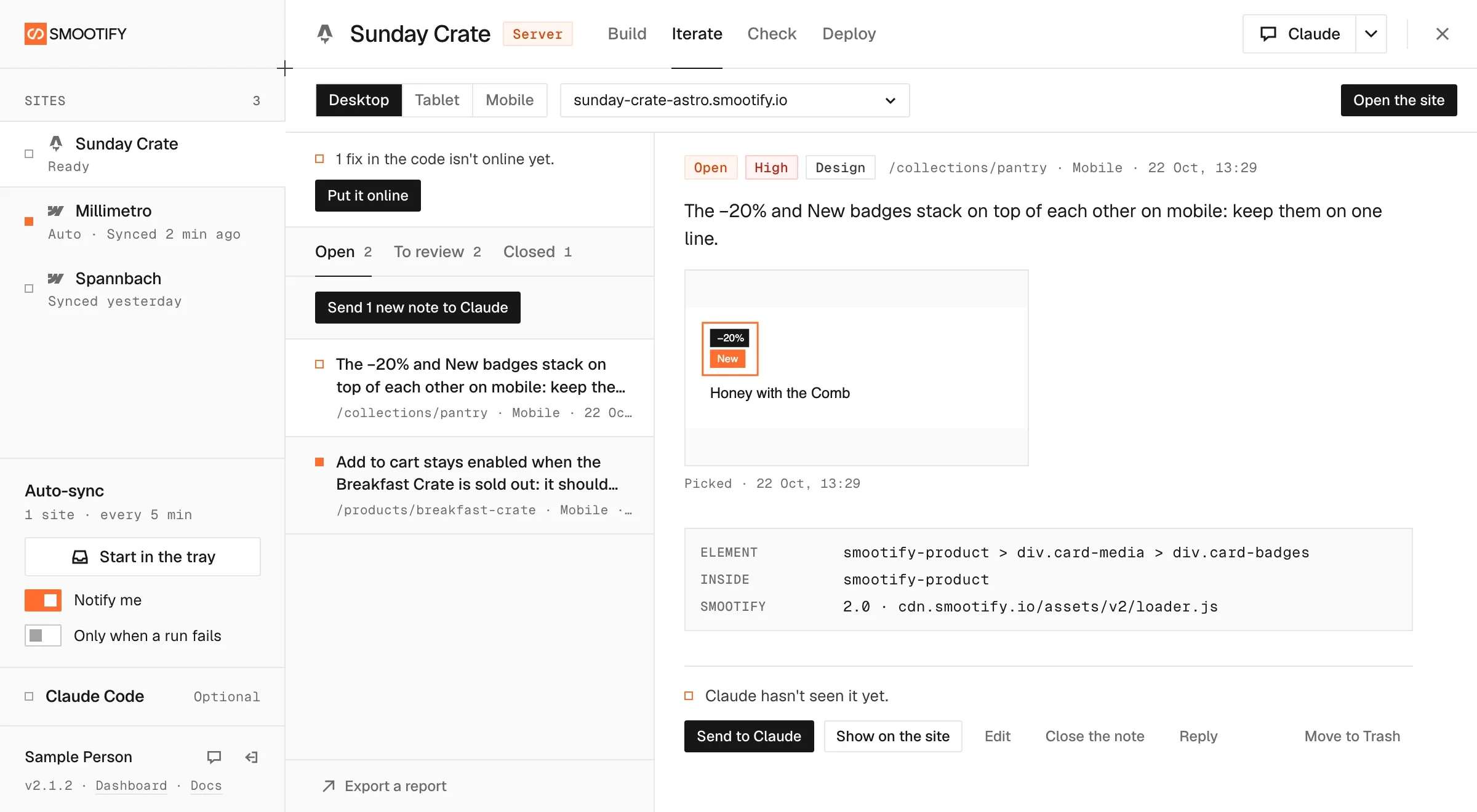
Check the site before a client does.
Check reads the collections and their settings back, and Audit with Claude reviews the whole site with Smootify’s audit skill: what is broken, what is fragile, and what the store pays for and doesn’t use. Each report stays in the site’s folder, to compare with the next. The audit works on Astro sites too.
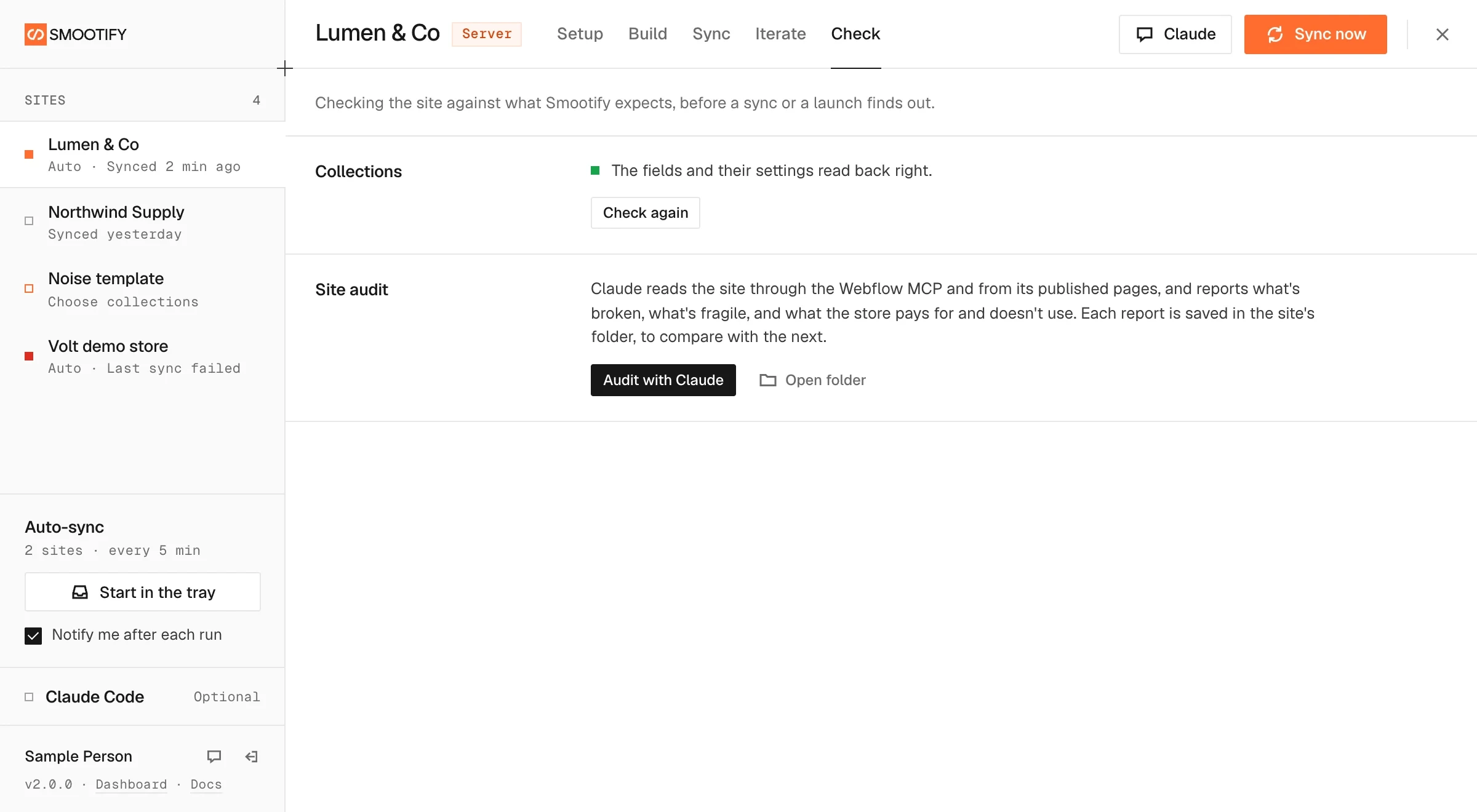
One shortcut to everything, and every conversation kept.
Press ⌘K (Ctrl+K on Windows) to jump to a site, a section or an action: sync now, sync one product, Claude’s conversations, what’s new. The ▾ next to the Claude button lists every conversation Studio started on the site, the site’s Claude, an audit, a Figma pass, a script, and Continue picks one up where it stopped.
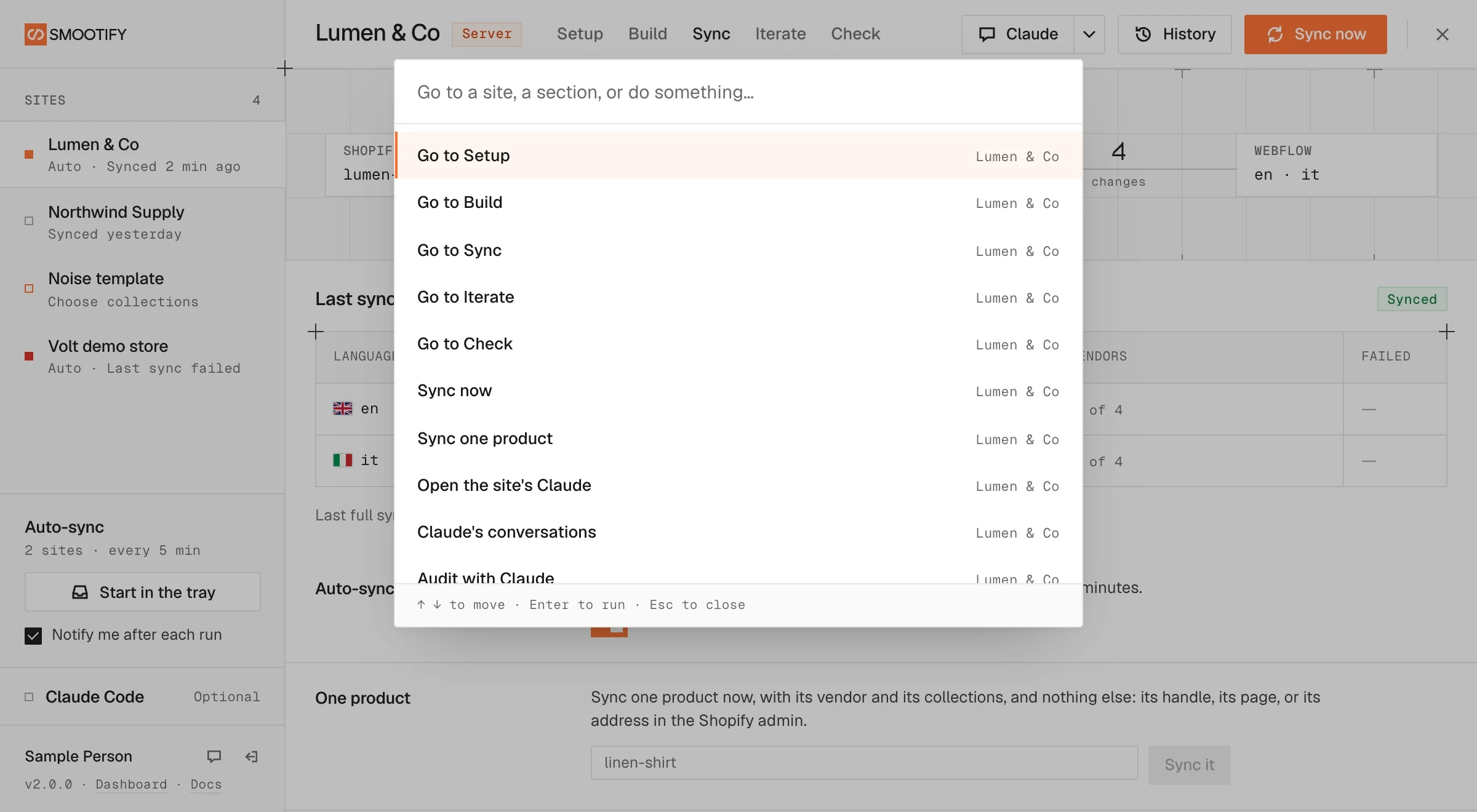
Private by design. For each conversation Studio keeps only its kind, its time and the first line you asked, never what was said. The conversation itself stays in your Claude Code.
Back where you were. A site opens on the section you left it on, and in Studio’s terminals Cmd-click (Ctrl-click on Windows) opens a link.
Screen off, still syncing. Auto-sync keeps running while the window is hidden or the screen is off.
Connect your Claude once.
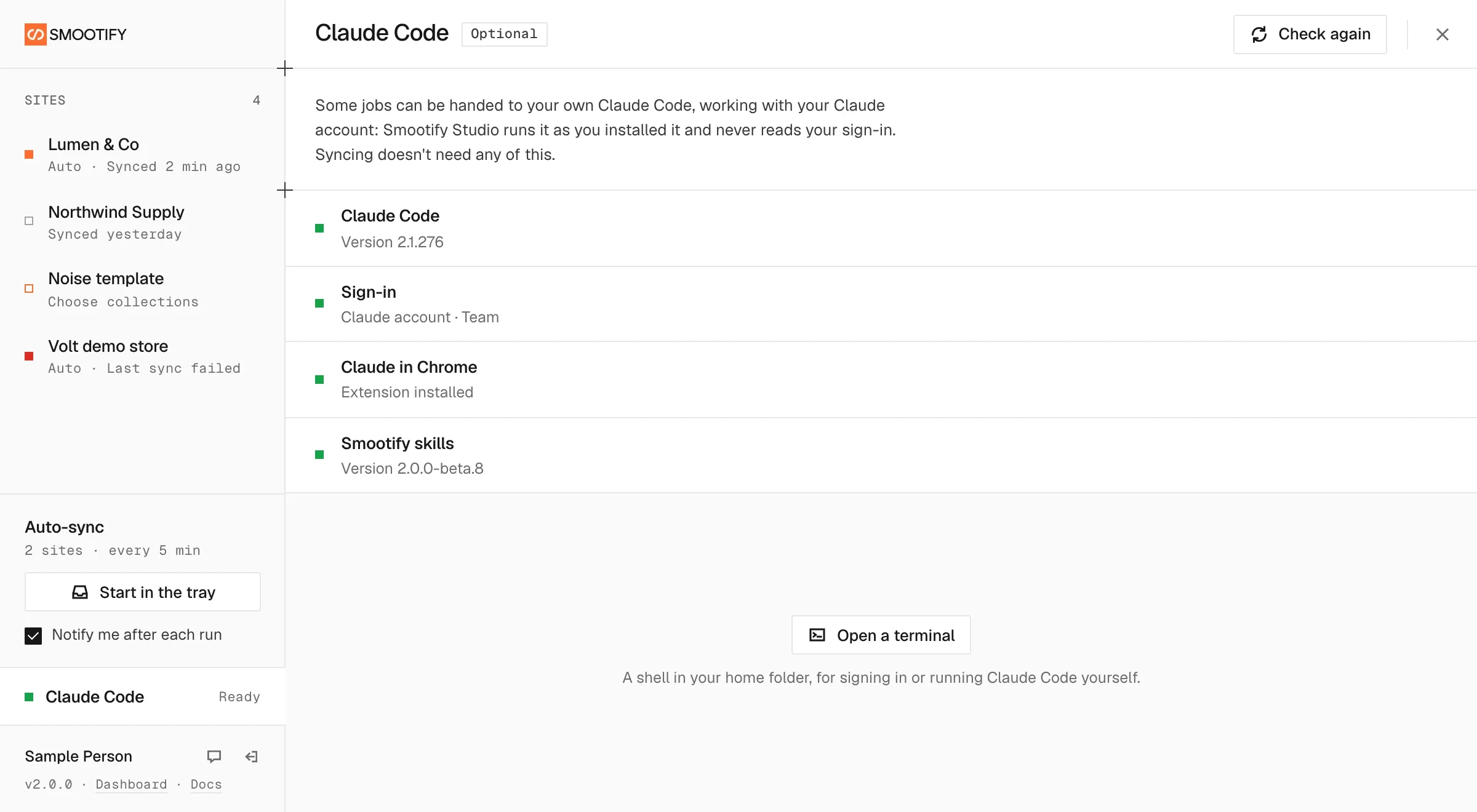
Claude in Studio is your own Claude Code, with your Claude account. Studio checks it’s installed and signed in, runs it the way you installed it and never reads your sign-in. Syncing a Webflow site and creating an Astro project don’t need any of it.
- Claude Code, detected with its version
- Your Claude account, shown as signed in
- Smootify’s skills, installed and kept up to date as a Claude Code plugin, with a notice when a new version is out
- Claude in Chrome, for the Designer settings. It needs a Claude Pro, Max, Team or Enterprise plan: with an API key Claude cannot drive the browser
- A terminal in your home folder, to sign in or run Claude Code yourself
Studio sync or server sync.
For a Webflow site, same result in the CMS. The difference is who keeps it running.
Smootify Studio
On your computerAuto-sync runs while the app is open, in the window or in the tray. Close it and syncing waits until the next time you open it.
Right while you build, and for small catalogs.
Server sync
Server planOur server syncs Shopify to Webflow automatically, with nothing running on your side. Studio still handles setup and scripts.
Right for a live store whose catalog changes often.
Which plan do I needDownload Smootify Studio.
For Mac and PC. One window for every site you build with Smootify, in Webflow or in Astro.
- One Shopify app with 17 add-ons, on the Shopify bill
- Free to build, pay only when you go live
- Works on Basic, Grow and Advanced
- Your 1.x store keeps working
- Every element stays yours to change
- Docs indexed in llms.txt