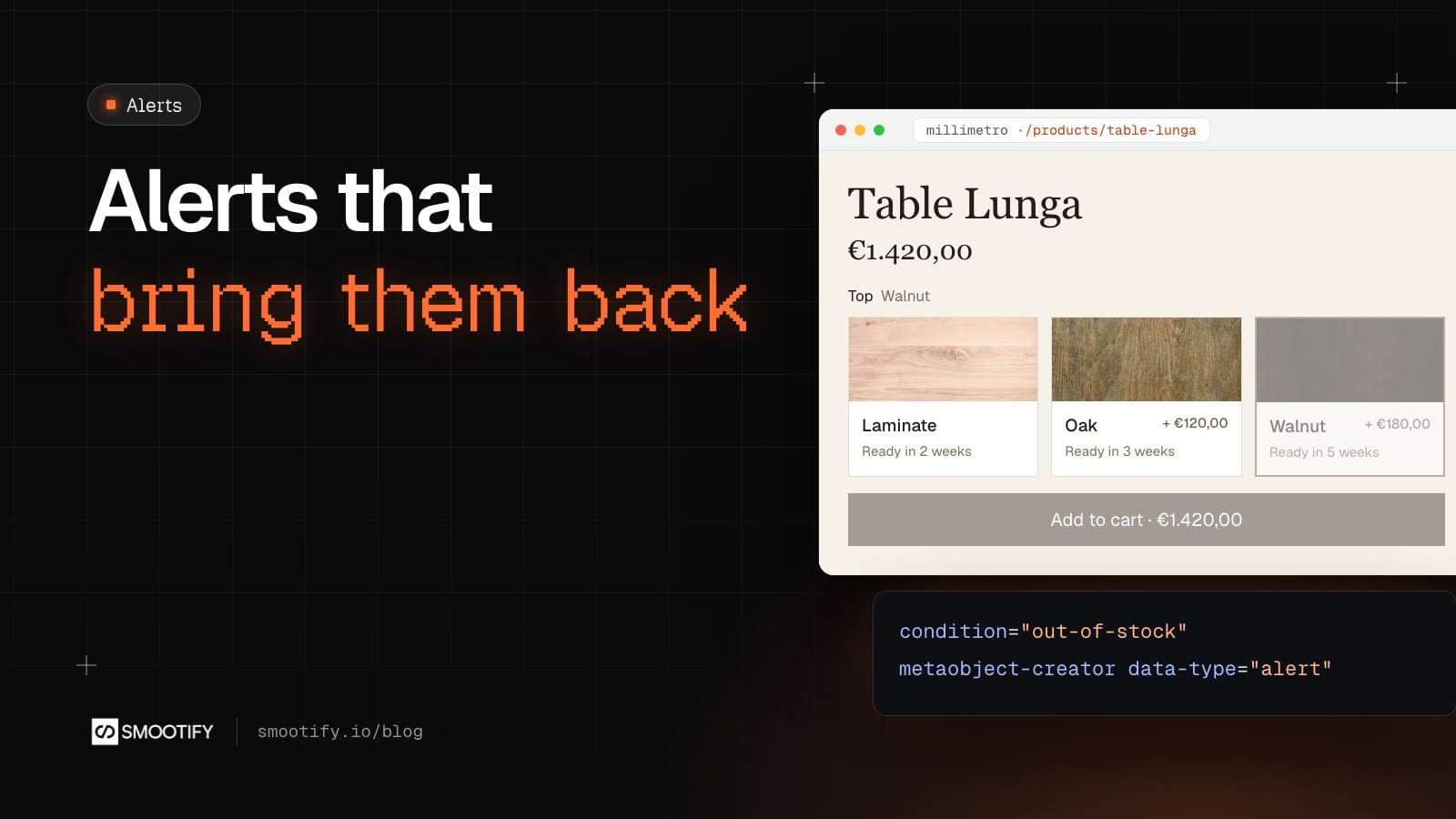
Think about what it cost to get a visitor onto a product page. An ad click, a newsletter, an hour spent on a blog post that ranks. Then the visitor picks the walnut top, sees that it is sold out, and leaves. The money for that visit is already spent, and nothing on the page tries to get it back.
Most of what a store does to sell more works on the people who are on the site right now: better photos, a clearer price, a faster checkout. A stock alert is the one thing on the site that works on traffic you have already lost. The visitor leaves an email, goes away, and the store writes to them when the reason they left is gone. You do not pay for that visit a second time.
Three alerts, one mechanism
Shoppers leave for three common reasons that an alert can fix:
- The variant is sold out. They want it when it is back.
- The price is too high today. They would buy if it dropped.
- The product is not out yet. They want to hear on launch day.
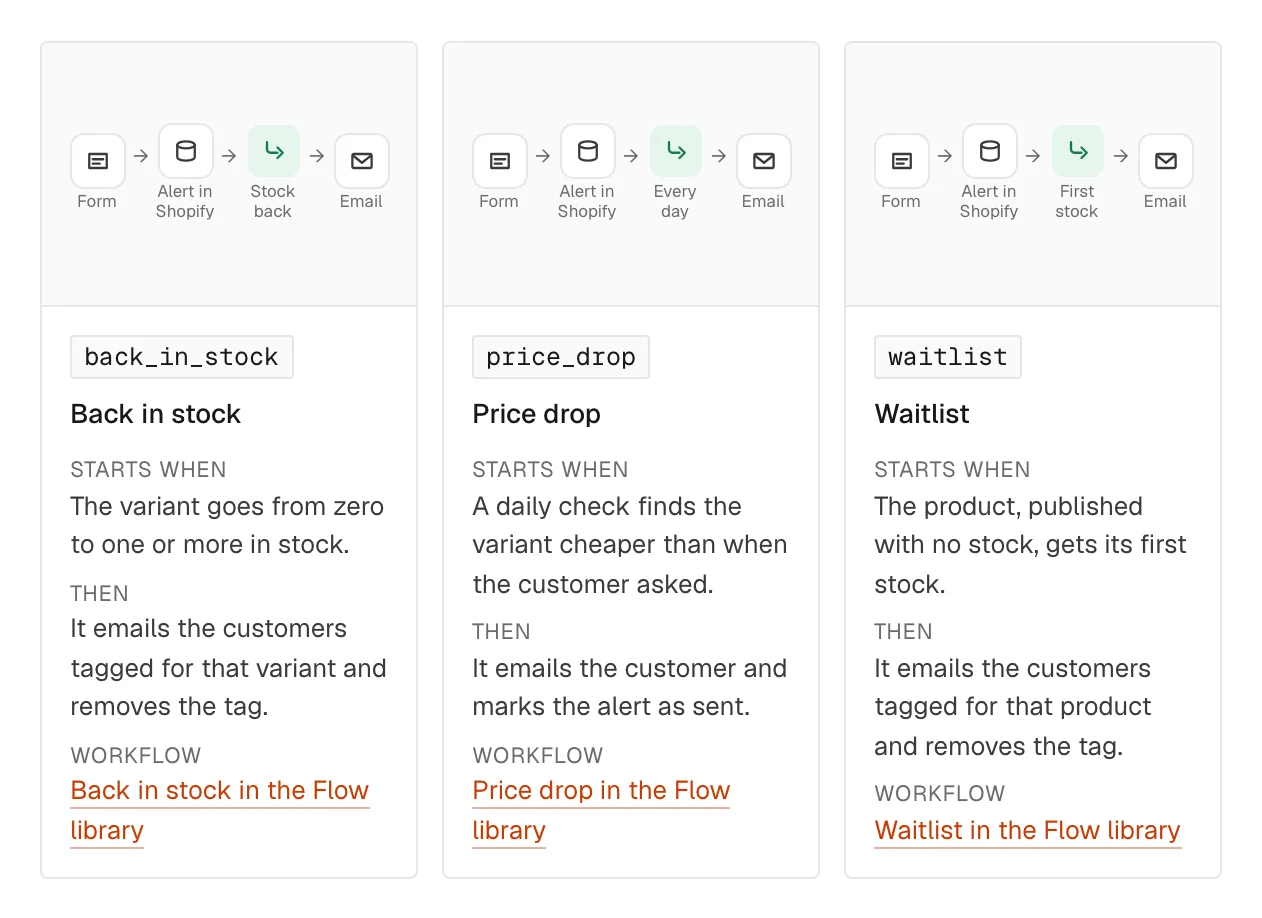
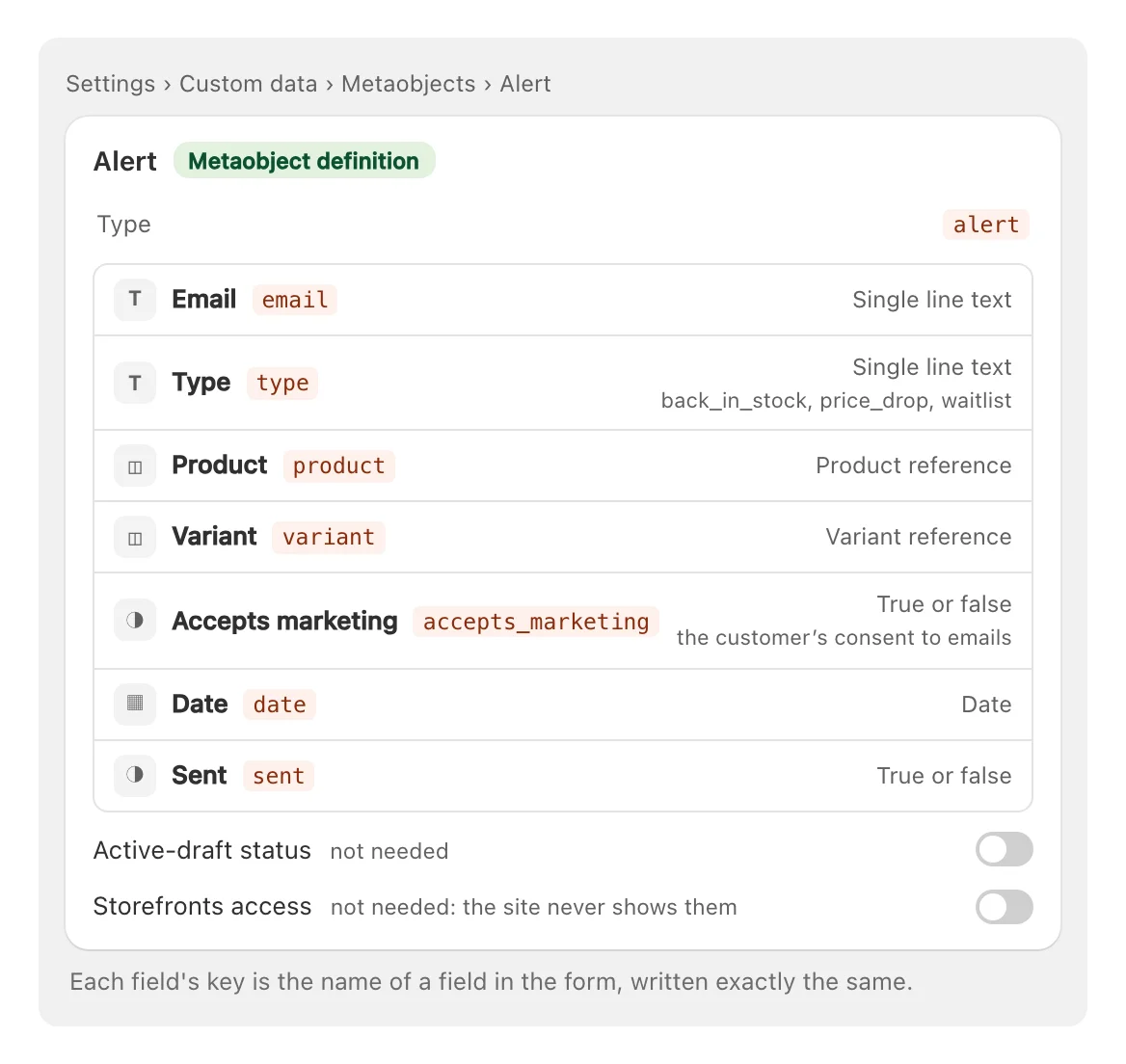
These look like three features, and most stores install three apps for them. Underneath they are the same thing: a contact, a condition to wait for, and one email when the condition comes true. In Smootify 2.0 they are the same form and the same Shopify metaobject. A single field, type, says which alert it is: back_in_stock, price_drop or waitlist. Build one and you have built all three.
The form shows itself only when it is needed
On Millimetro, our demo store of made-to-measure furniture, Table Lunga comes with a Laminate, Oak or Walnut top. Walnut is sold out. Choose it today and the page does what most stores do: the price moves to €1.420,00, the Walnut button fades, and Add to cart turns grey. Nothing else happens, and the visitor leaves.
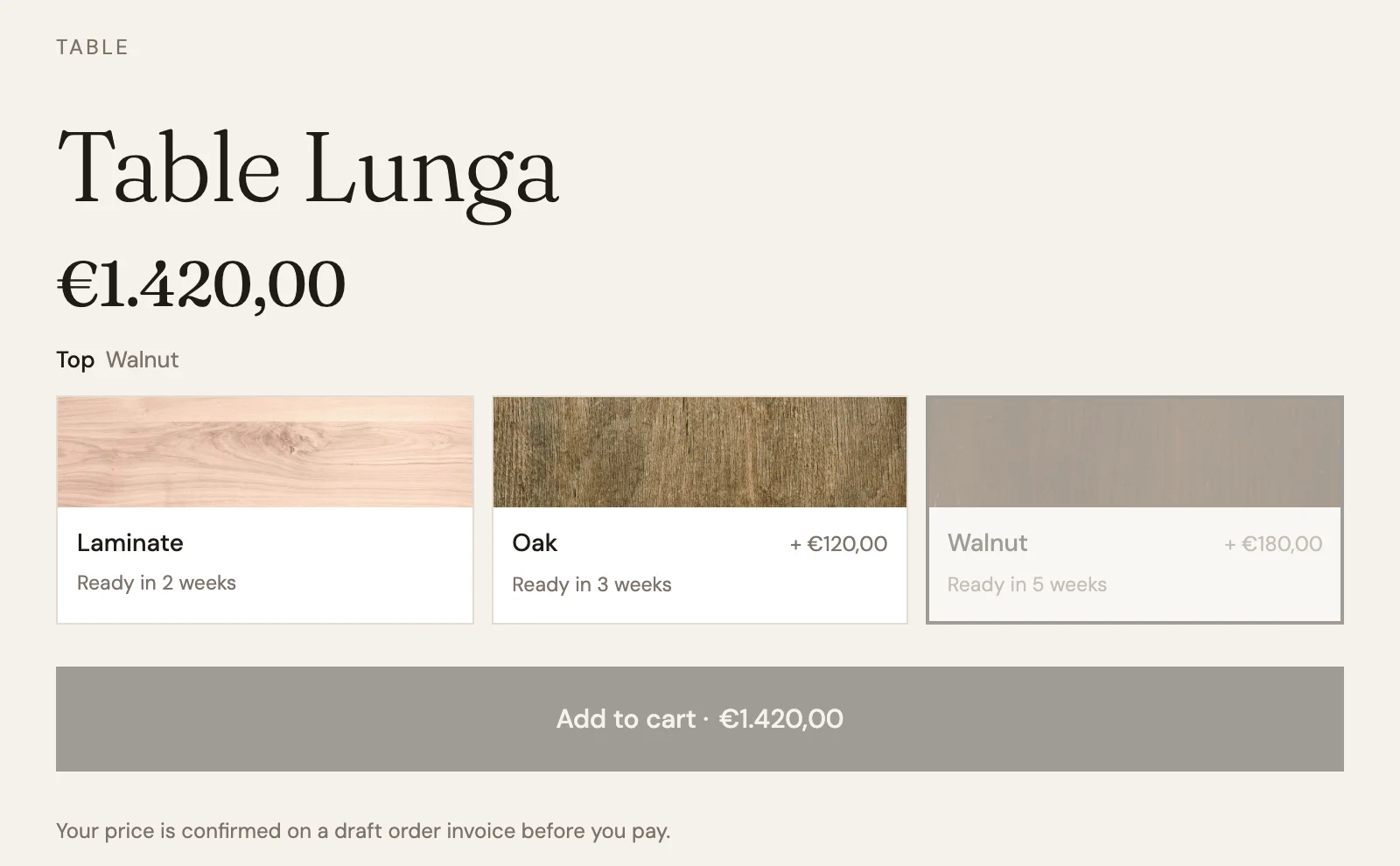
A customer who chooses Walnut should not see an Add to cart button that cannot work. They should see a short form: your email, tell me when it is back.
You do not write any logic for that. The form sits in a block with condition="out-of-stock", inside the product. While the chosen variant can be bought, the block is hidden. When the customer switches to a variant that is sold out, the block shows, and Add to cart, placed in a block with condition="in-stock", goes away. Switch back to Oak and it swaps again.
Inside the block, a metaobject-creator with data-type="alert" holds a form (a Form Block in Webflow, a plain <form> in Astro) with three things:
- an Email field named
email; - a hidden field named
type, holdingback_in_stock; - a hidden field named
variant, with the custom attributevariant="id". It takes the ID of the variant the customer is looking at and follows every change of option, so the alert is for Walnut, not for the table in general.
When the customer sends it, Smootify’s server saves an alert entry in Shopify. It needs the Server plan and the Metaobject creator add-on. The alert definition needs no Storefront access: the site never shows the alerts, it only saves them. If your page has toasts, a toast="form-sent" template confirms it without leaving the page.
Shopify Flow sends the email
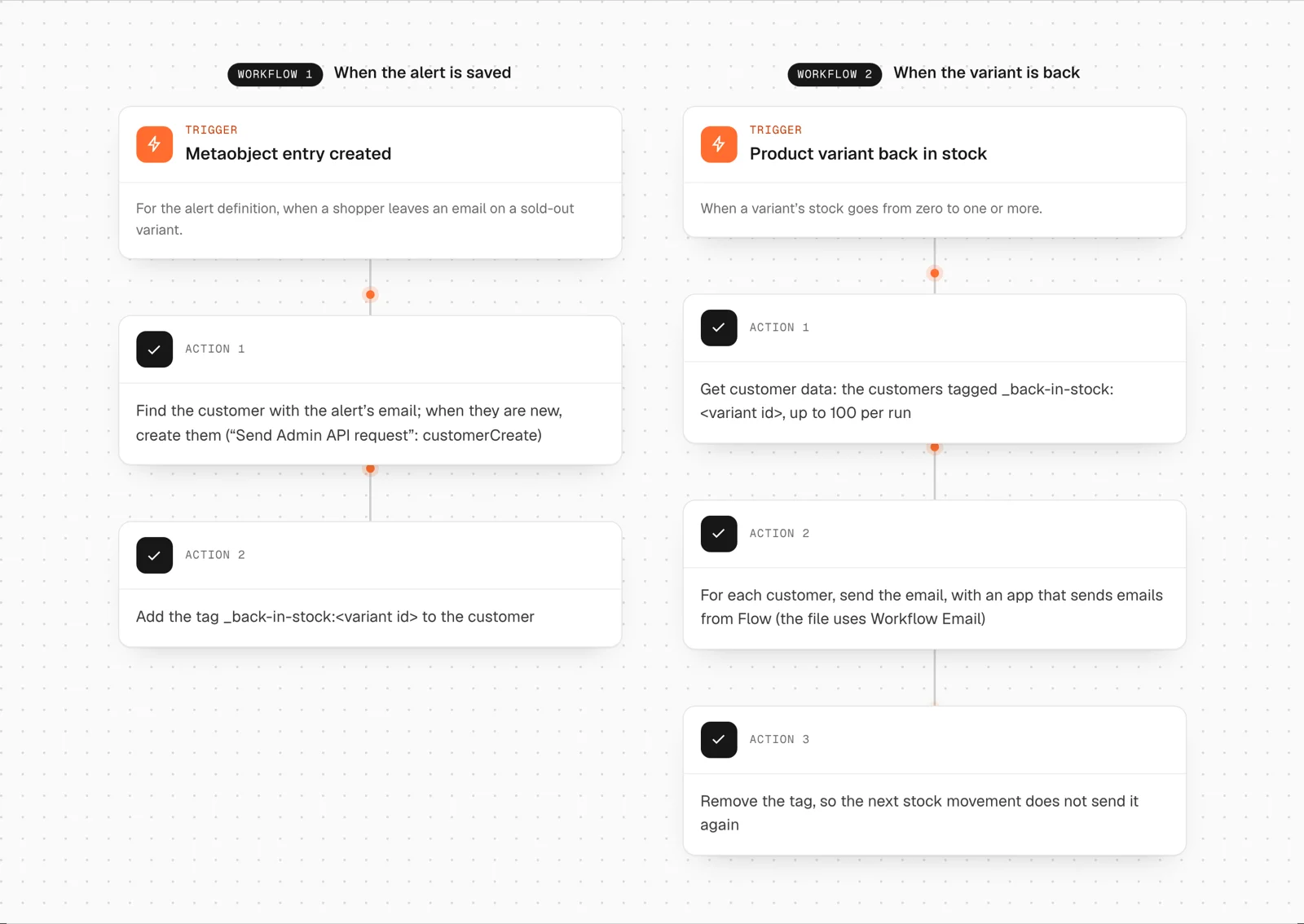
The alerts sit in your store, not in another app that keeps a copy of your customers’ emails. The free Shopify Flow app does the rest. For back in stock, the Flow library has two workflows ready to import:
- When an alert entry is created (Metaobject entry created), the first finds the customer by the alert’s email, creates them if they are new, and tags them for that variant.
- When the variant goes from zero to one or more in stock (Product variant back in stock), the second gets the tagged customers, emails each one, and removes the tag.
The waitlist works the same way for a product published with no stock: its first stock is the launch.
The price drop is different, and it is worth knowing why. Shopify Flow has no trigger for a price change. So the price drop workflows save the variant’s price when the alert is created, and a scheduled check (Scheduled time, once a day) compares it with today’s price. An alert that finds a lower price sends one email and is marked as sent. For that, the alert definition needs two more fields, price and customer. The form never sends them: the first workflow writes them.
The email needs an app that sends emails from Flow, such as Workflow Email, which the library’s files use. Shopify’s own Send marketing email is not a fit: it reaches only customers subscribed to marketing, and it cannot say which product is back.
If you already use Klaviyo, klaviyo-back-in-stock is the other road: Klaviyo keeps the requests and its Back in Stock flow sends the email.
Where it fails without telling you
Alerts break quietly. Nobody complains about an email they never got. These are the places to check:
- The form never shows. No variant tracks stock, so nothing is ever out of stock. Shopify only knows a variant is sold out if it tracks inventory.
- The form disappears on the live site. The Server plan or the Metaobject creator add-on is missing, or the page is not on the licensed domain (a
.webflow.ioaddress works once the site is paid, not during a trial). - The entry is refused. A field Name does not match a key of the definition. Webflow renames fields when you copy a form. The form’s Error message shows Shopify’s reason, so a field that does not exist is named there.
- The same email goes out twice. The workflow did not remove the tag, or did not mark the alert as sent, so the next stock movement sends it again.
- Nothing arrives. The workflows are not turned on, or the email step has no app behind it.
One more thing that is not technical: you are collecting an email address. Say on the form what you will do with it, and if alerts become a marketing channel, tie them to the customer’s marketing preferences.
The Back in stock guide covers both roads, Klaviyo and your own Shopify, and links to the three workflows. In Astro, the form is the same metaobject-creator around a plain <form>: see the metaobject creator for Astro.