You search for “webflow shopify color swatches”, land on a page that explains swatches, build what it says, and the colour dots on your product cards still do not show up. The page was right. It was about a different swatch.
Swatches are not hidden in Smootify. The problem is the opposite: the word covers seven different things, and each page explains its own without saying the others exist. This post puts them in a row, then answers the question that trips up almost everyone once they have picked the right one: where does the colour come from?
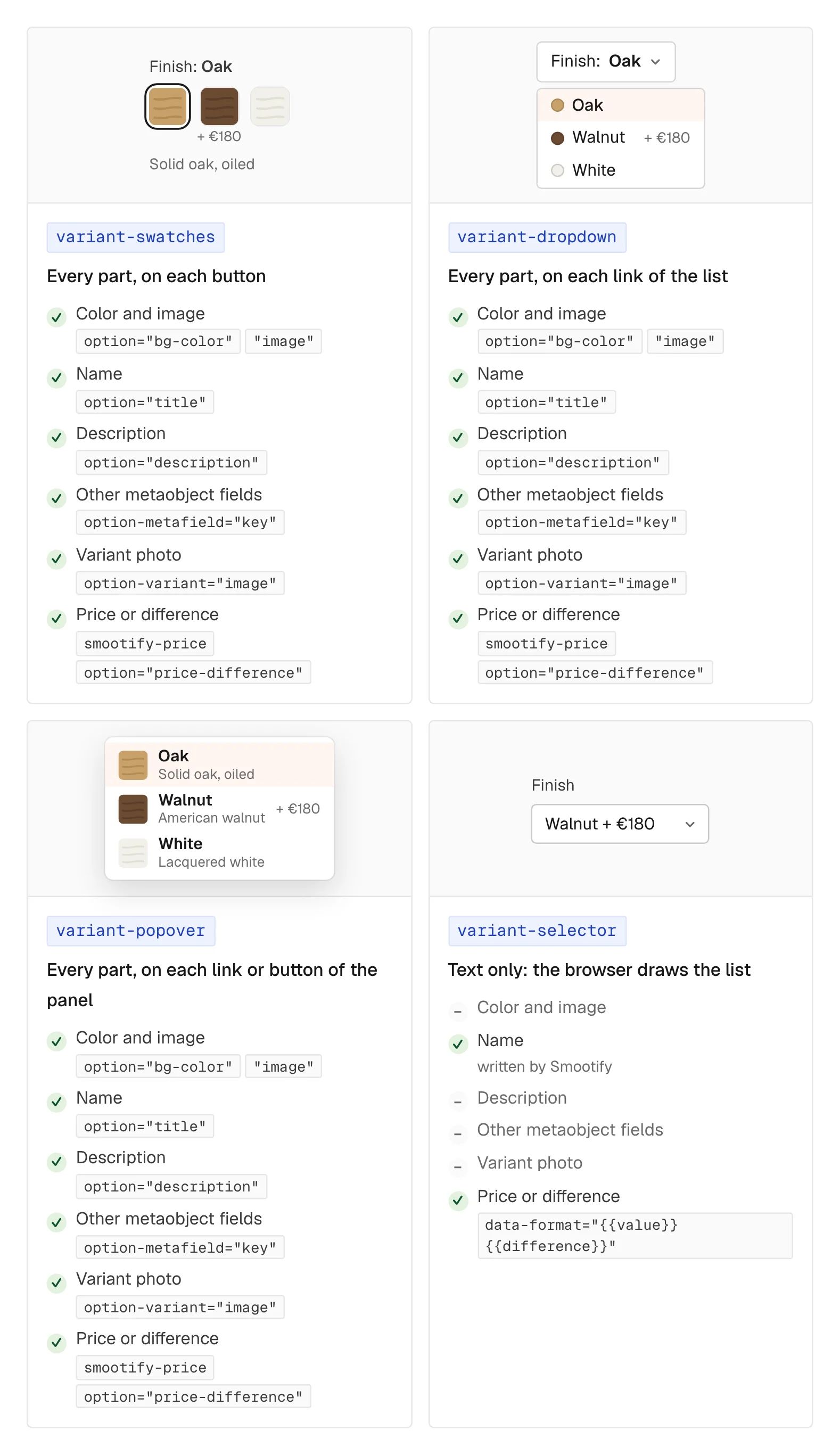
Seven things called swatch
| You want | Use | Where it goes |
|---|---|---|
| buttons to choose a variant | variant-swatches (or variant-dropdown, variant-popover) | inside smootify-product |
| colour dots on a product card | product="option-values" | inside the card’s smootify-product |
| the colour of the variant shown, not chosen | variant="swatch1" with swatch parts | inside smootify-variant |
| a colour filter on a collection page | filter-swatches | in the Search & Discovery filters |
| a choice for a product add-on | addon-swatches | inside the add-on’s product |
| a subscription plan picker | subscription-swatches | no colours: it picks a selling plan |
| a choice the merchant defines, such as a gift wrap | a dynamic property of type Swatches | no link to variants |
The first three read colours the same way. filter-swatches reads only what Shopify’s Search & Discovery app sends. The last two are swatches in name only.
Where the colour comes from
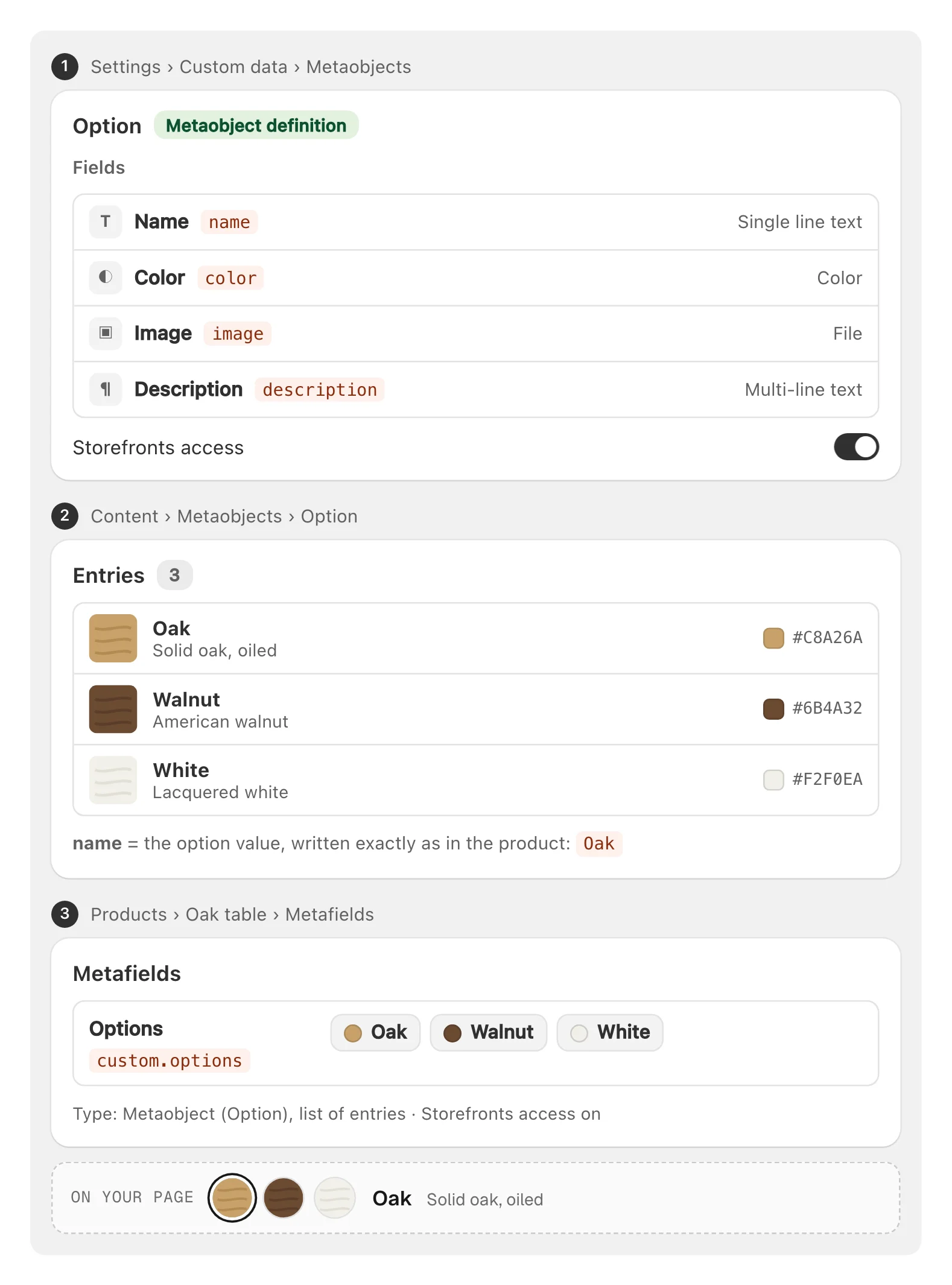
For each option value, Smootify looks in two places, in this order.
- Shopify’s native swatch. When you create an option from a category metafield such as Color, each value gets a colour or an image in Shopify. You set it once, and every product using that value shares it. This is the right answer for the most common case: the same “Navy” on fifty products. 2.0 no longer reads the shop’s colour patterns by name, so the Color metafield is the way to share a colour.
- The option metaobject. An entry named after the value, selected in the product metafield
custom.options, with a colour, an image, a description and any other field you add.
The native swatch wins, but only for the colour and the image. The description and every other field always come from the metaobject. So you can use both: Shopify’s colour, plus a metaobject that adds what Shopify cannot.
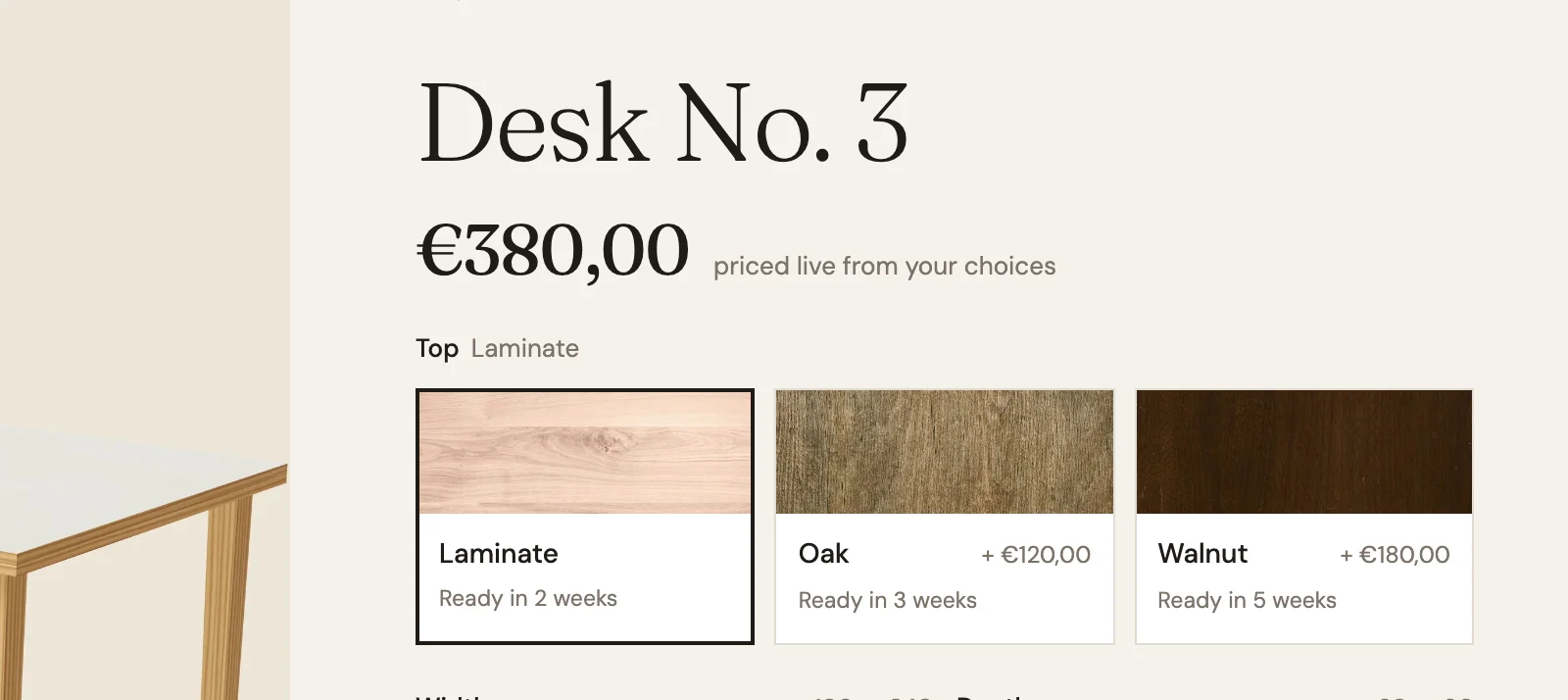
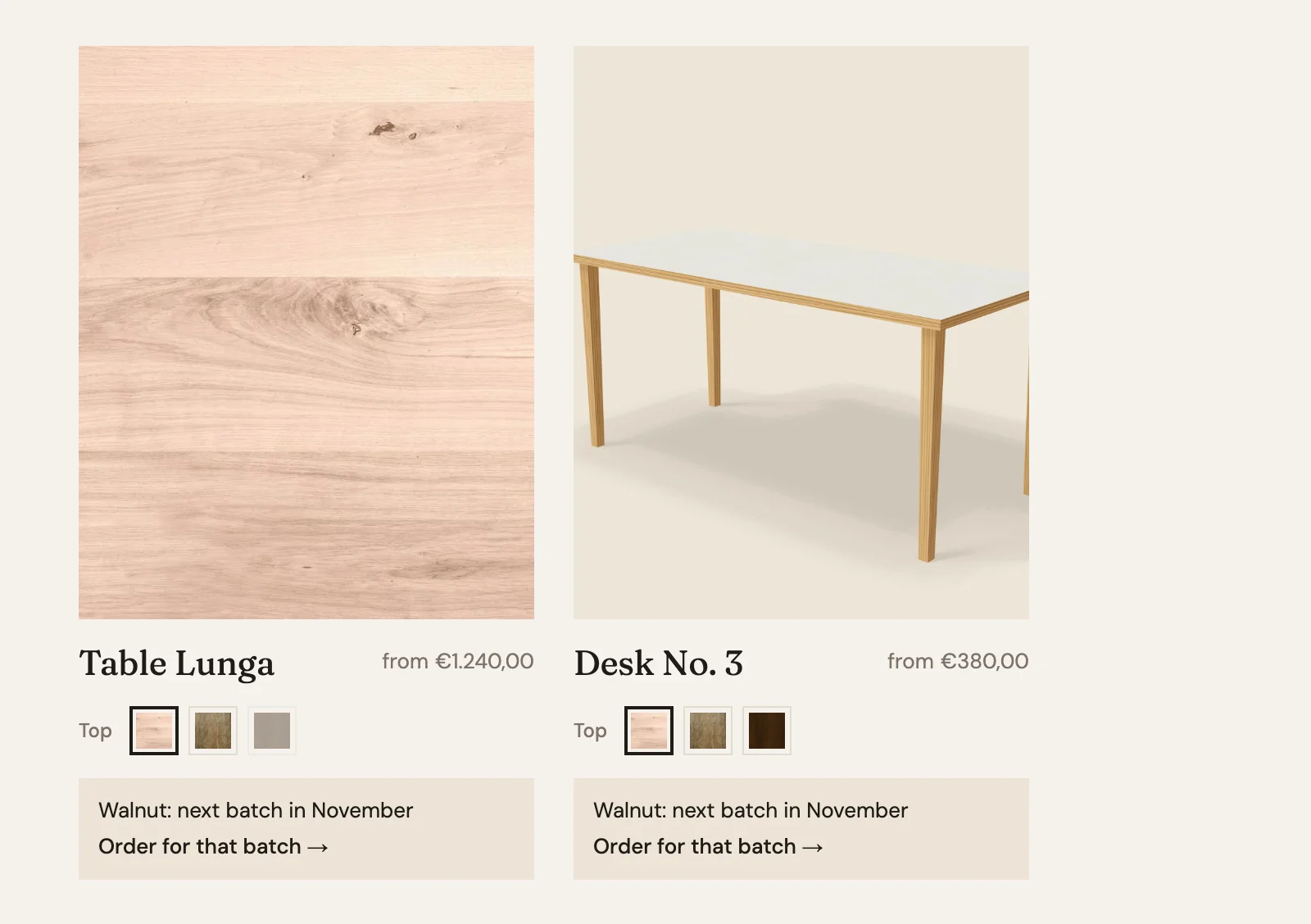
On Millimetro, our demo store of made-to-measure furniture, Desk No. 3 comes with a Laminate, Oak or Walnut top. That is a wood, not a colour, so the swatch is a photo of the sample. Desk No. 3 has no native swatches (its category is not set in Shopify), so everything comes from the option metaobjects. They give each top its image, a description (“Solid American walnut, oiled, a deep warm tone”) and two fields of Millimetro’s own: lead_time and next_batch.
Fields no swatch app gives you
option-metafield="lead_time" inside the swatch button shows any field of the metaobject, by its key. On Desk No. 3 each top says how long it takes to make: two weeks for Laminate, five for Walnut.
The collection page does the same on the product cards. Only the Walnut entry has a next_batch field, so under each card one line reads “Walnut: next batch in November”, with a link to order for that batch. The other values have no such field, and the text stays hidden for them.
The same attribute can show a RAL code for a B2B buyer, “suitable for outdoor use” on a material, or a care note that saves a return. Swatch apps for Shopify give you a colour and an image. Here the swatch can carry the fact that decides the sale.
What a value adds to the price
New in 2.0: option="price-difference" inside the button shows how much more a value costs than the cheapest one, with the other options as chosen. On Desk No. 3 the buttons read “Laminate”, “Oak + €120,00” and “Walnut + €180,00”, with data-format="+ {{price}}". The cheapest value shows nothing. Nobody types those prices into Webflow, and they follow Shopify when the price changes.
One template for a mixed catalogue
A Shopify product has up to three options, and one template page serves every product. So the product template gets three pickers, and each group around a picker gets has-option. A product with only a size keeps one group, a product with size, colour and material keeps three, a product without options keeps none. One template instead of three.
Watch the counting, because it is where this breaks: has-option counts from 0 and data-option counts from 1. The group for the first option is has-option="0", and the picker inside it is data-option="1". Or skip the numbers with data-option-name="Color,Colour", which finds the option by name, useful when suppliers order options differently.
Where it goes wrong without a word
- Only the first button counts. In
variant-swatchesthe first button is the template of every value. Attributes on the second or third button do nothing: those are only there to style the states. - The dot has no colour, but the text does.
option="color"colours the text. For a dot, useoption="bg-color". Insidesmootify-variant,swatch="color"is already the background. - The metaobject’s colour is ignored. The value has a native swatch, and that wins for colour and image.
- Nothing comes from the metaobject. The entry’s
namedoes not match the value, a field key is notname,color,imageordescription, the entry is not selected incustom.options, or a definition has no Storefront access. - A Color option has empty swatches. It was linked to the Color metafield after it was created. Shopify does not fill it: delete the option and add it again from the metafield, after noting SKUs, prices and stock.
The Swatch colours and images guide has the set-up in Shopify for both sources and every attribute.