Ask a merchant which products sell best and they can tell you in seconds. Shopify has every order since the store opened. Ask their Webflow site the same question and it has no idea. The CMS holds product names, images and descriptions, synced from Shopify. It does not hold orders, and it never will.
So the “Best sellers” row on most Webflow stores is a lie of convenience. Someone made a collection called “Best sellers”, picked eight products by hand, and forgot about it. Six months later two of them are discontinued and the actual top seller is not on the list. Our own demo store does it too, for a different reason: Sunday Crate’s “Customer favourites” row reads a hand-picked collection, because a development store has almost no orders to rank.
The same goes for “You may also like”, “Recently viewed” and “Your usual order”. None of these lists can be built with a Collection list, because the data they need lives in Shopify, or in the visitor’s browser, and not in the Webflow CMS.
One card, one attribute
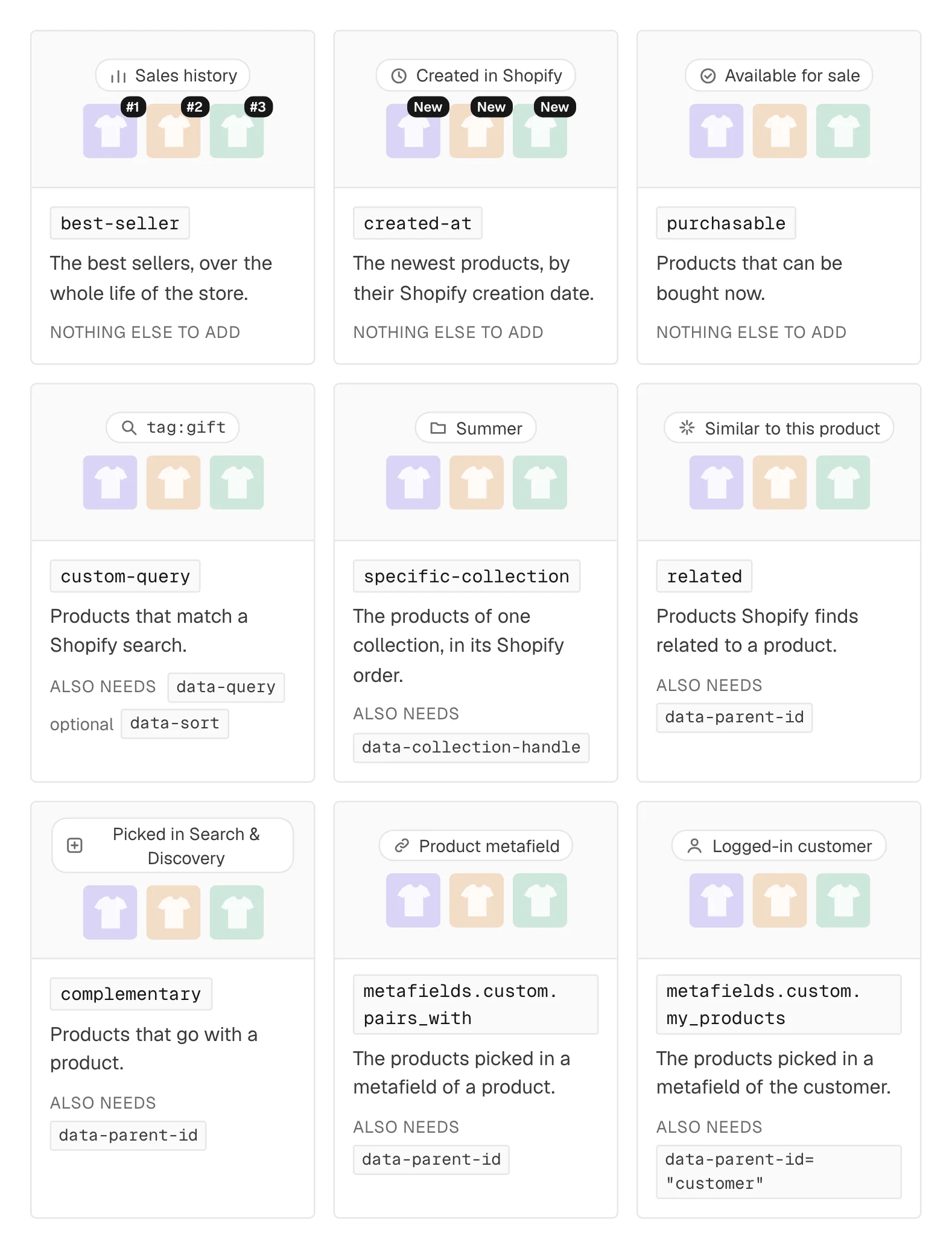
With Smootify 2.0, these lists skip the CMS. You design one product card, a smootify-product, and give it a data-id. Smootify asks Shopify for the products and repeats the card once per result. No Collection list, no sync, no CMS items used.
data-id | What fills the card |
|---|---|
best-seller | best sellers over the whole life of the store |
created-at | newest products, by their Shopify creation date |
purchasable | products that can be bought right now |
related / complementary | products Shopify links to the one in data-parent-id |
custom-query | any Shopify product search, with data-query and data-sort |
specific-collection | one collection, in its Shopify order |
last-viewed | what this visitor opened last |
wishlist | what this visitor saved |
best-seller and created-at read data that Webflow never receives: the sales history and the date each product was created in Shopify.
How Sunday Crate uses them
Sunday Crate is our breakfast-box demo store, and almost every page has a list that does not come from the CMS.
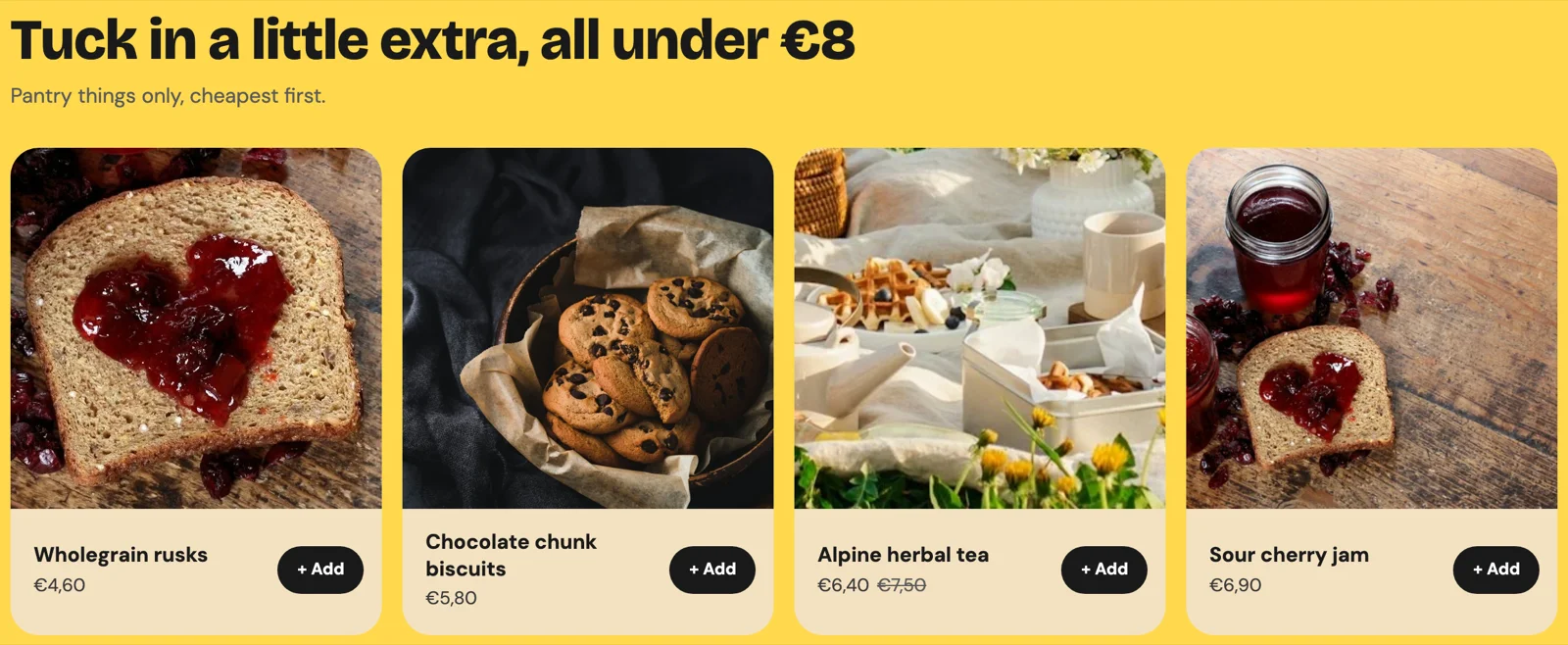
Under every gift crate, a cheap extra. The page of each gift crate ends with “Tuck in a little extra, all under €8”. It is one card with data-id="custom-query", data-query="tag:pantry AND variants.price:<8" and data-sort="PRICE", in a section that shows only on products tagged gift in Shopify. On 15 October it lists six things, from wholegrain rusks at €4,60 to Taggiasca olives at €7,80. When the shop tags a new jar of jam as pantry in Shopify, it appears there. Nobody touches Webflow.
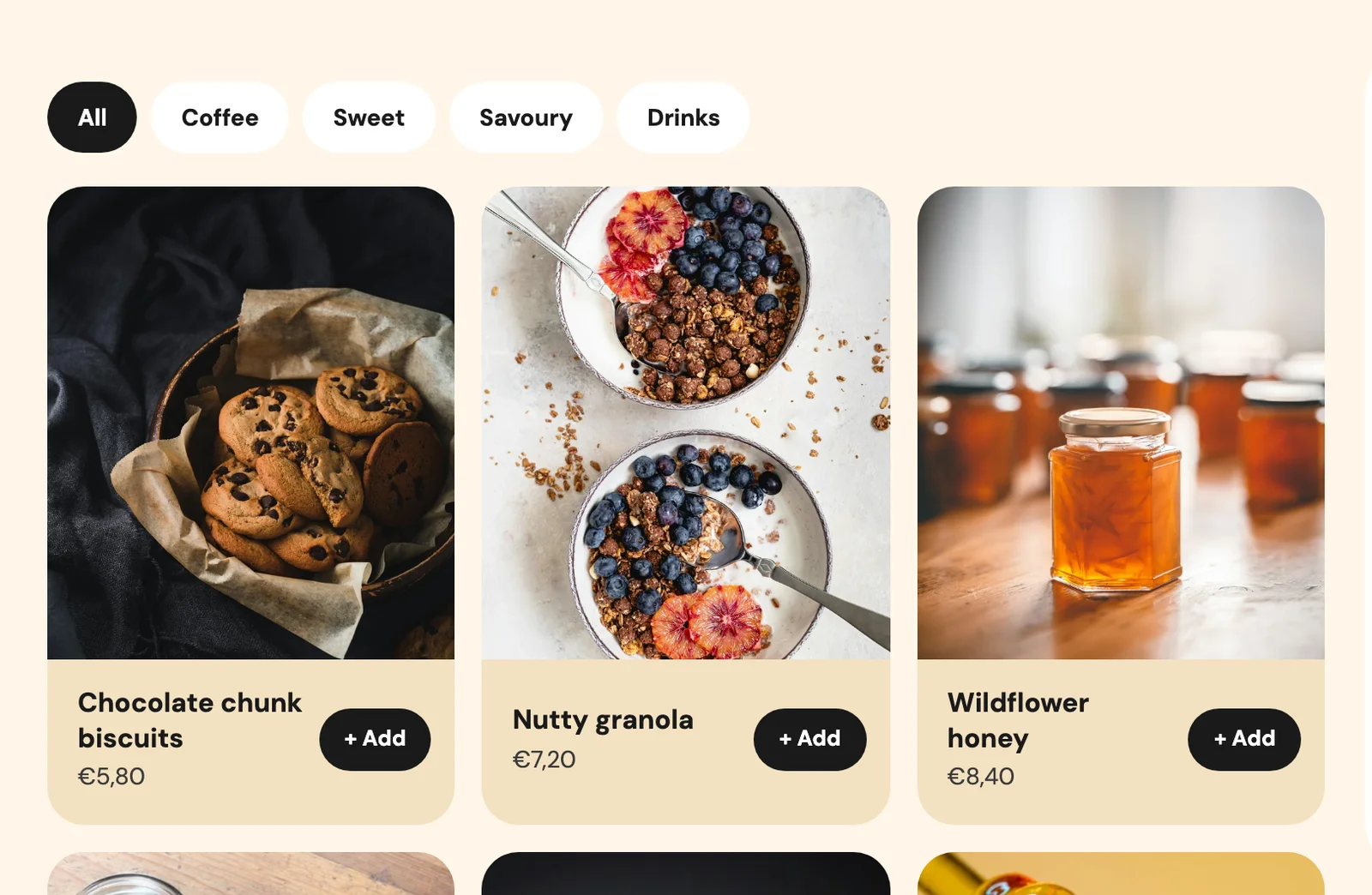
Crates by theme. “Build your crate” has five tabs, All, Coffee, Sweet, Savoury and Drinks. Each tab holds a specific-collection card with its own data-collection-handle (All reads the pantry collection). The order of each shelf is the order the merchant set in Shopify.
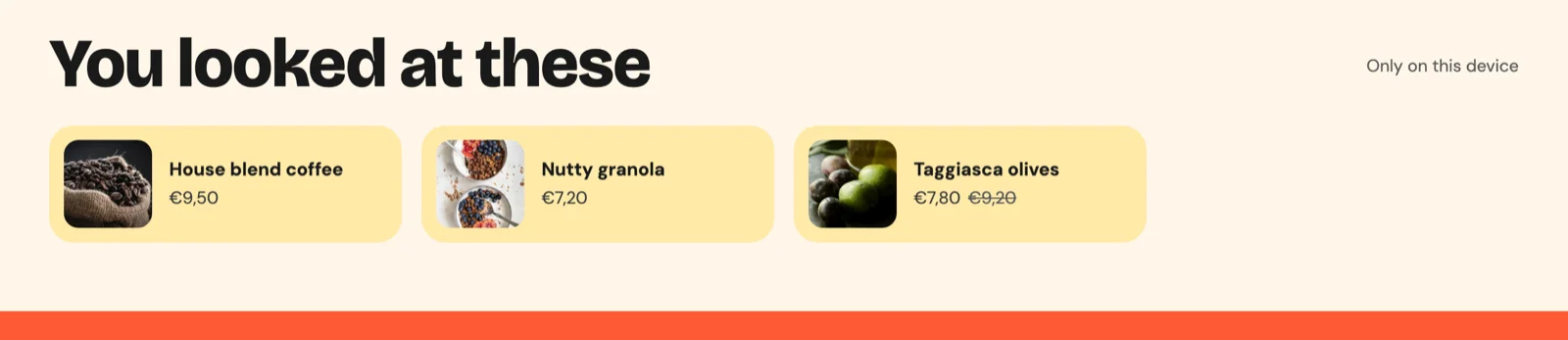
Recently viewed. The home page has a row called “You looked at these”, with data-id="last-viewed". Its section carries condition="has-items-in-last-viewed", so a first-time visitor never sees an empty heading. Smootify keeps the list in the browser and, for a customer logged in with customer accounts, in their account too, so it follows them to another device.
The one nobody knows: lists picked per customer
This is the part we want you to remember.
Sunday Crate’s account page has a section called “Your usuals”, for the products a customer orders all the time. The merchant keeps that list by hand in Shopify, customer by customer. You will not see it as a visitor: it needs a logged-in customer with products picked, and for everyone else the section is not there at all.
There is no recommendation engine behind it. The list is a customer metafield, custom.usuals, of type “list of products”. For Smootify to read it, the definition needs its Customer accounts access set to Read. On each customer, the merchant picks the products. On the site, the section is Sunday Crate’s usual product card inside a wrapper:
data-parent-id="customer" tells Smootify to read the metafield of the logged-in customer instead of a product. There is no limit: a metafield list always shows every product picked in it. The wrapper has if-customer-metafield="usuals", so the heading only shows for customers who have usuals.
The same pattern works for a wholesale buyer’s own catalog, a “picked for you” row after a styling call, or the refills that go with what someone bought. The merchant decides, in Shopify, and the site shows it with the store’s own card design.
Where it goes wrong, quietly
These lists rarely throw an error. When something is off, the card just disappears or shows less than you expect. These are the cases we see most:
- Only three products show. Without
limit, a list shows 3. Related and complementary lists show everything Shopify returns, a metafield list shows every product picked in it, and recently viewed shows up to 10. - Related or complementary products vanish.
data-parent-idis missing. Bind it to theShopify IDfield of the product page; without it, Smootify removes the element. - Complementary products never show. Shopify only knows them if you picked them in the Search & Discovery app. If nothing is set there, the list is empty, and the markup is fine.
- “Your usuals” stays hidden. The value must be exactly
customer, the visitor must be logged in with customer accounts, and the metafield needs Customer accounts access. A visitor who is logged out, or a customer with no products picked, gets no section at all. - The metafield list is empty. The metafield must be a product reference or a list of product references, with Storefront access for product metafields.
For the empty cases, every list adds a class on the page’s body while it has products, such as has-best-seller or, for the customer list, has-customer-custom-usuals. For related and complementary products, condition="has-related" and condition="has-complementary" hide the whole section in the Designer.
Try it on your store
You need no add-on for the product lists, and nothing goes through the CMS. Recently viewed and wishlist are free add-ons you turn on in the Smootify dashboard. Customer lists need customer accounts on the site.
Every value, the slider behaviour and the classes are in the guide: Product lists without the CMS.