
A trade customer opens an account with a parts supplier. Before the first invoice can go out without VAT, someone at the supplier needs the customer’s VAT registration. So it arrives by email, as a PDF. Someone saves it to a shared drive, renames it, types a note on the customer record in Shopify and hopes the next colleague finds it. When the certificate is renewed a year later, the whole thing happens again, and now there are two PDFs and nobody is sure which one is current.
That is a file upload problem, and most stores solve it with an inbox. Smootify has five ways to solve it inside the site, and that is the trouble: the five are documented on five different pages, and whoever lands on one of them assumes it is the only one.
So here is the whole thing on one page. File uploads in Smootify 2.0 are one capability with five places a file can land. The upload area is the same in every case, and so are the elements, whether you build the store in Webflow or in Astro. What changes is where the file ends up in Shopify, and that is the only choice you have to make.
Where do you want the file to end up?
| The file belongs to | Element | Where it goes in Shopify |
|---|---|---|
| a product the customer is buying | file-uploader | the order line |
| the customer, for good | file-input in customer-metafields-editor | a File metafield on the customer |
| the whole cart | file-input in the cart’s Form | the order’s additional details |
| something the customer submits | file-input in metaobject-creator | a file field of a metaobject entry |
| the price of a configured product | configurator-file-input | the order line, and the formula |
Three different elements, five destinations. file-uploader writes to the cart line. file-input writes a field of whatever form it sits in. configurator-file-input writes to the line like file-uploader and also counts its files, so a formula such as price + 2 * file can charge per file.
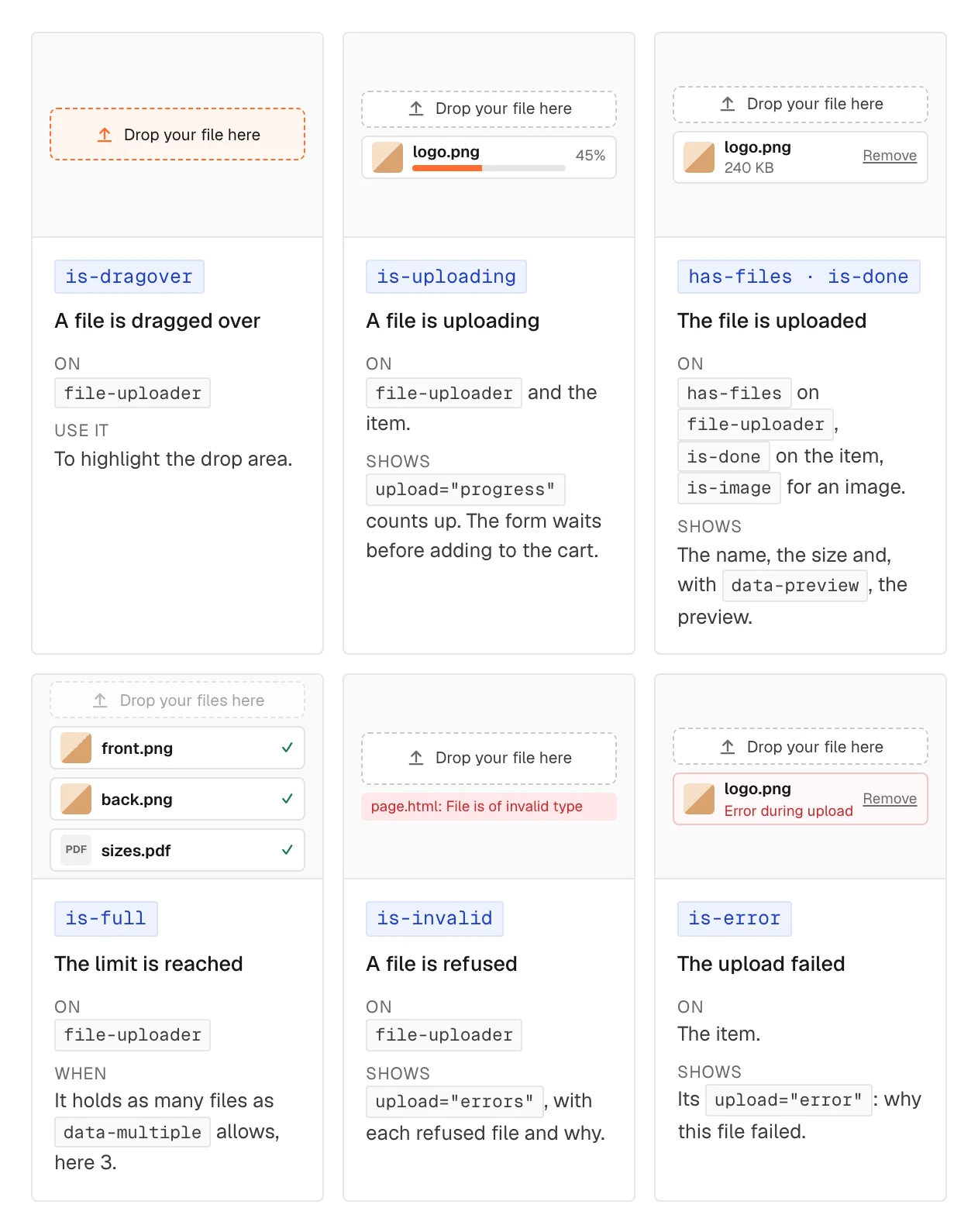
On Spannbach, our B2B demo store for industrial parts, the first place is on every product page. A customer ordering a Linear guide rail LG-20 can add a drawing to that line, and the drawing travels with the order.

The one nobody knows: documents that belong to the customer
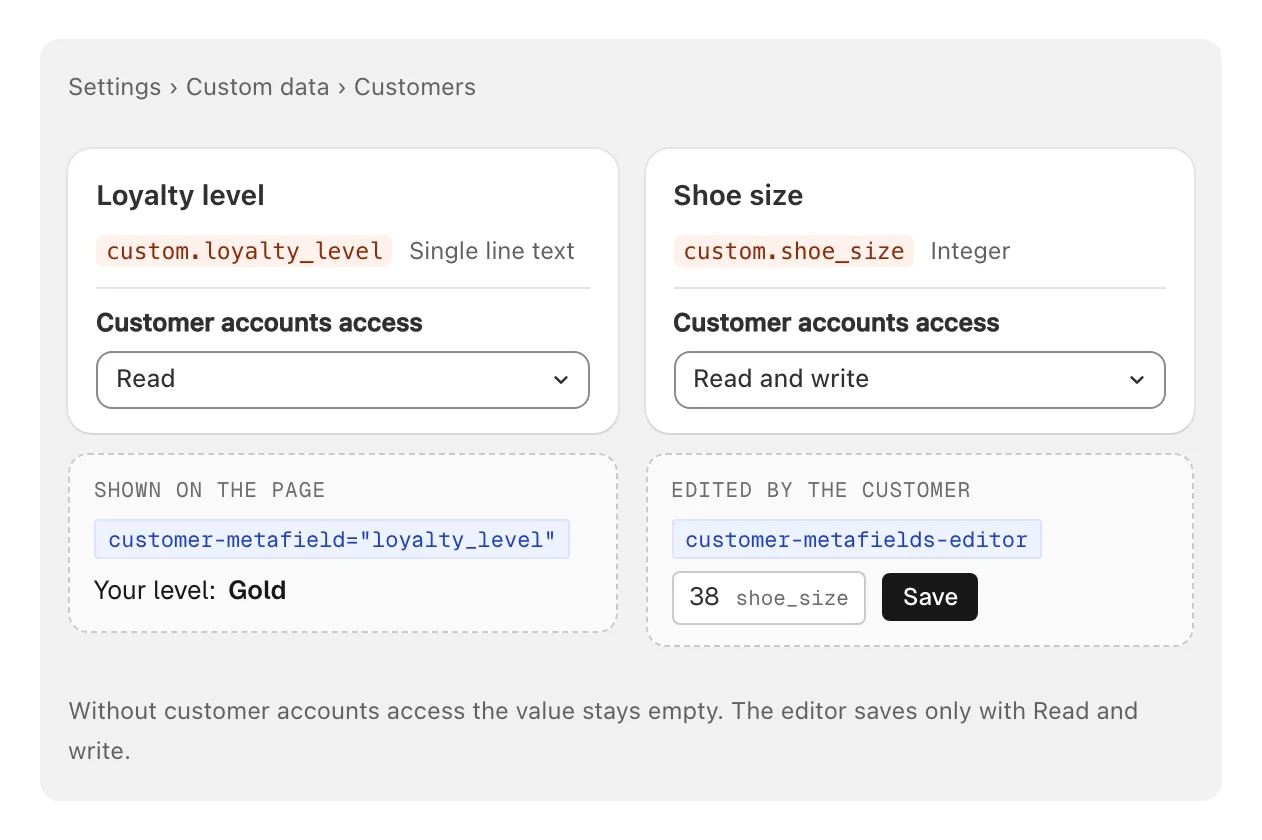
Back to the VAT certificate. On Spannbach the account page has a card called Documents on file. It holds three upload areas: VAT registration, the signed framework agreement and a company logo for engraved tags. Each is a file-input inside customer-metafields-editor, and each name is the key of a customer metafield of type File: vat_certificate, framework_agreement, logo.
Tessa Brunner, the buyer at Acme Automation SA, uploads the certificate once. It is saved in a File metafield on her customer record in Shopify, where the sales team can open it. When she comes back to the page, the file is there, with its name, and a preview if it is an image. She can remove it and upload the renewed one. That is the difference between a form and a record: a form sends something away, a record shows you what you sent and lets you fix it.
For a store that sells to companies, this is worth more than any of the other four places. A tax exemption certificate, an installer licence, a logo that goes on every custom order: uploaded once, valid for every order after it.
The Shopify side is two settings: a customer metafield definition of type File, with Customer accounts access set to Read and write. Without write access, the editor cannot save.
The file stays in Shopify
In all five cases the file goes straight from the browser into your store’s Shopify Files. There is no extra upload service to pay for every month. A file on an order line is next to the order. A file on a customer is on the customer. A warranty claim with three photos is a metaobject entry with three files.
Spannbach’s trade account application works that way. The company register extract is a file-input inside a metaobject-creator, and it lands in the register_extract field of the application entry, next to the company name and the VAT number. Whoever approves the account finds the document in the entry, not in an inbox.

When a file comes in with a product, as with the drawing a Spannbach customer adds to a rail order, the order also gets a link to the file, hidden from the customer. Whoever prepares the order clicks it and lands on the file in the Shopify admin. If you test this logged in as a customer, the link looks broken: it is meant for staff, so it needs a staff login.
The limits are Shopify’s
1.x accepted a short, fixed list of types: PNG, JPG, WebP, CSV, PDF and JSON. 2.0 applies Shopify’s own limits and nothing stricter:
- every type except HTML: PDF, ZIP, AI, PSD, DOCX, CSV, images and the rest;
- at most 20 MB per file. A
max-file-sizeabove20MBdoes not help, Shopify refuses the file; - JPEG, PNG, WebP, HEIC and GIF images up to 25 megapixels, and no more than 100 times wider than high, or the reverse.
data-only-images keeps it to those five image types, and max-file-size, min-file-size and min-resolution make the limits tighter for a print shop that needs sharp artwork. For print files above 20 MB, file uploads are the wrong tool: use an external upload service.
Three things that stop people
The field disappears. Every upload needs the Server plan, on the site’s licensed domain (a .webflow.io address works once the site is paid, not during a trial). Outside the Server plan, file-input elements are taken out of the page, so the form simply has no file field and nothing tells you why. file-uploader also needs the Product File Upload add-on, configurator-file-input the Product configurator add-on, and metaobject-creator the Metaobject creator add-on.
Several files, one field. With data-multiple, the destination must be a list of files (list.file_reference), not a single file. A single File metafield refuses the value.
The underscore. In metaobject-creator and in the customer metafields editor, a field whose Name starts with _ is never saved. That is on purpose: use it for a checkbox the form needs and Shopify does not, such as accepting your terms.
The File uploads guide has the parts, the limits and the error messages, and links to the four other places. Building in Astro? The same file-input goes inside a plain <form>: see the metaobject creator for Astro.