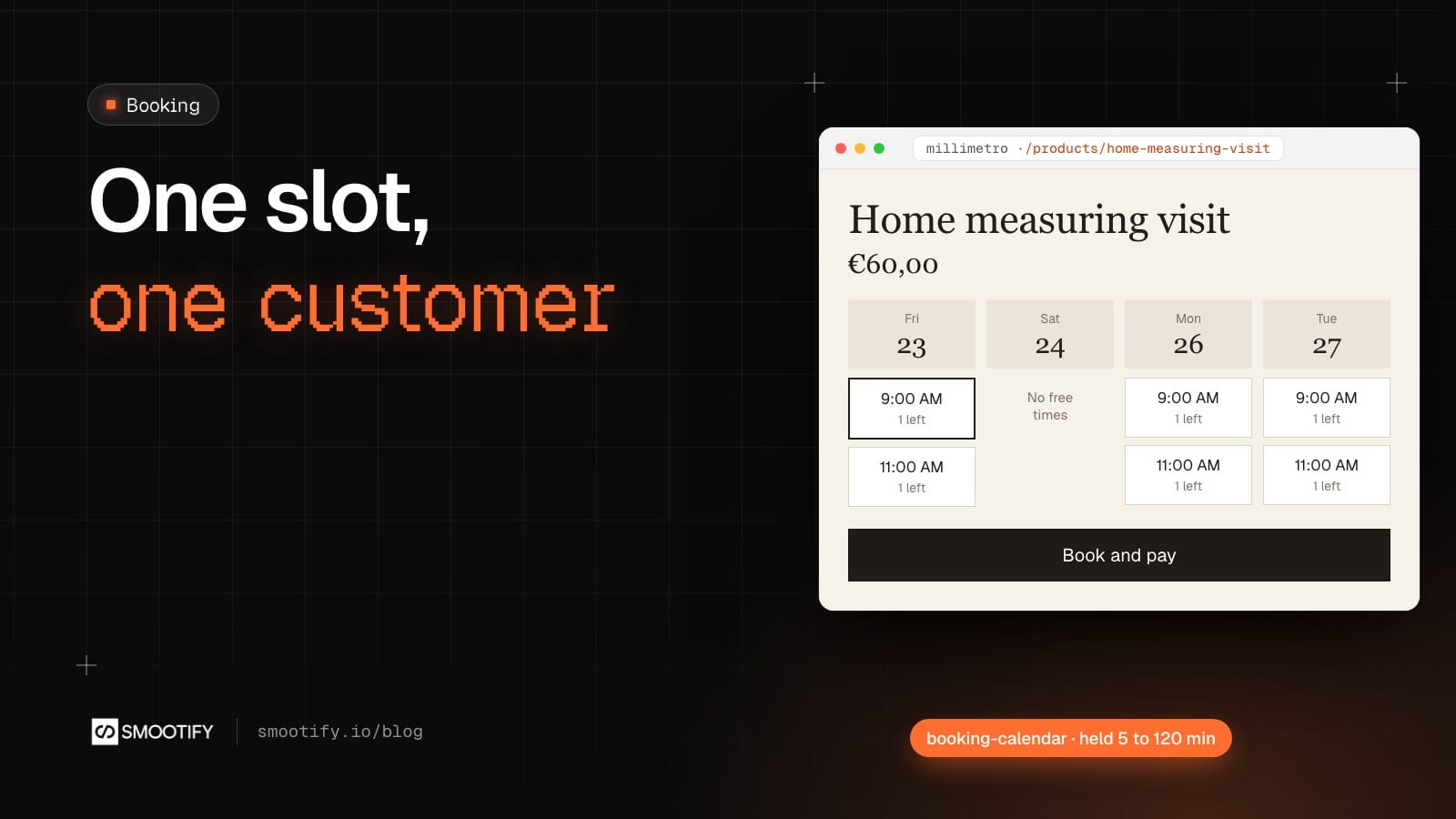
Two customers are on the same delivery page at 21:58 on a Friday. One window is left for Sunday morning. Both click it, both see it turn green, both pay. On Sunday one of them gets a crate and the other gets an apology.
Anyone who sells time on a Shopify store with its own front end, in Webflow or Astro, has met some version of this: a delivery window, a fitting, a workshop seat. There have been two ways to build it. A grid made by hand with the CMS, which shows the hours but cannot count. Or a booking app with its own widget, often its own cart and sometimes its own checkout. Neither settles the last place taken by two people in the same second, because that cannot be settled in a browser. Each browser only knows what it saw a moment ago.
Smootify 2.0 settles it on the server.
The places are counted one at a time
Every bookable product has a register of its places on Smootify’s server, and that register handles requests one after the other, never two at once. When two customers ask for the last place, the first request takes it and the second is refused, so two customers never get the last one. The customer who came second sees the error you designed for it, and the calendar shows the places that are really left.
The place is then held while the customer pays. You choose the hold time on the product, from 5 to 120 minutes. A hold that runs out frees the place by itself, and if Shopify refuses the addition or the network fails, the place is given back at once.
Three ways, one calendar
The calendar is a Custom element, booking-calendar, and it books according to where you put it. Our demo stores use all three.
A delivery window in the cart (Sunday Crate). In the cart drawer, above the checkout button, the customer picks a delivery window: one-hour windows at 8, 9 and 10 on Friday, Saturday and Sunday mornings, 8 places each. The choice is written on the cart as “Delivery” with the day and the time. Picking holds nothing, so a customer who tries three windows blocks none of them. At checkout Smootify holds the window for the payment; if someone took it in the meantime, the checkout stops and the calendar shows why.
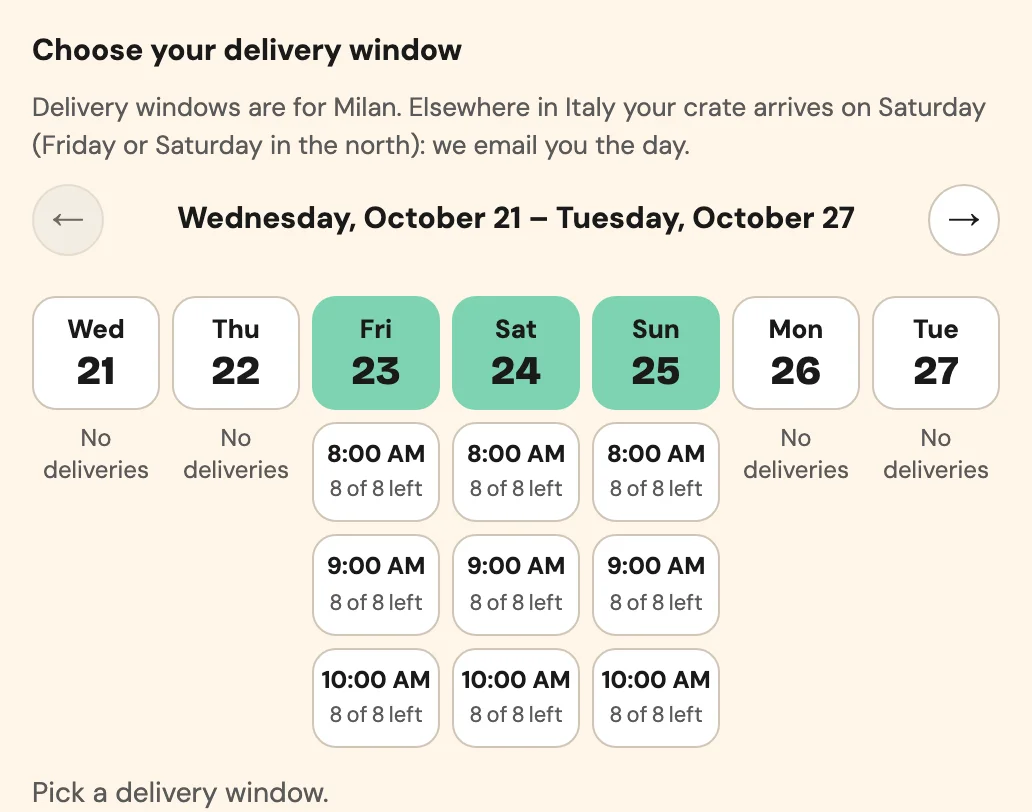
The window is required only if you say so. Sunday Crate puts data-required on the calendar with data-error-required="Choose a delivery window", so nobody pays for a crate without a delivery time. Without the attribute, the customer can skip it. For a delivery, add it.
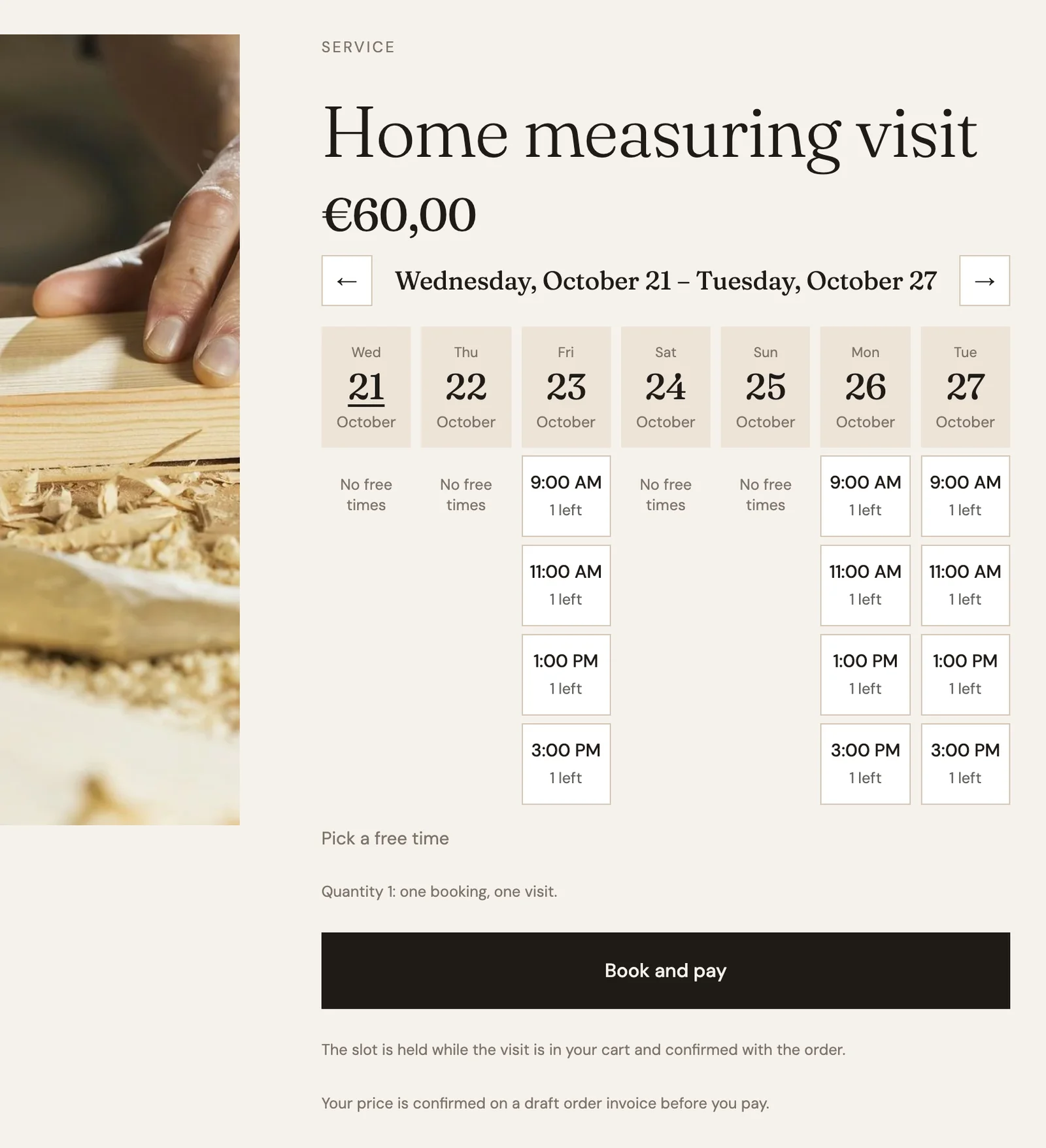
A paid appointment (Millimetro). The “Home measuring visit” costs €60 and comes with a time: four slots a day, one place each. The calendar sits inside the product’s add-to-cart form: adding the visit holds the slot and writes it on the cart line as “Appointment” with the day and the time. Without a slot, or with a full one, the visit is not added.
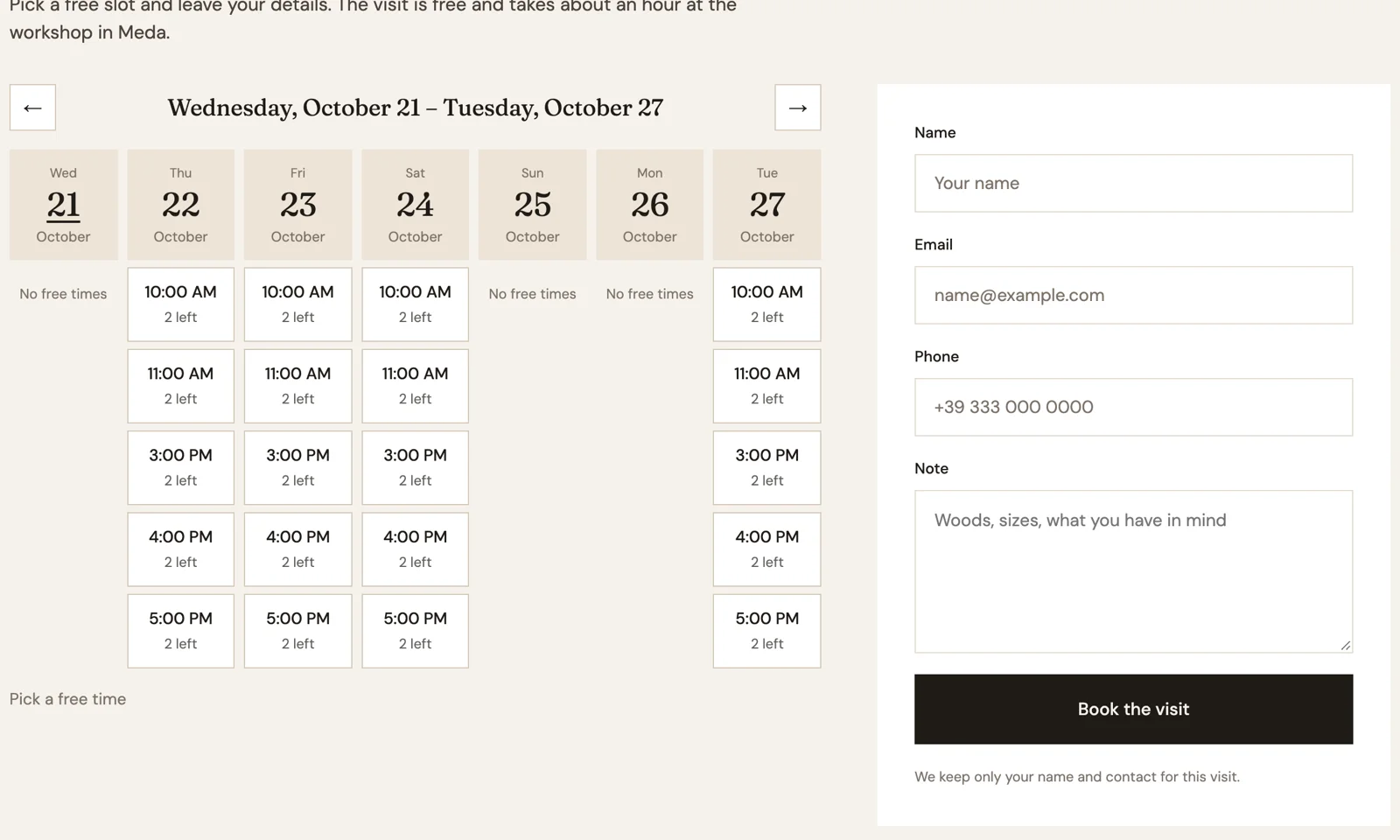
A visit with no cart (Millimetro). On /visit-the-workshop, a booking-form holds the calendar and a form with four fields: Name, Email, Phone, Note. Submitting books the slot at once, two places per slot. Success and error are the form’s own messages.
Confirmation from Flow, on any plan
A held slot becomes a booking when the order is placed. Instead of asking you to wire Flow to a server with an HTTP request, Smootify’s app adds its own Flow action and gives you two templates: Confirm booked time slots, on Order created, and Release booked time slots, on Order cancelled. They run on any Shopify plan, Basic included.
For paid appointments there is also a checkout rule, Booking, which you add under Settings › Checkout › Checkout rules. It stops the checkout of a bookable product that has no slot, or whose slot is already past: a customer who reaches checkout from an old link or a cart left open for days cannot buy an appointment without a time. It needs no new permission for the app.
The bookings live in your store
Each booking is an entry of the Booking metaobject in Shopify, under Content › Metaobjects. A booking made from booking-form by a logged-in customer is linked to them as well.
The merchant works from the product page in the Shopify admin. The Booking block lists the next bookings, cancels one, opens the schedule (mode, weekly hours, closed days, slot length, places, notice, how far ahead, hold time) and books by hand: a phone call or a customer at the counter, even beyond the places, with a warning. Because the bookings are metaobject entries, Flow can use them like any other store data.
The calendar is yours
In Webflow or Astro, the calendar is two templates that Smootify repeats: a day, booking="day", with a slot inside, booking="slot". The rest is your design: weekday, date, time, places left, previous and next buttons. States are classes you style: is-today, is-closed and is-full on a day, is-selected and is-full on a slot, is-loading, is-error and has-selection on the calendar, and is-not-bookable on a product with no schedule. Days show in the site’s language.
What to know before you turn it on
- Turn on the Flow template the day the calendar goes live. Without “Confirm booked time slots”, orders confirm nothing: the holds run out, the places come back free and the same slot can be sold again. The customer has paid and the booking is not in the product block. This is the first thing to check.
- The time zone is the one of the store’s location, not the visitor’s. If your customers book from abroad, say so next to the calendar.
- A payment slower than the hold can end in a conflict. If the place was taken in the meantime, the booking is saved as a conflict and the Flow trigger Booking conflict starts. Add a workflow on it to warn your staff, who move the booking or refund the order. For busy services, lengthen the hold time on the product.
- Turn on the checkout rule yourself, under Settings › Checkout › Checkout rules. Without it, a booked product can reach checkout with no slot.
booking-formsends four fields. The fields named name, email, phone and note reach the booking. Anything else needs to go in Note.- Plan. Booking is an add-on of the server plan, turned on in the Smootify dashboard.
Try it
Sunday Crate and Millimetro are on the Templates page: clone them and open the cart drawer of Sunday Crate and /visit-the-workshop on Millimetro in the Designer. Both stores are online in Astro too. Every step, from the schedule in Shopify to the Flow templates, is in the Slot booking guide.