A customer writes to the shop in November: “My sister wants to give us something for the new flat. Can I send her a few of your crates?” The shop has two bad answers. Tell her to copy the product links into a message, or install a gift registry app with its own widget, its own pages and a monthly fee. Either way, the sister lands on product pages with no idea which ones were meant for her.
A wishlist does not solve it on its own, because a wishlist belongs to whoever made it. A gift list is made by one person and bought by the others. Smootify 2.0 gives it two sizes: a wishlist you share with a link, when “these are the ones I like” is enough, and a list for an occasion, with a title, a date, a message and how many of each gift, when the list is an event.
Size one: share the wishlist
The small size is live on Spannbach, our B2B demo store, where the wishlist is called Saved parts. A buyer saves a flange gasket, a bearing and a box of washers with the heart, and the Saved parts page lists them. Next to the title, a Custom element with the tag wishlist-share holds a button: Share list.
On a phone a tap opens the share sheet; on a computer, or always with data-copy, the link is copied. For two seconds the element gets the class is-copied, so a “Link copied” text can show. Placed anywhere else, in the navbar or the account, the element takes data-page with the path of the list page.
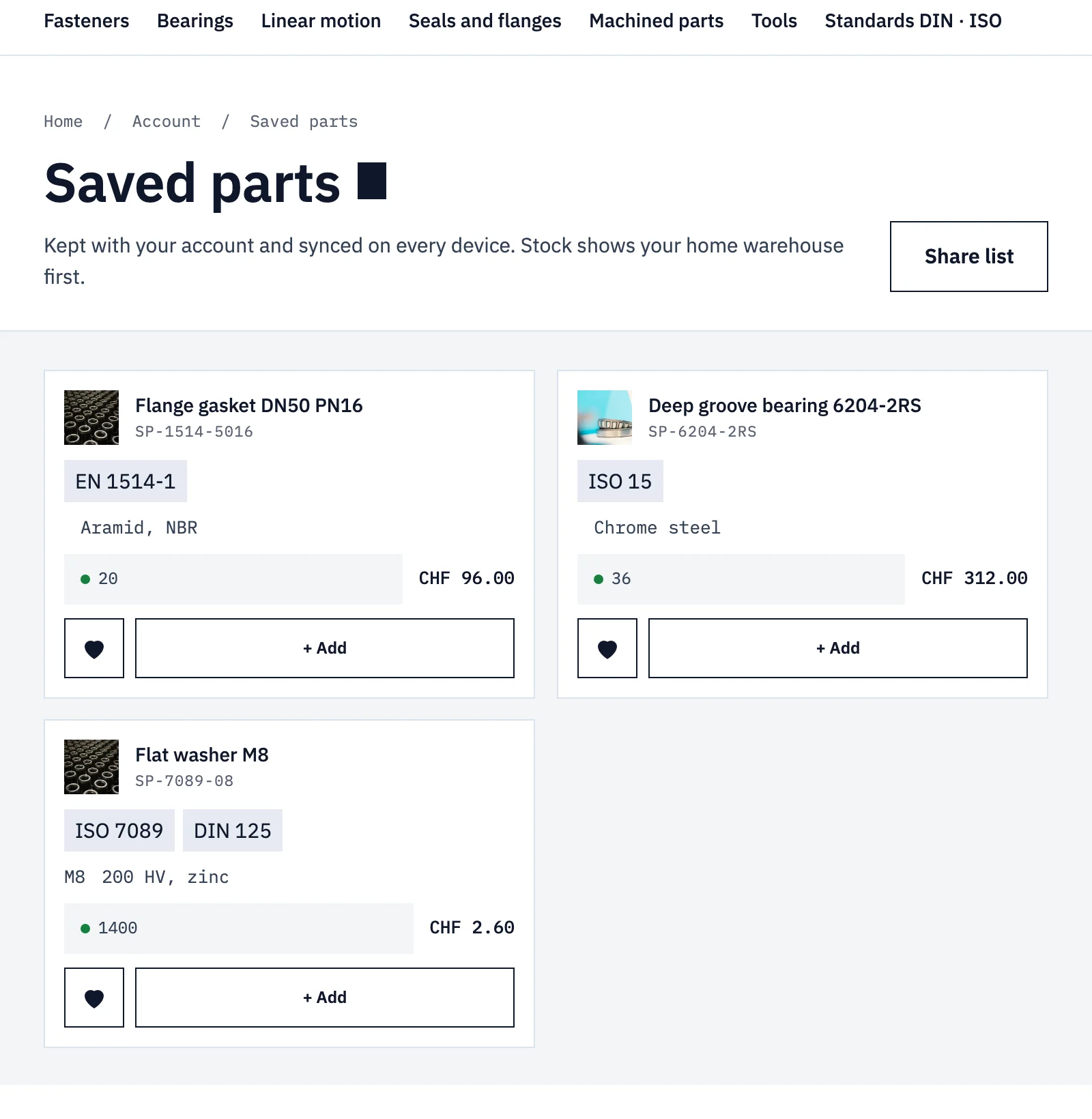
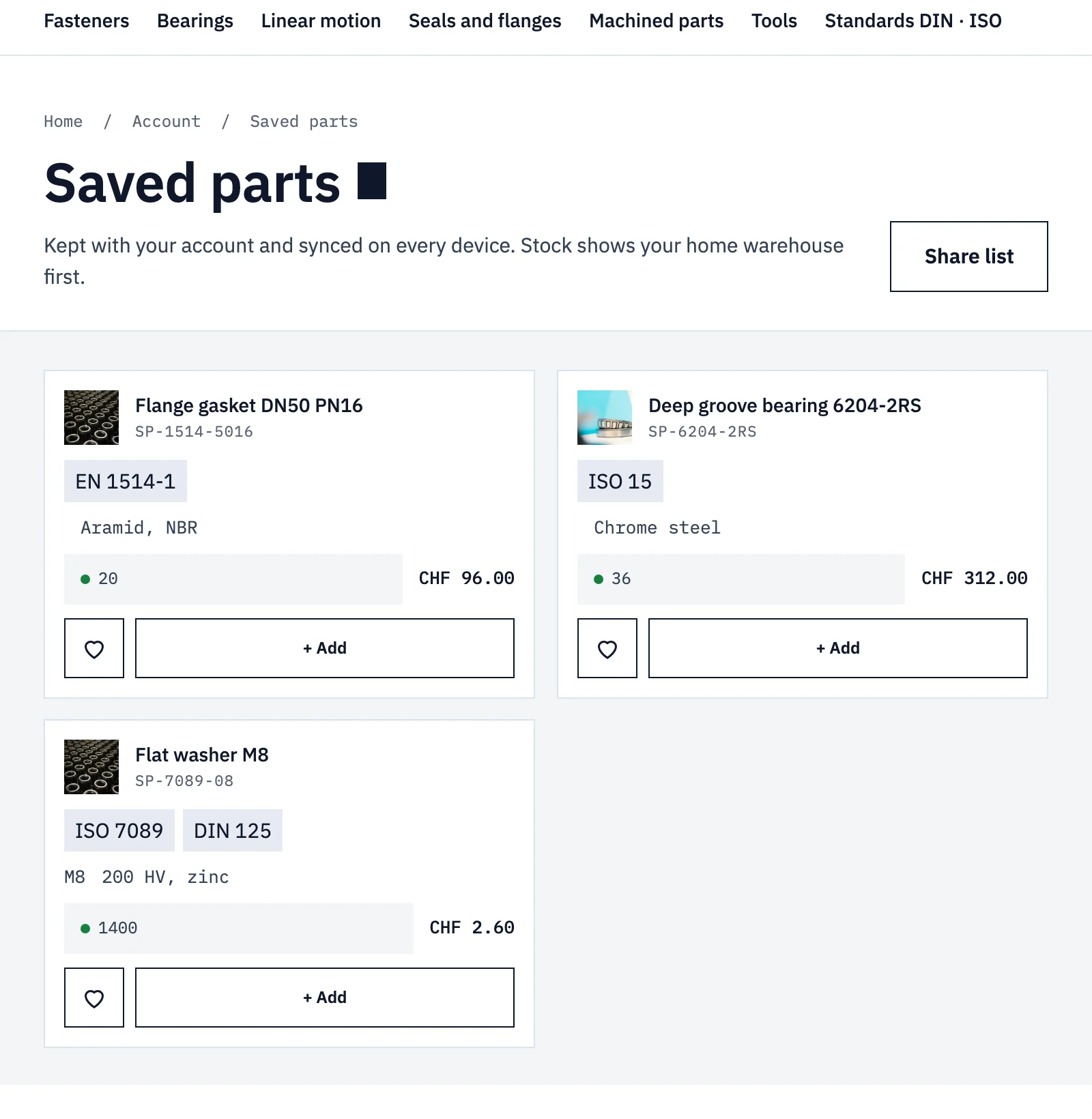
The link is the page address with the saved products in it, such as /saved-parts?w= and three product IDs. Whoever opens it sees those parts, with the shop’s own product cards: price, stock, add to cart. They need no account. Their own list is not touched: the hearts on the shared cards are empty, and a tap saves the part to their own list, “I want this one too”.
Two conditions let one page play both parts: condition="shared-wishlist" for a heading like “A list for you”, condition="own-wishlist" for the share button itself. On Spannbach the buyer sends the link to whoever approves the purchase; on Sunday Crate the same link is a gift idea for a sister.
There is nothing else to build. No form, no Server plan: Wishlist is free on every plan, turned on in the Smootify dashboard. In Astro the same wishlist-share goes on your wishlist page: see the wishlist for Astro.
Know what the link is: a snapshot. It carries the items saved at that moment, up to 100. Save something new, and you send a new link. And it does not know what has already been bought, so two friends can pick the same crate.
Size two: a list for an occasion
For a wedding, a birthday or a housewarming, the list needs more: a title, a date, a message, and “two mugs, please”. That list is a metaobject in Shopify, created by a form on your site.
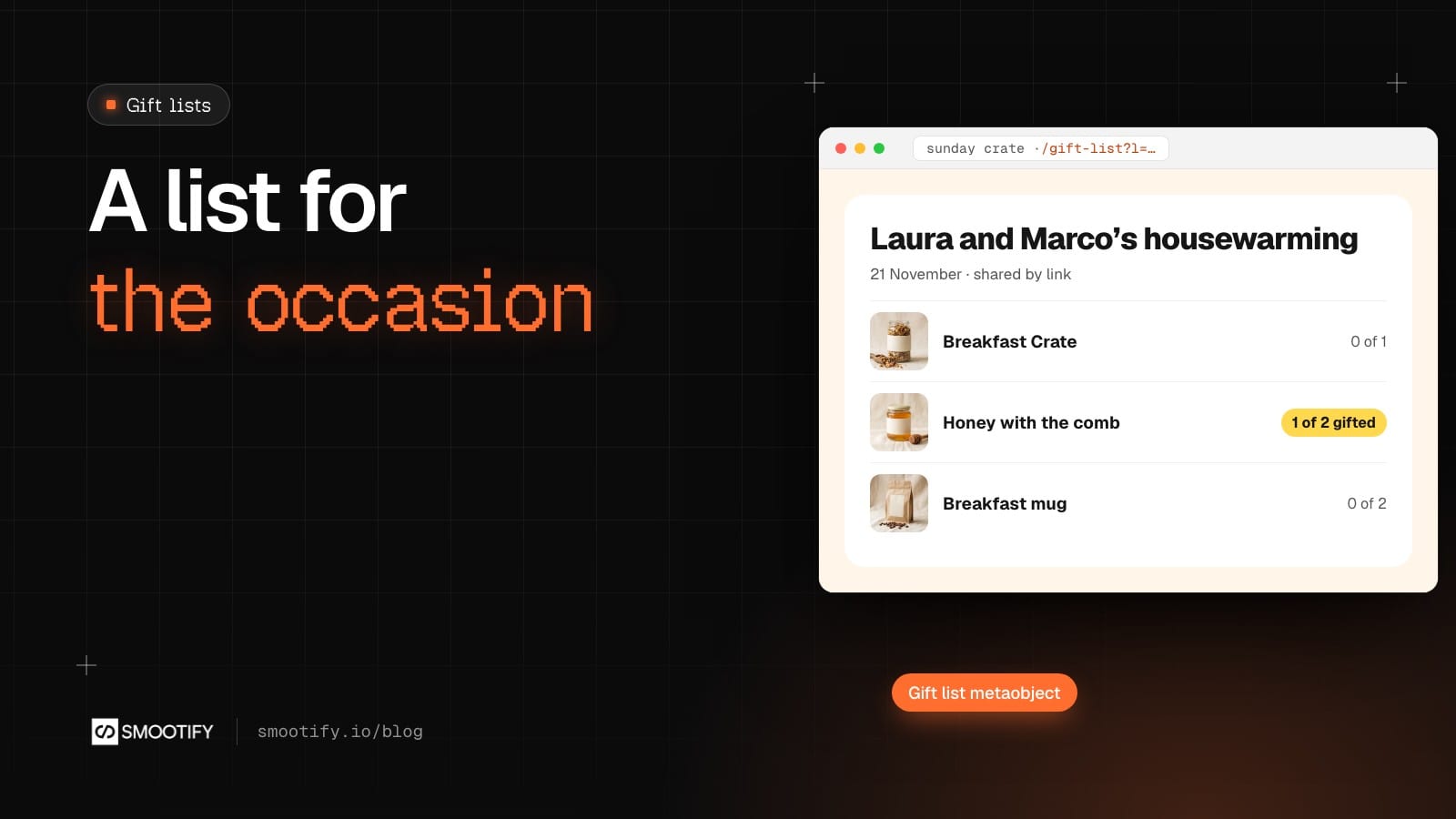
Sunday Crate’s Shopify store holds the example, ready for the page that will show it: “Laura and Marco’s housewarming”, for 21 November, with a message about their new kitchen, the Breakfast Crate (one wanted), Honey with the comb (two wanted, one already gifted) and the Breakfast mug (two wanted). Its handle is gl-7f3k9q2m. The gift list pages are not on the demo site yet.
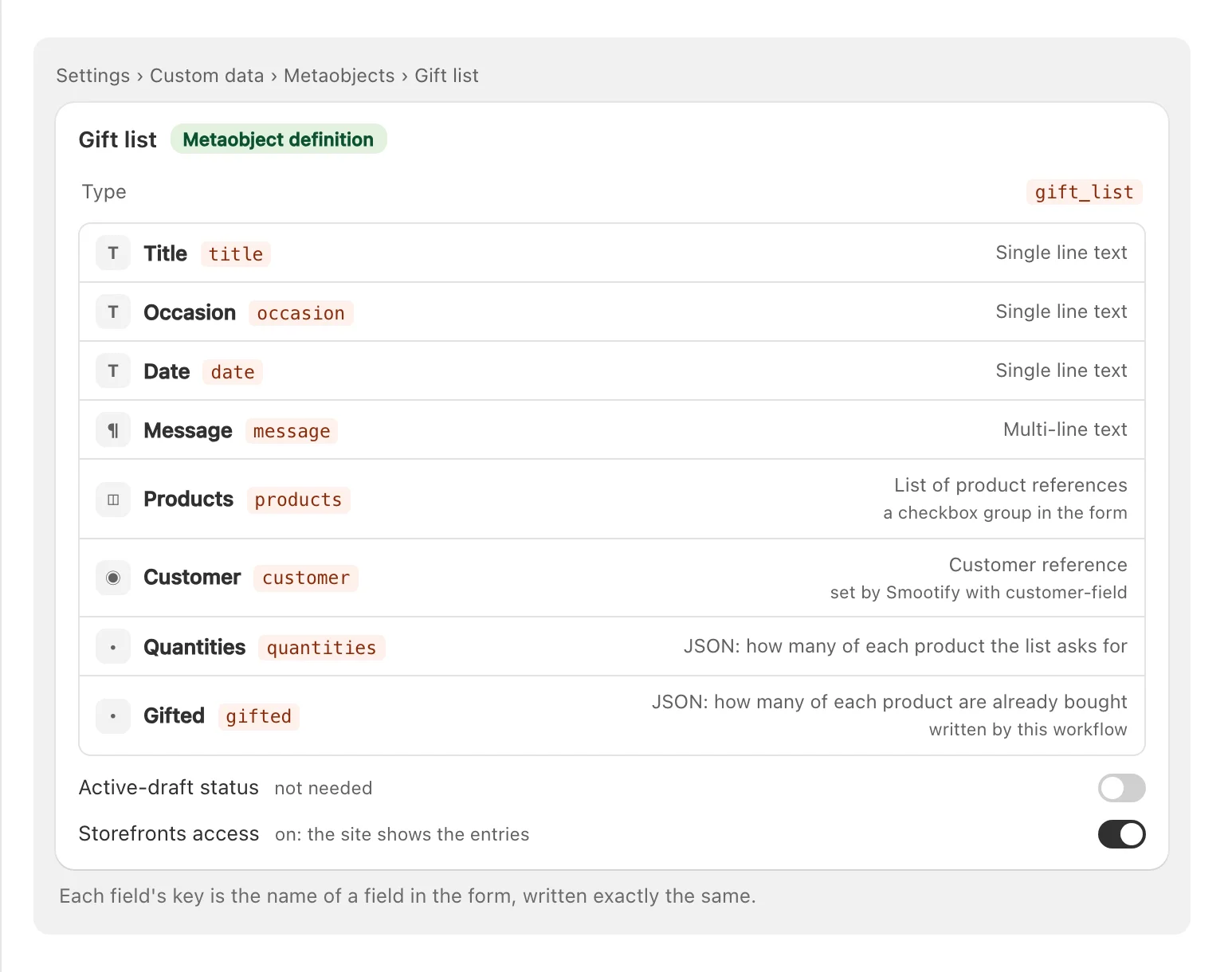
How it fits together:
- The form. A
metaobject-creatorwithdata-type="gift_list"andcustomer-field="customer": only logged-in customers see it, and Smootify’s server writes the customer into the list. A checkbox per product, inside a Collection list of the Products, with the Shopify ID as its value. Next to each checkbox, a Number field withdata-quantity-for="products"says how many of that product the list asks for. - The link. In the Success message, a link with
data-handle-param="l"opens the new list, and abuttonwithdata-action="share"shares it. The page that shows any list is one page in the Designer: asmootify-metaobjectwithdata-handle-param="l"reads the handle from the address, as in/gift-list?l=gl-7f3k9q2m. - The cards. Inside it, a
smootify-productwithdata-id="metaobject.products"repeats a real product card for each gift. Withdata-requested="quantities"anddata-fulfilled="gifted",metaobject-quantity="fulfilled"and"requested"print “1 of 2 gifted”, and a complete gift getsis-fulfilledand its add to cart turns off. - The account. Every list a customer creates is listed in “My gift lists” with a
smootify-metaobjectsonmetafield.smootify.gift_list. Ametaobject-editorlets the owner, and only the owner, change the message or the gifts, or delete the list.
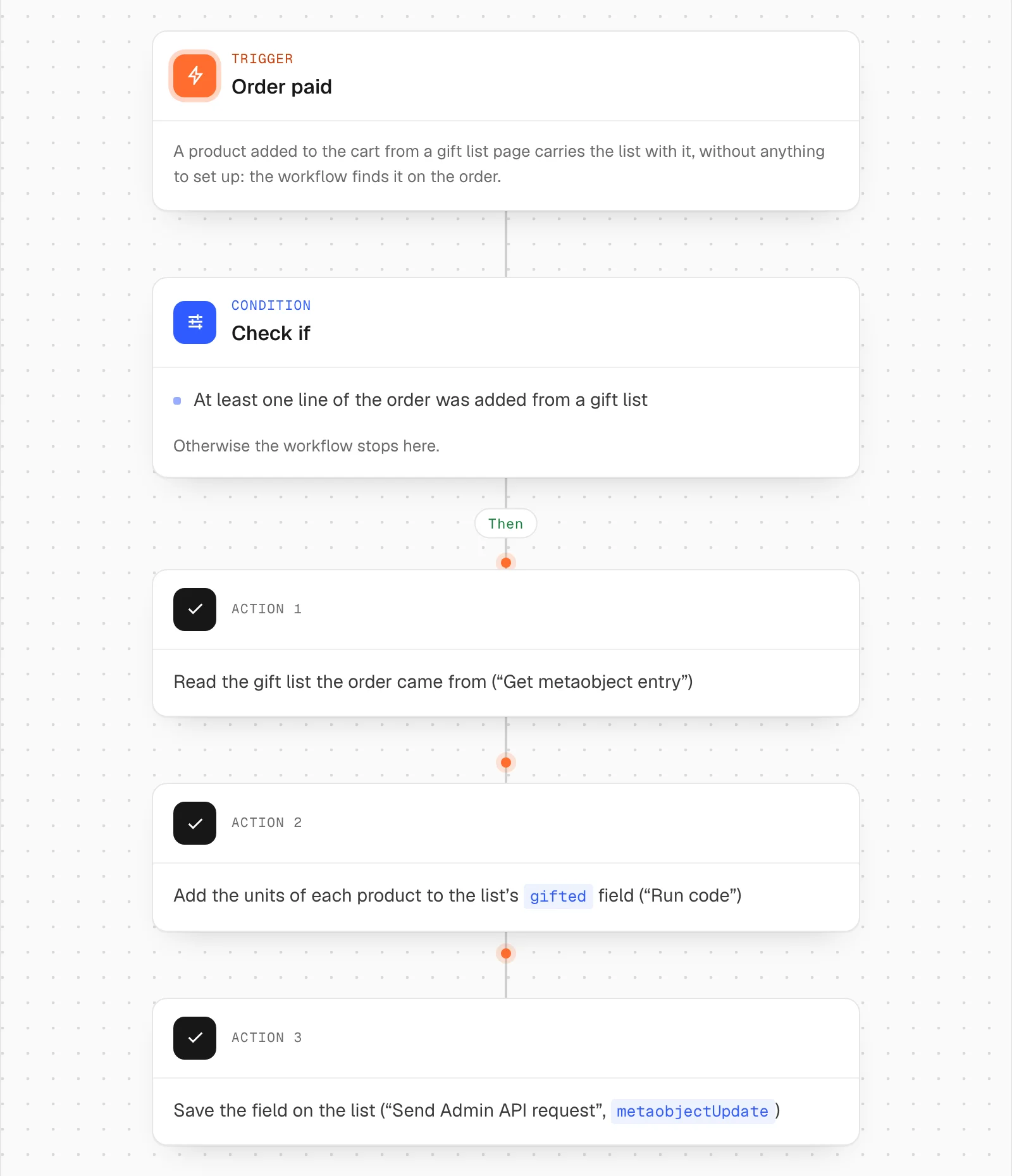
The counting is done by Shopify Flow. Gift list: count the gifts runs when an order is paid: a product added to the cart from a list page carries that list with it, and the workflow adds the units to the list’s gifted field.
Gift list link emails the owner the link to share, and tells the shop. Replace the link in the email with your own list page, for example https://yourstore.com/gift-list?l= followed by the list handle: the link in the file is a placeholder. It sends the email with Flow’s “Send HTTP request”, which runs on the Grow, Advanced and Plus plans; on Basic, swap that step for an app that sends emails from Flow.
The limits, said plainly
- The count starts when the workflow is on. Orders paid before are not counted.
- Cancellations and refunds do not give the gift back. Correct
giftedin the admin. - It does not stop a sale. Two guests buying the last mug at the same moment both buy it.
- One list per order. An order with products from two lists counts only the last one.
- The link is public. Anyone with it can read the list. Never put an email or an address in the definition, and create it without a display name field: Shopify then gives every list a random handle, like
gl-7f3k9q2m, that nobody can guess. With the title as display name, other lists’ links are easy to guess. - Field names are keys. Every field’s Name must match its key in Shopify, and every product checkbox needs the same Name, the key of the products field.
What you need
The shared wishlist needs Wishlist turned on in the Smootify dashboard, on any plan. The list for an occasion needs the Server plan with Metaobject creator, and customer accounts on the site. The metaobjects, Shopify Flow and the checkout are Shopify’s, at no extra cost.
The steps for the link are in Wishlist › Share the list. The list for an occasion is in Collect data with forms and Show metaobjects.