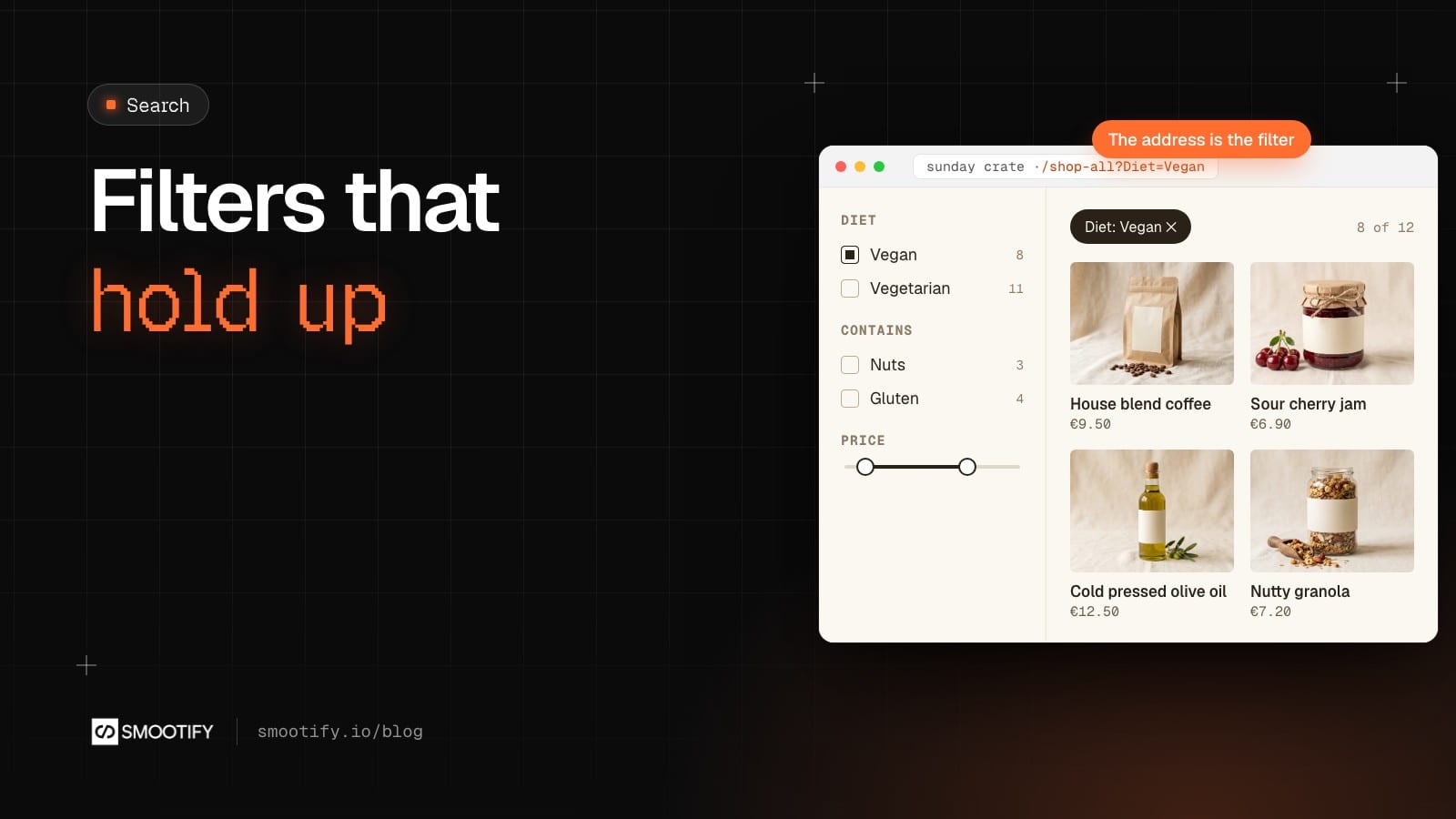
A filtered product list is the page that looks finished in the Designer and breaks a week after launch. The grid works on 12 test products. Then the real catalog goes in, someone opens the collection page on a three-year-old phone, and it crawls. Or a filter that worked yesterday is simply gone, with no error anywhere. Search and filters are the part of a store that generates the most support questions, and almost every one of them is a silent failure.
This post is about the other half of the job: not how to add filters, but how to make them hold up on a catalog with real numbers.
What you get without another app
Search & discovery lists products live from Shopify, with the filters you set up in Shopify’s free Search & Discovery app. You design every part in Webflow: the checkboxes, the swatches, the price slider, the sort menu, the product card and the pagination. On Shopify themes this is a job usually handed to a paid filter app. With Smootify it is an add-on of the one app you already pay for on your Shopify invoice, included in the Lite and Server plans.
The demo store Sunday Crate shows it on its pantry page. Four filters (Category, Diet, Allergens shown as “Contains”, Flavour), a price range, a sort popover and a product count.
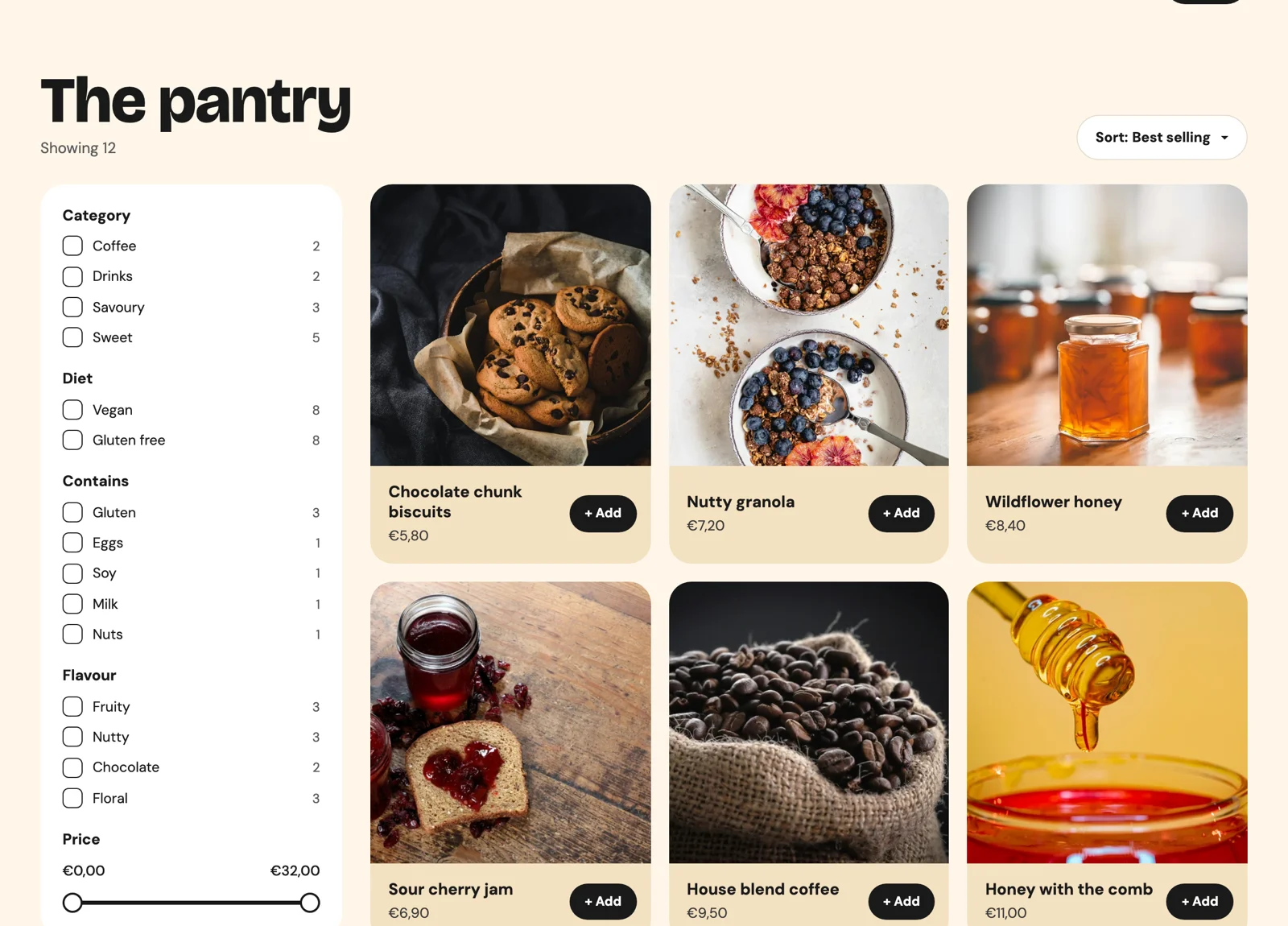
On 15 October the pantry holds 12 products. Pick Diet: Vegan and the count drops from 12 to 8, a chip reading “Diet: Vegan” appears above the grid, and the address becomes /shop-all?Diet=Vegan.
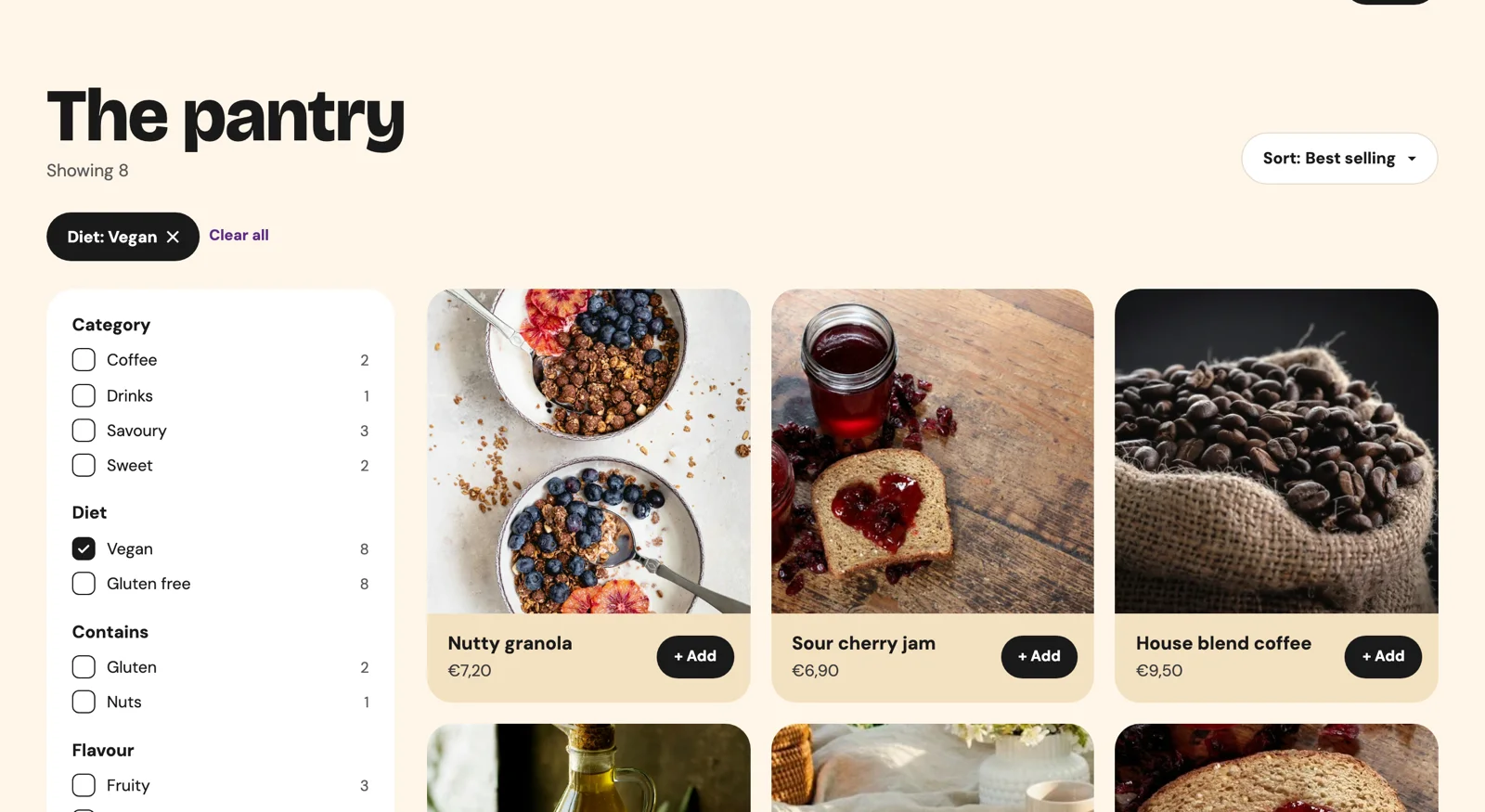
The address is part of the design
That last detail is sync-query-params on the smootify-search-discovery element. With it, the address follows the filters, the search words and, from the second page on, the page number. A customer can send a friend the vegan pantry. A newsletter can link straight to “chocolate under €20”. A support reply can point at exactly the list the customer should see.
It is one attribute and most sites never add it.
Four rules for a real catalog
1. Keep limit low. limit sets how many products load per page: 50 by default, 250 at most. Every card is a full product, with its price, its variants and its add-to-cart form. On a phone, 24 is a good number, and it is what Sunday Crate uses.
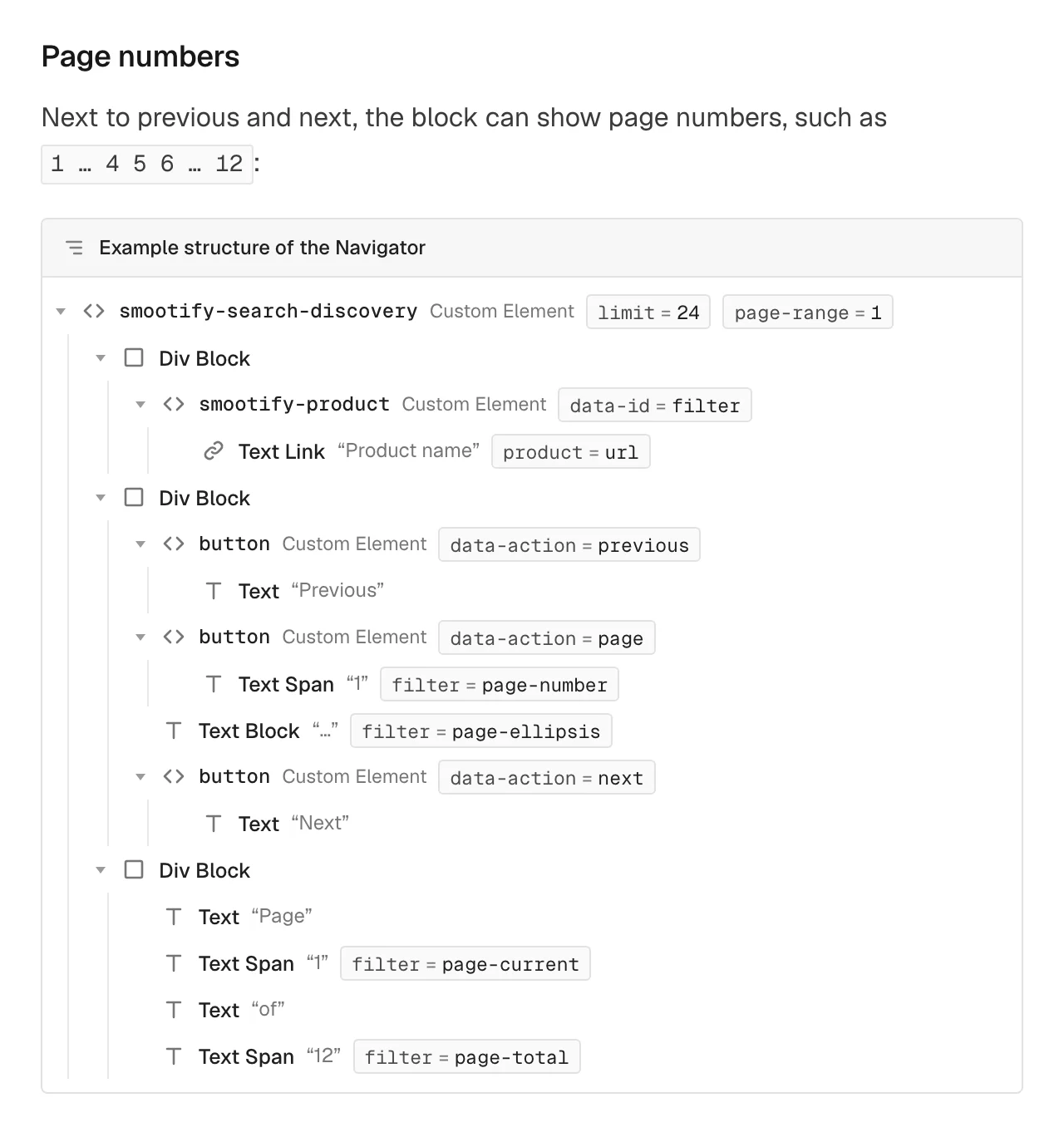
2. Use previous and next on long lists. Load more and load-as-you-scroll keep adding cards below the ones already shown, so after a few pages a phone is holding a hundred full products in memory. Previous and next show one page at a time. In 2.0 they can have page numbers between them, such as 1 … 4 5 6 … 12, from one template button with data-action="page".
3. Turn on Availability on collections. Shopify does not say how many products a collection holds. Smootify adds the number up from the Availability filter of the Search & Discovery app. With that filter on, filter="count" shows the true total and page numbers appear. With it off, previous and next still work, but the count shows only the products of the current page and the numbers never appear. Nothing breaks visibly: the debugger on your .webflow.io address is what tells you why. Sunday Crate’s pantry has the filter on, which is where its total of 12 comes from. With 24 products per page it fits on one page, so it has no numbers to show.
4. Write labels exactly as in Shopify. Each filter element finds its filter by label, and the label must match the app character for character. A filter labelled Colour on the site and Color in Shopify never shows, and there is no error. Sunday Crate’s allergens filter is label="Allergens" with custom-label="Contains": the label matches Shopify, the custom label changes only what the active filter chip says.
A Collection list inside is fine now
If you built filters with 1.x, you learned to keep Webflow’s CMS out of the block. In 2.0 that rule is gone. You can put a Collection list of product cards inside smootify-search-discovery: its first Collection item becomes the card template, and the other items stay on the page until the first results replace them. Search engines see real products in the HTML, and the page keeps its height while it loads.
The one thing to keep in mind is that every card is a copy of the first one. A text bound only to a CMS field shows the first product’s name on every card. Give each element a Smootify attribute, such as product="title" or variant="image".
The collection page filters itself
On a collection template page, add data-collection to the block and bind it to the collection’s Shopify ID field. The block lists that collection, in the order you set in Shopify, until the visitor picks a sort. The collection is locked: the reset button keeps it, and it stays out of the address.
Inside a collection, sorting also gets best selling, title and date: on the whole catalog Shopify offers only relevance and price.
Search inside a collection
New in 2.0, filter-search works on a collection page. Shopify has no search inside a collection, so Smootify compares the search results with the first 2,000 products of the collection. For a large collection where the search must be exact, tag its products in Shopify and add data-tag next to data-collection. That needs the Tag filter on in Search & Discovery, or Shopify ignores the tag, again without an error.
Also new in 2.0
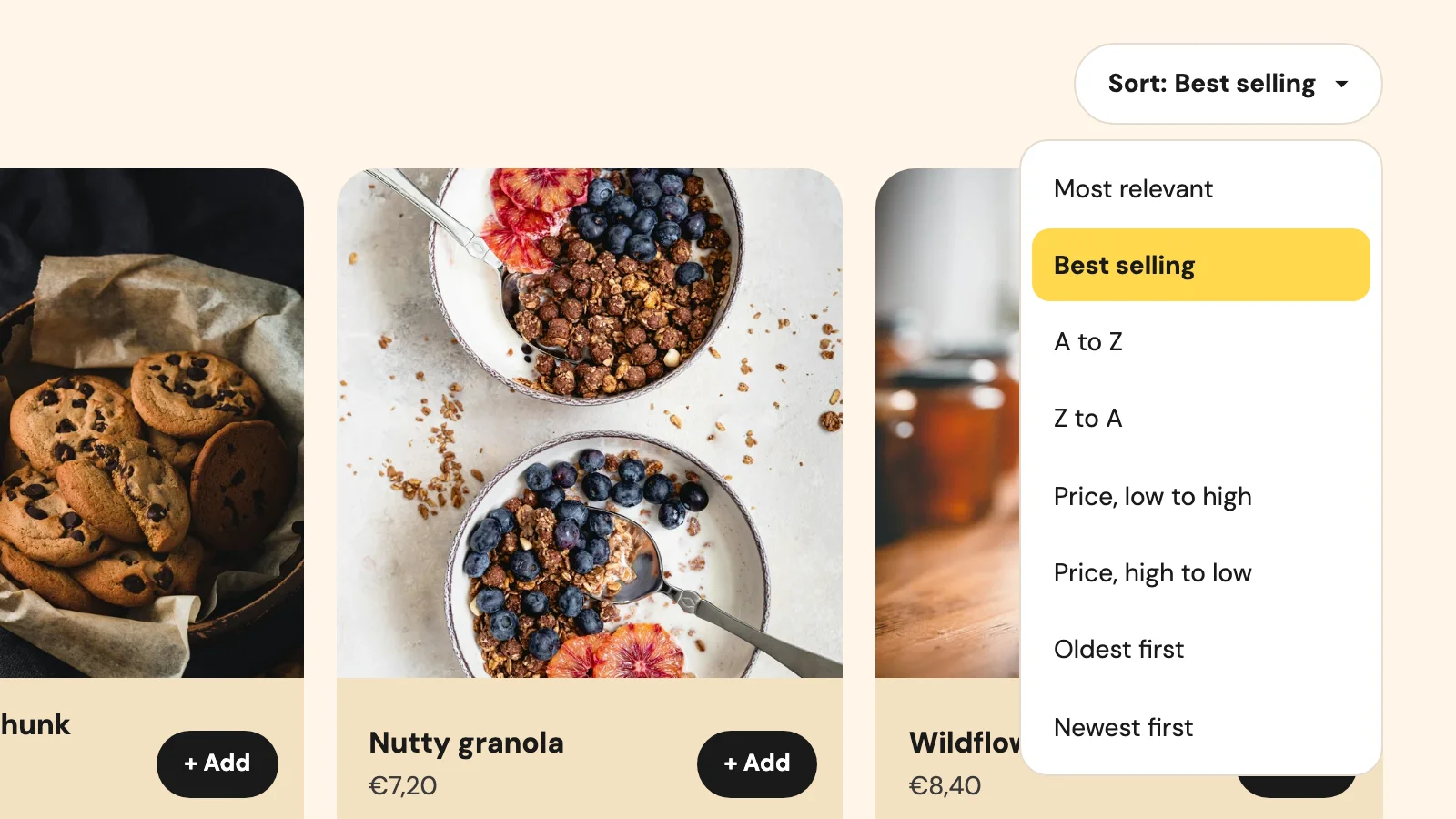
filter-popoverandsort-popoverput a filter or the sort menu in a Webflow Popover, with the current sort shown on the trigger. Sunday Crate’s sort menu is one.- Nothing shimmers by default. Add
skeletonto the filters, the count and the card parts that should show a placeholder while the first results load.
Before you go live
Check these first
- A filter element disappears. It has no Form Block inside, or it sits outside the block and outside the
data-expandpanel. - Every card shows the same name. The card’s texts are bound only to CMS fields. Add Smootify attributes.
data-tagnarrows nothing. The Tag filter is off in Search & Discovery.
Shopify’s own limits apply too: a collection with more than 5,000 products shows no filters, and one filter shows at most 100 values. Group similar values in the app when you have more.
The full set-up, with every filter type and the pagination, is in Filters, sorting and pagination.