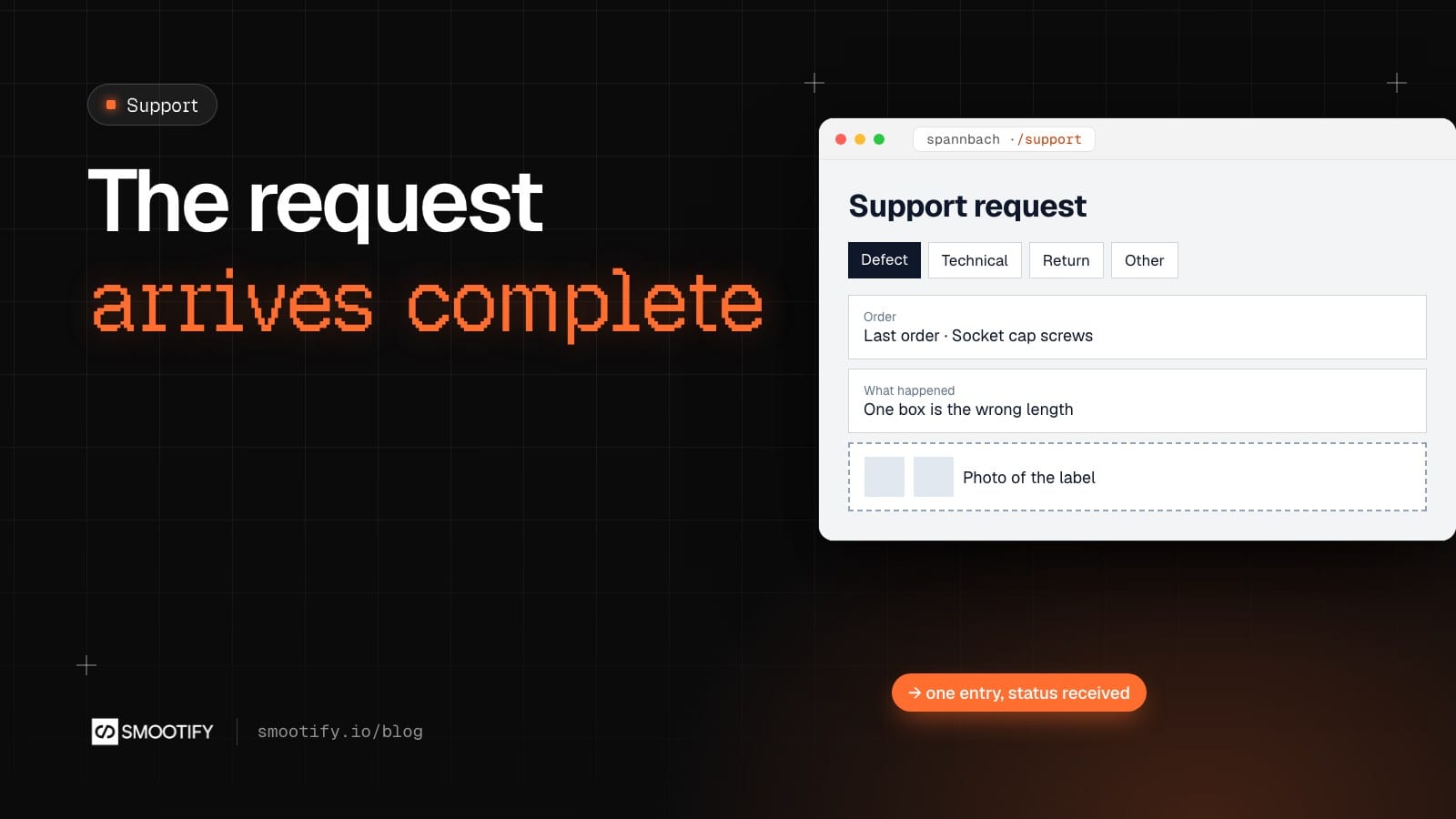
A buyer at Acme Automation in Lugano orders parts from Spannbach, our industrial components demo store. One box of socket cap screws in her last order is the wrong length. She writes to the support address: “Wrong screws in my last order, please fix.” The store’s first reply asks which order. The second asks which line and for a photo of the label. By the third email, two days have gone, and nobody has started fixing anything.
Most support time on a parts store goes into collecting what the first message did not say. With Smootify 2.0 the collecting happens before the request is sent. It is not a helpdesk: there is no conversation on the site, no agents and no queue. It is a form that knows who the customer is, asks for the order, the problem and the photos, and puts the request in Shopify with an alert to the team that has to answer. For quick questions, Shopify Inbox does the talking. All of it works on a store built in Webflow or in Astro.
Spannbach asks before anyone writes
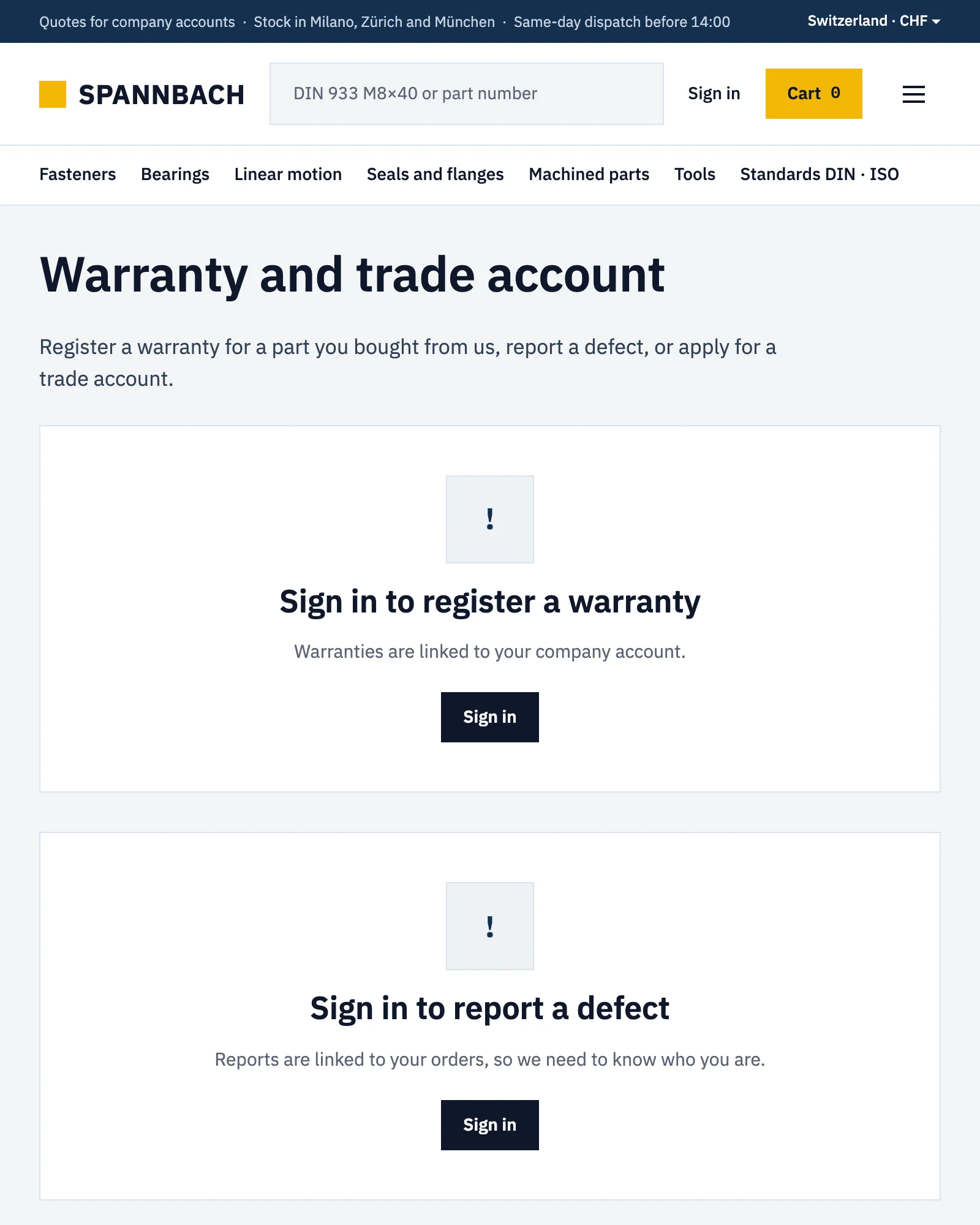
Spannbach already does this for one kind of request. On its Warranty and trade account page, a visitor who is not signed in sees “Sign in to report a defect”: reports are tied to orders, so the shop needs to know who is writing.
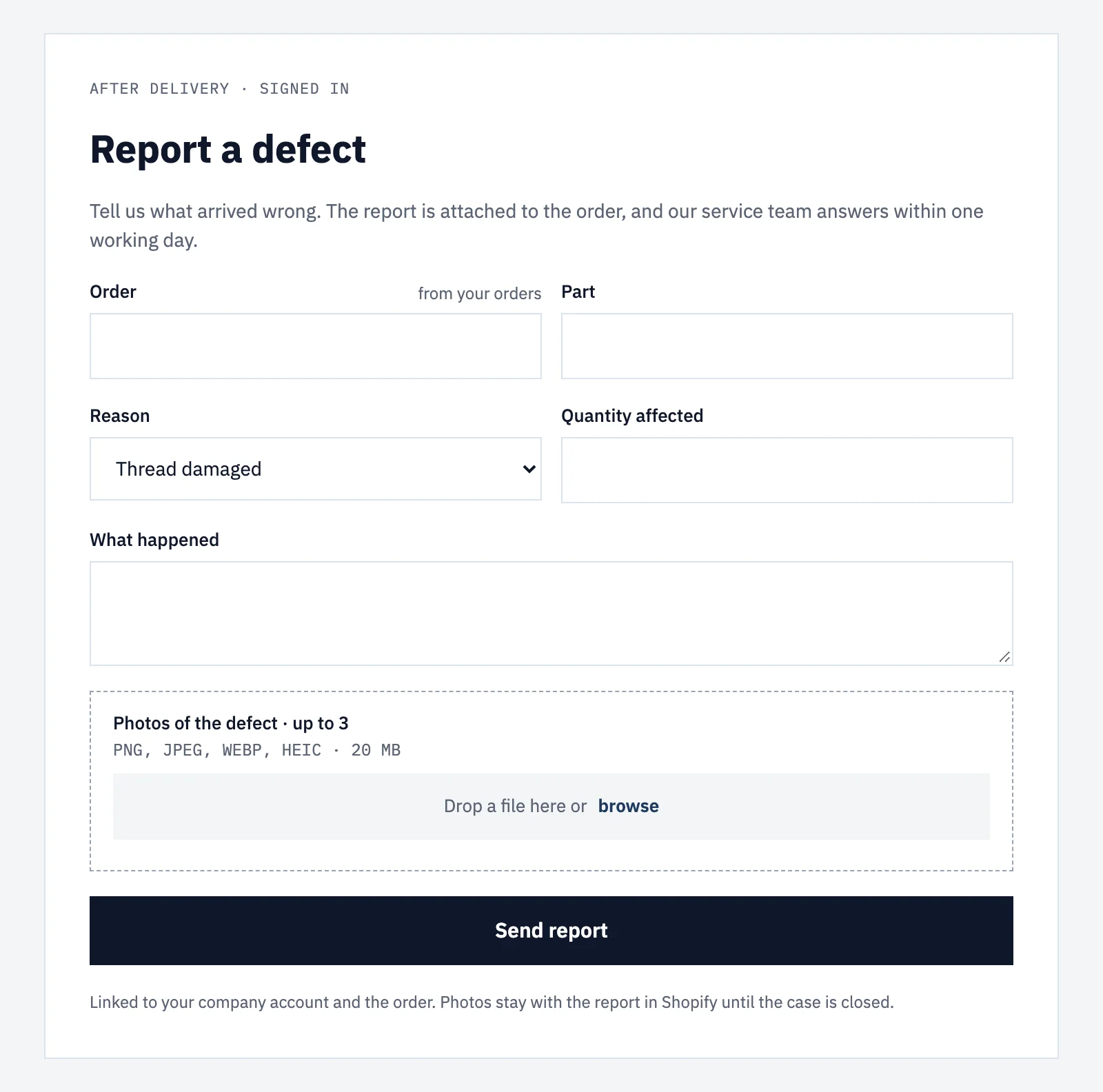
Once she is signed in, the buyer gets the report form: the order, the part, a reason from a list (thread damaged, wrong part, wrong quantity, damaged in transit, other), the quantity affected, what happened, and up to three photos.
The rest of this post builds the general version, for every kind of request: the Flow library’s Support request to the right team.
The request knows who sent it
In the customer’s account there is a support form: a Webflow Form Block inside a Custom element with the tag metaobject-creator and data-type="support_request". Each request becomes an entry of the Shopify metaobject Support request, with the order number, the topic, the message, the photos, the customer and a status.
With customer-field="customer", Smootify’s server writes the logged-in customer into the entry. The team opens the request and sees the buyer, her company and her orders, without matching an email address to an account. The form shows only to logged-in customers, so the account page is the natural place for it. In Astro the same metaobject-creator wraps a plain <form>: see the Astro guide to collecting data with forms.
It arrives with what the team needs
The fields are the questions the second and third emails used to ask:
- The order number, a Text field.
- The topic, a Select with four values:
return,defect,technicalandother. The labels can say anything, such as “A part is faulty or the wrong size”; the workflow reads the values. - The message, a Text area.
- The photos, a
file-inputnamedphotoswithdata-multiple, so the buyer adds the label and the wrong screw next to the right one. The files go to the store’s Shopify Files, up to 20 MB each. A short video under 20 MB goes in as a plain file; for anything larger, a link in the message.
Mark them Required in Webflow, and the first message the team reads is complete.
It goes to the right team
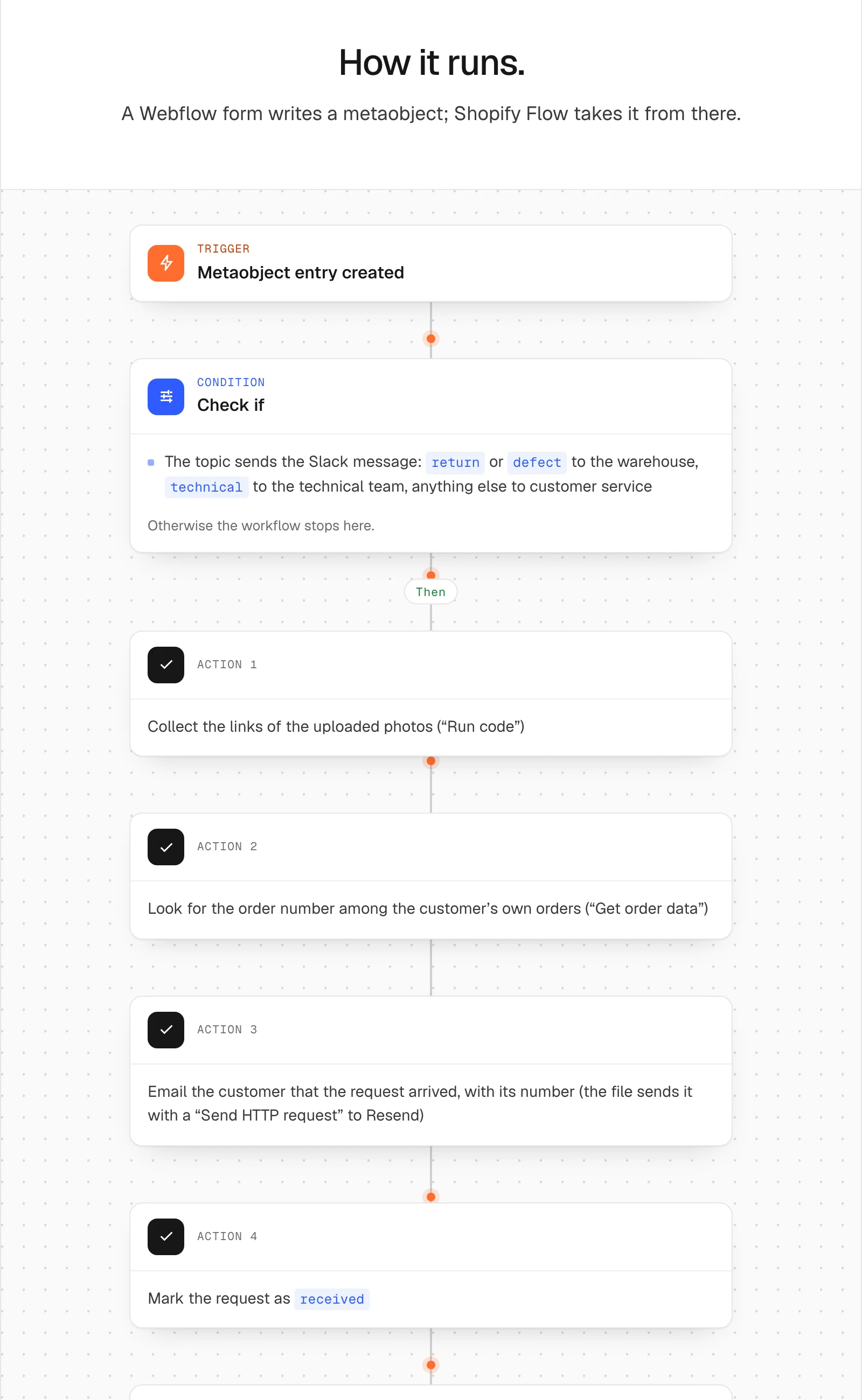
The Support request workflow starts when the entry is created. It collects the links of the photos, looks for the order number among the customer’s own orders, emails the customer that the request arrived with its number, sets the status to received, and posts the request on Slack: return and defect to the warehouse, technical to the technical team, anything else to customer service. The message has the customer, the topic, the order or “order not found”, and the photo links.
A request about the wrong screws, sent with defect, lands in the warehouse channel with the order and two photos. The warehouse can send the right box the same day.
Chat for the rest
Not every question has an order and a photo. “Do you have M6 × 25 in A4 stainless?” is a chat question. Shopify Inbox, Shopify’s free chat, works on a Smootify site with the code from the Smootify dashboard. Products shown in the chat open on your own product pages, and the visitor can add them to the cart from the chat. On the Server plan Smootify’s proxy opens the chat panel; on Free and Lite, a free proxy on your own Cloudflare account does.
The two sit side by side: the chat for quick questions, the form for anything about an order.
What it does not do
Say this before customers find out:
- There is no conversation on the site. The team answers by email, from its own inbox.
- The customer does not see the status in the account. The definition has no Storefront access, because it holds the customer and their message. The confirmation email is how they hear back.
- The order number is typed by hand. When the workflow cannot find it, the Slack message says “order not found”: check whether the customer typed it with a
#or typed another number. - No login, no form. For visitors without an account, offer the chat.
Where it stops without a word
- The team is never told. The email step runs before Slack: with a wrong Resend key, the workflow stops and nobody hears about the request. Send a test request after installing it.
- Every request goes to customer service. The Select’s values are the labels, not
return,defectandtechnical. - Nothing is saved, and the Error message names a field. A field’s Name is not a key of the definition, often after copying a form.
- The photos are missing. The
file-inputis not namedphotos. - The form disappears on the live site. The Server plan or Metaobject creator is missing, or the page is not on the licensed domain.
The form and customer-field are in Collect data with forms, the upload area in File uploads, the chat in Shopify Inbox chat (and in Astro, Shopify Inbox). The workflow, with the definition to create, is in the Flow library: Support request to the right team.