
A crate photographed in a studio looks like every other crate. The same crate open on a picnic blanket on a Sunday morning, with somebody’s coffee cup next to it, sells it better. Food, furniture and clothing shops know this, and most of them end up asking customers for photos.
On Shopify that usually means an app: a photo wall widget, a monthly fee, and the customers’ photos stored on somebody else’s servers. The photos arrive in the widget’s design, not yours, and if you cancel, the wall is gone.
Smootify 2.0 builds the same thing from pieces your store already has. A form on your site, built in Webflow or in Astro, with an upload field saves the photo in Shopify Files and creates a metaobject entry as a draft. You look at it in Shopify and make it active. A Smootify list shows the active photos wherever you put it.
Photos already arrive this way
On Sunday Crate, our demo store, customer photos already reach the product page, inside reviews. The review form on the Breakfast Crate has an optional photo, the review waits as a draft, and once approved it shows with its photo: Laura’s granola bowls, Marco’s honey, Davide’s coffee beans. The photos sit in Sunday Crate’s Shopify Files, not in a review app.

A photo wall is the same idea without the review around it: a customer_photo metaobject, one form, and two lists. Sunday Crate’s store already holds one seeded entry, Sara’s “Sunday picnic, with the coffee from our crate”, with consent given and linked to the Breakfast Crate. The definition and the daily workflow are in the Flow library: Customer photos, approved.
Nothing goes online without you
The form is a metaobject-creator with data-type="customer_photo" and data-draft="true":
With data-draft="true", every photo waits in Content › Metaobjects › Customer photo until someone makes it active. With text, a missing draft setting means some spam. With photos it means anything at all on your home page. The form always goes in draft, and the definition needs Active-draft status for the draft to exist.
The upload area is your design. file-input takes the same parts as product file uploads: a drop zone, a list with a preview and a progress figure, a remove link, the errors. Each moment gets a class you can style.
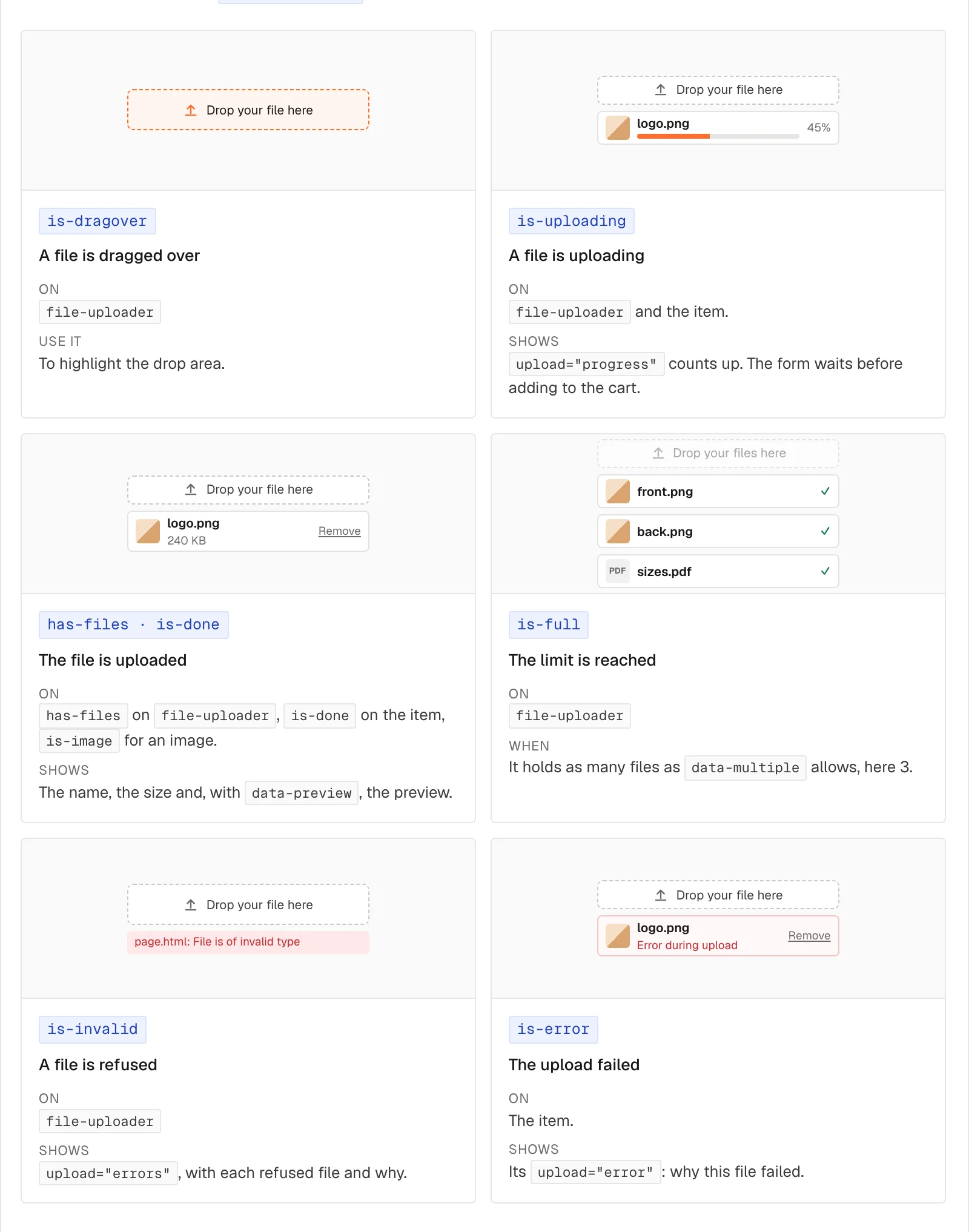
In Astro the same metaobject-creator and file-input go inside a plain <form>: see the metaobject creator for Astro.
The permission is a field
Publishing a customer’s photo without permission is a legal problem, not a technical one. The checkbox “You can show this photo on the Sunday Crate site” is Required in Webflow, so the form cannot be sent without it, and its Name consent is a true-or-false field of the entry. The proof of consent sits next to the photo, in Shopify, for as long as the photo does.
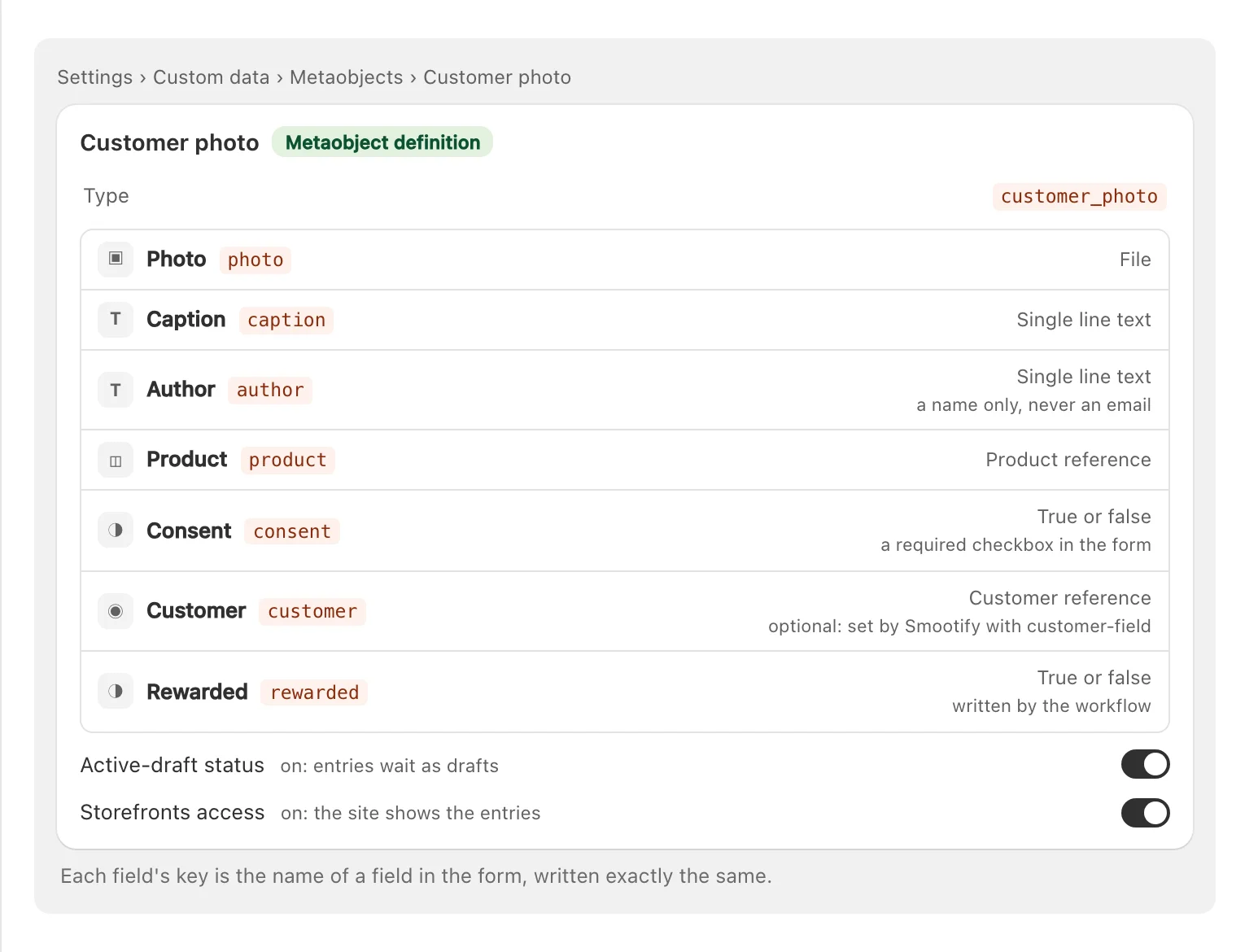
The entry holds only the name the customer typed, “Sara”, never an email. With Storefront access every field of an active entry can be read from Shopify’s public API, so personal data stays out. If you need to know who sent it, customer-field="customer" writes the logged-in customer as a reference, from the login itself.
On the home, and under the product
There are two places to show the photos, with the same template:
- The wall. A
smootify-metaobjectswithdata-type="customer_photo"lists every active photo, a page at a time, with a “More photos” button. Inside,metaobject="photo"on an Image shows the photo, withmax-widthandcropfor a neat grid, andmetaobject="product"links the crate it shows. - The product’s photos. The list does not filter by the entry’s
productfield. Under the crate, a second list reads the product’s metafieldcustom.customer_photos(data-type="metafield.custom.customer_photos"anddata-product-id), so only that crate’s photos show, next to its reviews.
A photo can be worth store credit
Flow has no trigger for “an entry became active”. So the Customer photos, approved workflow runs once a day. It takes each photo you made active, with consent, not yet handled, and adds it to its product’s custom.customer_photos, keeping the ones already there. If the photo is linked to a customer, it credits them 5 in store credit, in the amount and currency you set. Then it marks the photo rewarded, so nothing is added or paid twice. Delete the credit step if you don’t reward photos.

The credit is spent at checkout, like the store credit loyalty program we wrote about earlier. A customer who sent a photo has a reason to come back.
The limits
- 20 MB per file. That is Shopify Files’ limit, and a higher
max-file-sizedoes not raise it. Withdata-only-images, only JPEG, PNG, WebP, HEIC and GIF. - Five files at most with
data-multipleand no number, and the field must be a list of files. While a file uploads, the form waits. - Videos stay files. A video sent from the form is saved as a plain file, not a Shopify video, and does not play in the gallery. For video, ask for a link to the post instead.
- The morning after. The workflow runs once a day, so an approved photo reaches the product page the next morning. The wall, which reads all active photos, shows it at once.
- The wall does not check consent. It lists every active entry. The form’s required checkbox is what keeps a photo without consent from arriving; do not make such an entry active by hand.
- Rewards need a login. Only photos linked to a customer with
customer-fieldare rewarded, the credit is in one currency, and store credit needs Shopify’s new customer accounts. - Field names are keys. A
file-inputwhosenameis not the key of the file field saves the entry without the photo.
What you need
The form and the upload need the Server plan with the Metaobject creator add-on. The lists need only Smootify and Storefront access on the definition. Shopify Files, the metaobjects, Shopify Flow and store credit are Shopify’s. The photos stay in your store.
The steps are in Collect data with forms, with the upload parts in File uploads and the lists in Show metaobjects.