Purchase rules
A minimum, a maximum and a multiple per variant, and a minimum order per currency, checked by Shopify on the cart and at checkout, with your own messages.
Purchase rules set how many pieces of a variant a customer can buy: a minimum, a maximum and a multiple, such as “at least 6, in packs of 6”. You can also ask for a minimum order amount per currency. You set the rules in the Shopify admin, on the product, and Shopify checks them on every change to the cart and at checkout. On your Webflow site the quantity fields follow them.
Note
Purchase rules come with the Smootify app in Shopify, on every Smootify plan, the free one too, and on every Shopify plan: Shopify runs them on its own servers, at checkout.
1. Set the rules of a variant
In the Shopify admin, open the product.
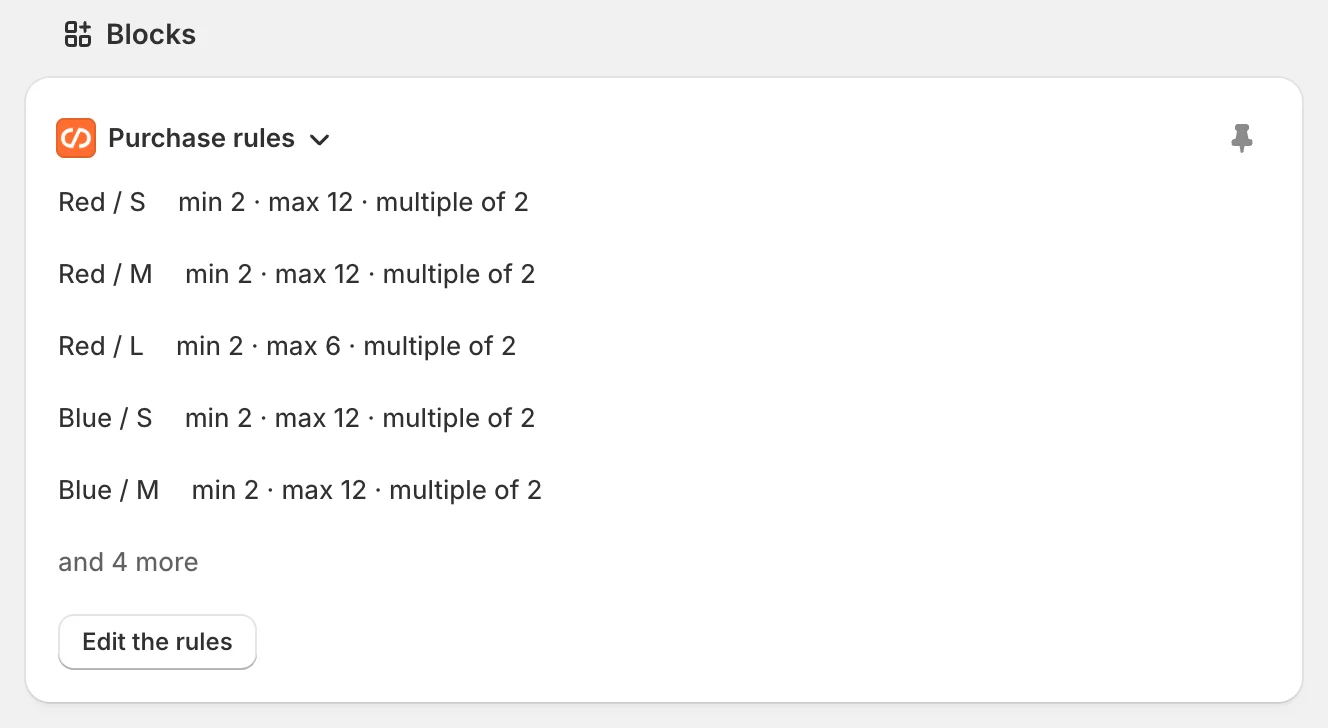
- The Purchase rules block on the product page lists the variants that have rules. Edit the rules opens the table below.
- More actions → Purchase rules opens a table with every variant of the product and three columns: minimum, maximum and multiple. The Every variant fields at the top fill a whole column at once.
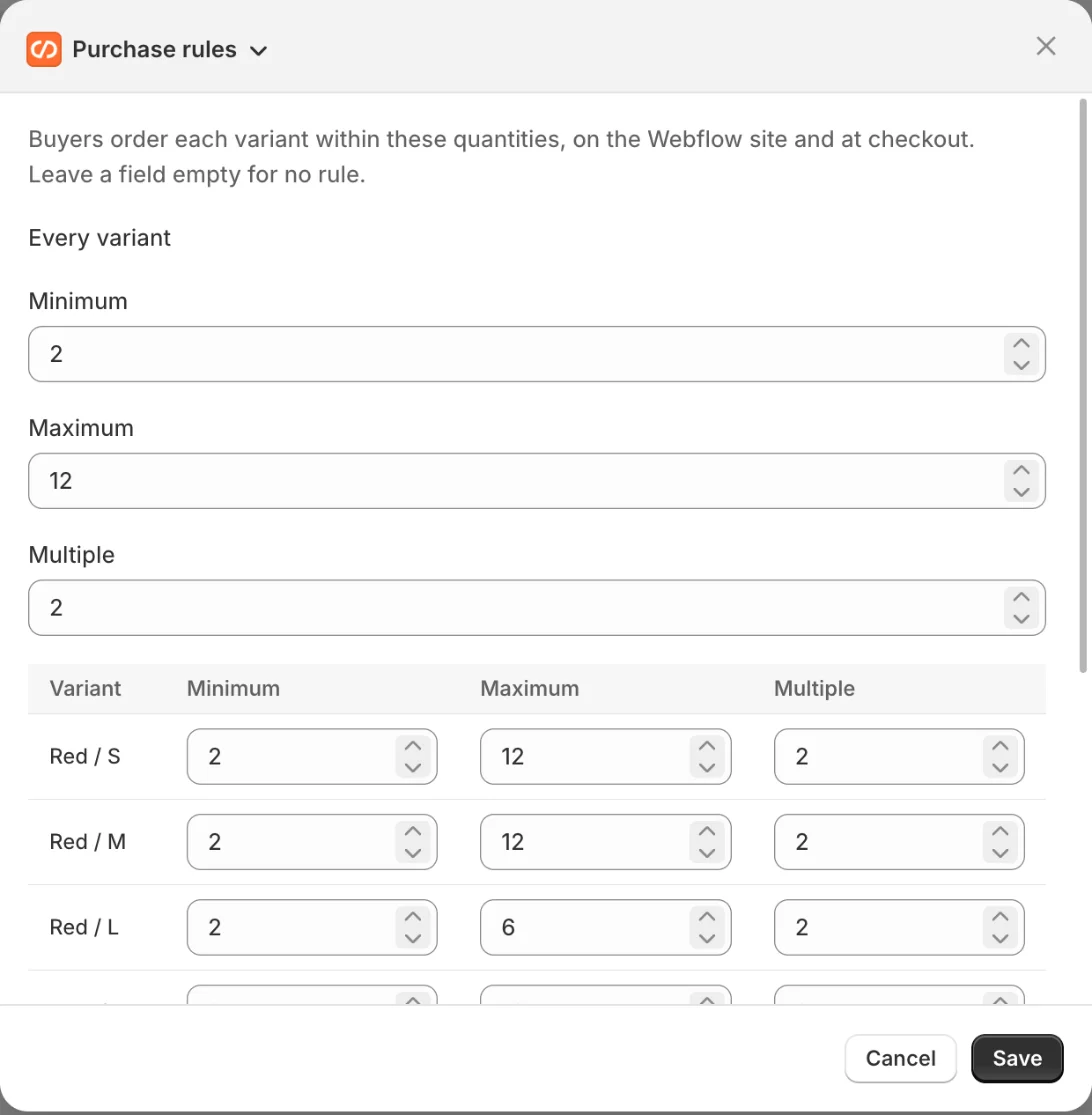
Leave a cell empty when the variant has no rule of that kind. A variant on more than one line of the cart counts once, with its quantities added up.
2. Set a minimum order
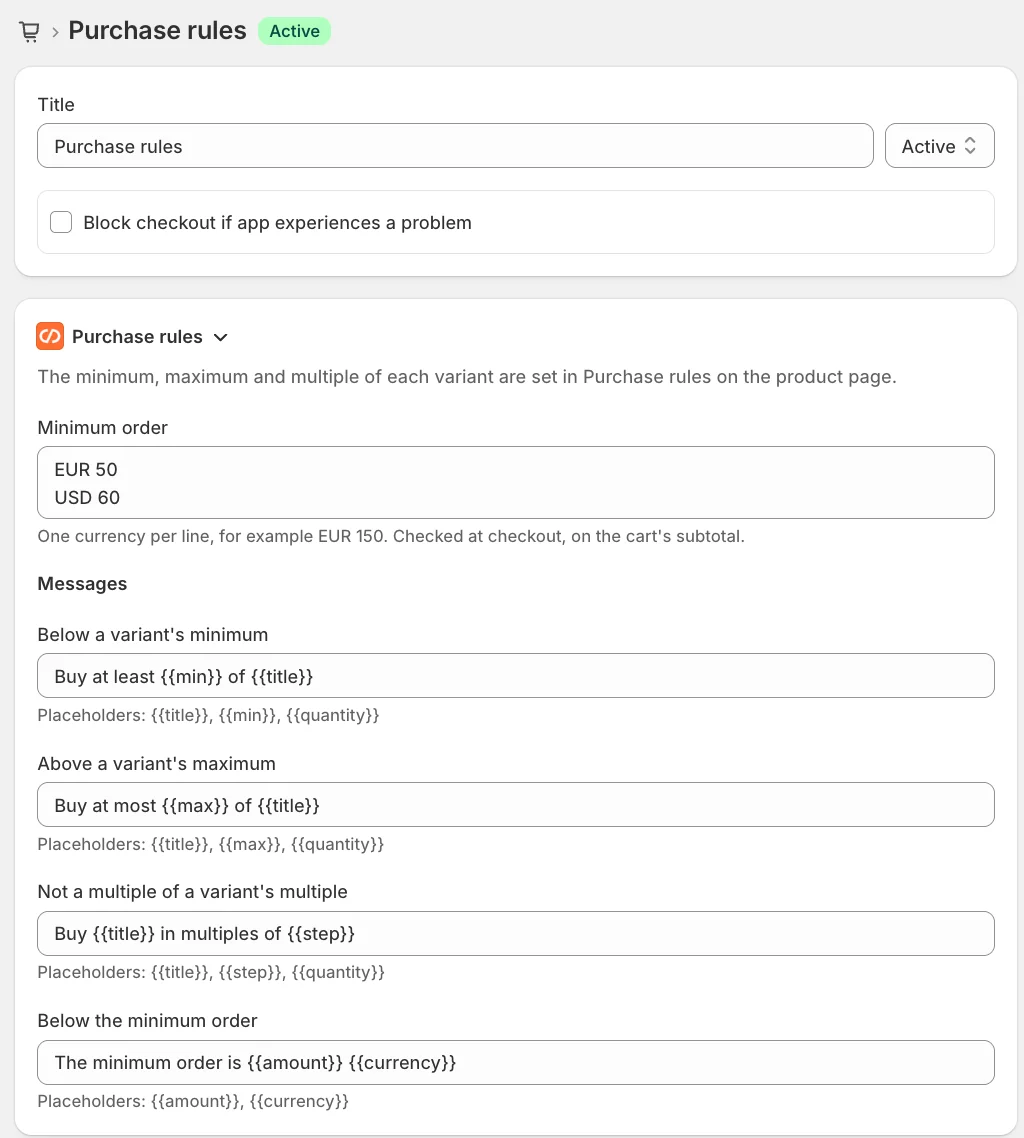
In the Shopify admin, open Settings → Checkout → Checkout rules → Add rule and choose Purchase rules.
- Write one currency per line, with the amount:
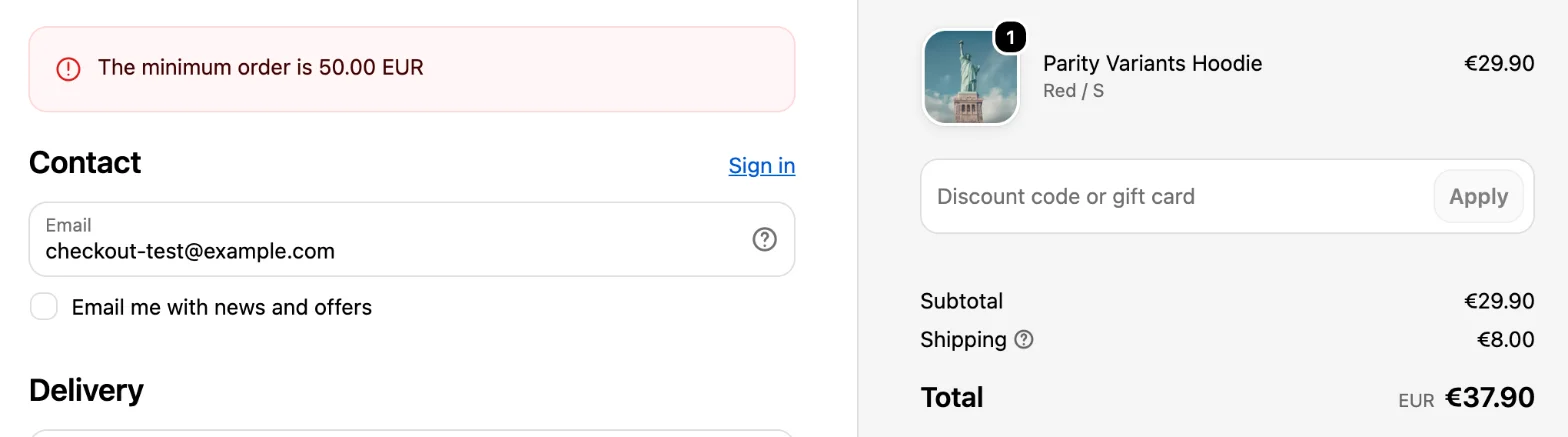
EUR 150,CHF 160. - The minimum applies at checkout, to the subtotal of the cart.
- After saving, turn the rule on: Shopify adds checkout rules turned off.
3. Write your messages
On the same page you change the messages the customer reads. Each message has its own placeholders:
| Message | Placeholders |
|---|---|
| Below a variant’s minimum | {{title}}, {{min}}, {{quantity}} |
| Above a variant’s maximum | {{title}}, {{max}}, {{quantity}} |
| Not a multiple of a variant’s multiple | {{title}}, {{step}}, {{quantity}} |
| Below the minimum order | {{amount}}, {{currency}} |
For example: {{title}}: sold in packs of {{step}}.
On your site
You add nothing to your Webflow site. The quantity fields you already built follow the rules:
- On the product page, the quantity field starts at the minimum, goes up in steps of the multiple and stops at the maximum. Without a maximum it stops at the stock. A quantity the rules refuse moves to the nearest valid one.
- In the cart, the quantity of a line goes up and down in steps of the multiple and stops at the maximum. It can still go to 0, which removes the line.
- A direct add-to-cart button (a Custom element with the tag
buttonanddata-is="direct-add-to-cart") adds the minimum. - If Shopify refuses a quantity, its message shows in the Error message of the Form Block.
A variant of linen napkins with minimum 6, multiple 6 and maximum 48:
Product page
- Starts
- At the minimum: 6.
- Steps
- 6 → 12 → 18, in steps of the multiple.
- Stops
- At the maximum: 48. Without one, at the stock.
Cart line
- Steps
- Up and down by 6, up to 48.
- At 0
- One step down from 6 goes to 0, which removes the line.
When Shopify refuses a quantity: the Not a multiple message
- Your text
- Set in the Shopify admin, in the Purchase rules checkout rule.
- Shows in
- The Error message of the Form Block, on the product page or in the cart.
- Placeholders
{{title}}Linen napkins,{{step}}6,{{quantity}}the quantity refused.
To show the rules on the page, use variant="quantity-min", variant="quantity-max" and variant="quantity-increment": see the variant attributes.
Purchase rules and B2B
A B2B catalog in Shopify can have its own quantity rules. When a variant has both, the strictest wins: the higher minimum, the lower maximum, and a multiple of both. See Quotes and B2B.
Before you publish
Check these first
- The minimum order does nothing. Shopify adds checkout rules turned off: turn on Purchase rules in Settings → Checkout → Checkout rules.
- The cart refuses a quantity and nothing shows. The message goes in the Error message of the cart’s Form Block: keep it in your design.