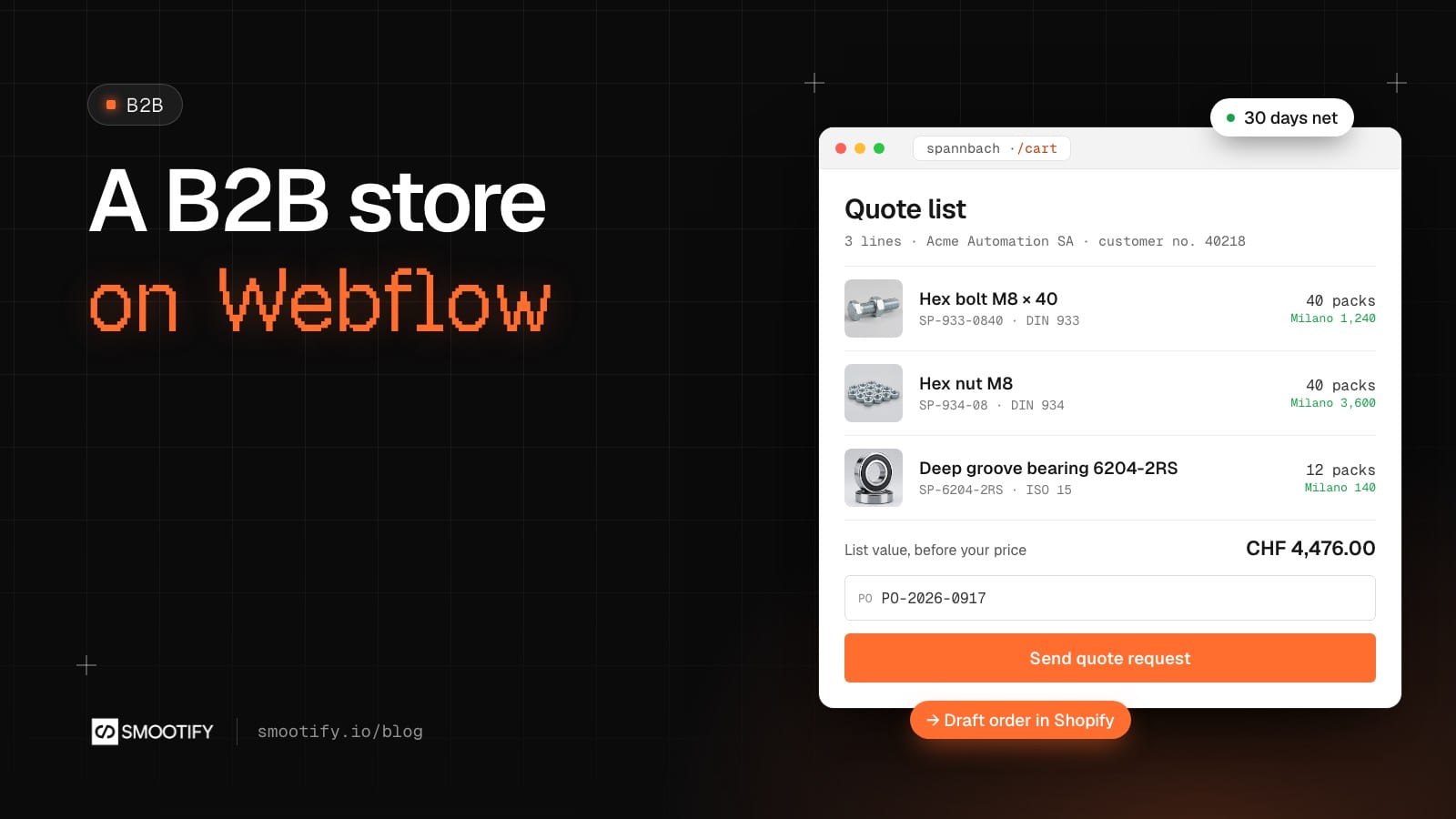
A buyer at a packaging machinery maker needs 1,100 hex bolts, 12 bearings and a linear guide cut to length. She does not want a price list. She wants her price, the one her company negotiated, and she wants to know which warehouse has the bolts before she asks.
Most B2B setups on Webflow or Astro answer with a contact form. The buyer types the part numbers into a text box, the email reaches the sales team, someone copies the lines into an order by hand, and the invoice is a PDF paid by bank transfer, outside the store. Every step is a place for a wrong SKU.
With Smootify the B2B store is five pieces that already exist in Shopify and in the docs. They are just in five different places. Spannbach, our industrial parts demo store, puts them together. Here is how they fit.
1. The cart that asks instead of buying
On Spannbach, a signed-in company buyer does not see “Add to cart”. She sees “Add to quote list”, and the cart page is titled “Quote list”. She fills it like any cart, with parts, quantities and a drawing for a line if she has one. Then she adds her email, her PO reference and a note for the sales team, and presses “Send quote request”.
What arrives in Shopify is a draft order, under Orders > Drafts, with the same lines, variants, quantities and line properties. The email field makes her the draft order’s customer. The note becomes the draft order’s note. Any other field, like the PO reference, goes into its additional details.
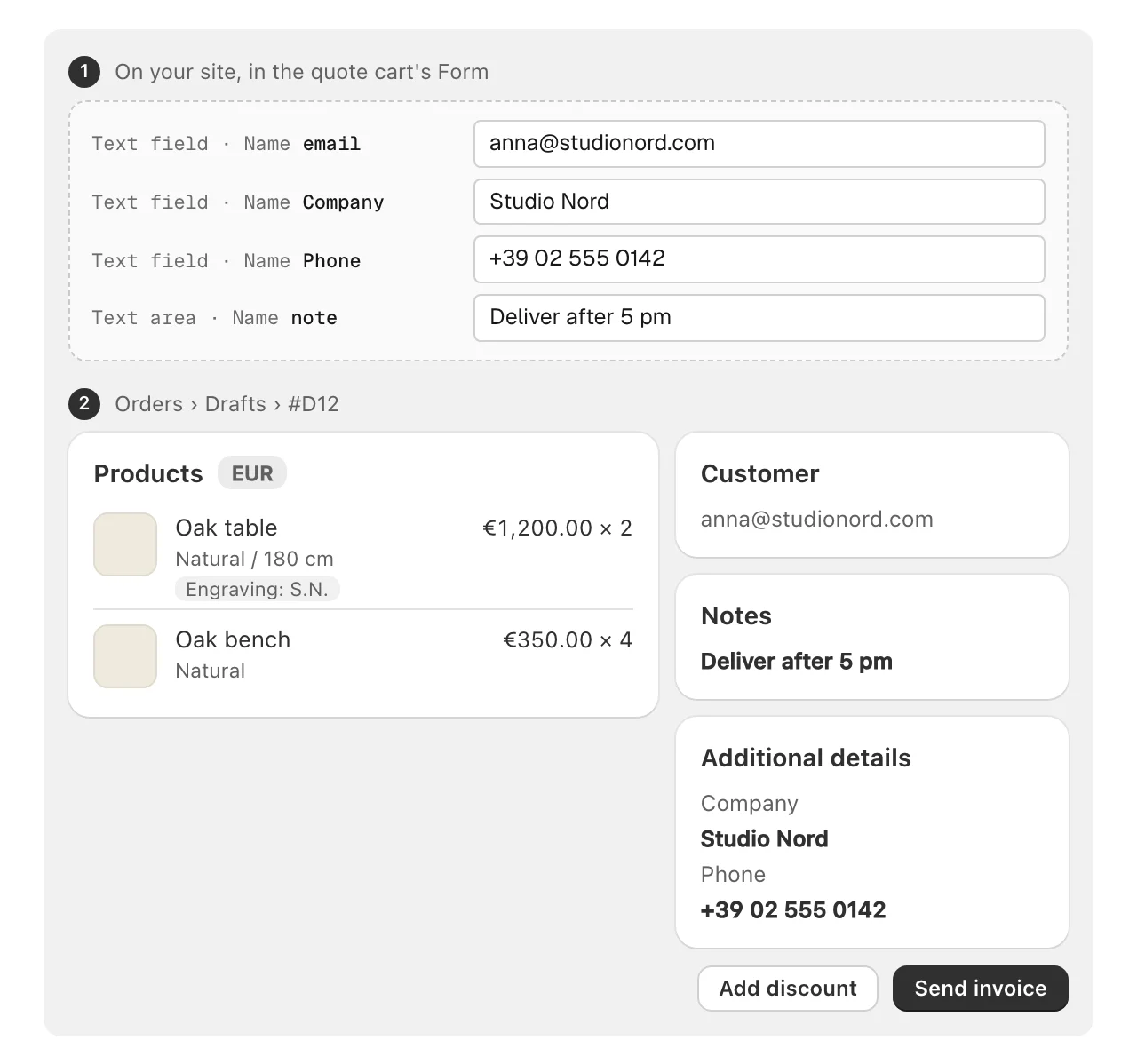
The price comes after. The merchant opens the draft, changes the prices or adds a discount, and sends the invoice. The buyer gets an email with a link to Shopify’s checkout, at the agreed price, and pays there with the store’s usual payment methods. There is no separate invoicing system and nothing to reconcile by hand.
Technically, the button is a Custom element with the tag button, type="submit" and name="draft-order", placed in a normal cart next to the checkout button. A store that sells only on quote uses data-draft="true" on smootify-cart instead, and every submit becomes a request.
Once you send the invoice from the Shopify admin, the quote also shows up in the buyer’s account, with its status, its lines and the link to pay it. That list is a customer-draft-orders element on an account page (Orders, quotes). A request you have not sent yet does not show there.
2. The site knows the company, not only the person
Shopify’s B2B features, with companies, catalogs and quantity rules, are on every paid Shopify plan. Outside Plus a store can have up to 3 active B2B catalogs, with Shopify’s new Markets. When a buyer who belongs to a company signs in with customer accounts, Smootify asks Shopify for products and the cart as that company’s buyer, so the company’s prices and quantity rules apply on the site.
On the page, company="name" shows the buyer’s company, such as Acme Automation SA on Spannbach, and company-metafield shows what the company record holds: a customer number, the sales contact, the payment terms. Two attributes do the switching. if-company-metafield="customer_number" shows an element only to company buyers. unless-company-metafield="customer_number" shows it to everyone else, guests included. That is how one product page carries both “Add to quote list” and “Add to cart”, and only the right one shows.
3. Pack sizes and order rules on the product
Industrial parts come in packs. Inside smootify-product, variant="quantity-min", variant="quantity-increment" and variant="quantity-max" show the quantity rule Shopify applies to the variant: the minimum, the pack multiple, the maximum. The wholesale terms are printed on the product page instead of being discovered at checkout.
Technical specs are often a list metafield. Spannbach’s “Standards” row shows DIN 933 and ISO 4017 from one list, with separator="repeat" making one copy of the element per value, so there is no nested Collection list for each spec.
Companies can also see their volume prices. Shopify keeps quantity price breaks, such as €9.00 each from 10 and €8.50 from 50, in the price list of a B2B catalog. On the product page, variant="price-breaks" repeats a row you design once for each break, with price-break="range", price-break="price" and price-break="savings", and an optional button, price-break="add", that adds the row’s quantity to the cart. A click on the row itself sets the form’s quantity to it. condition="has-price-breaks" hides the whole table for buyers who have no breaks (Volume prices for companies).
The order rules are not only shown. The purchase rules of the Smootify app, a minimum, a maximum and a multiple per variant and a minimum order per currency, are checked by Shopify itself, on every plan, and the quantity fields on the site follow them (Purchase rules).
4. Which warehouse has it
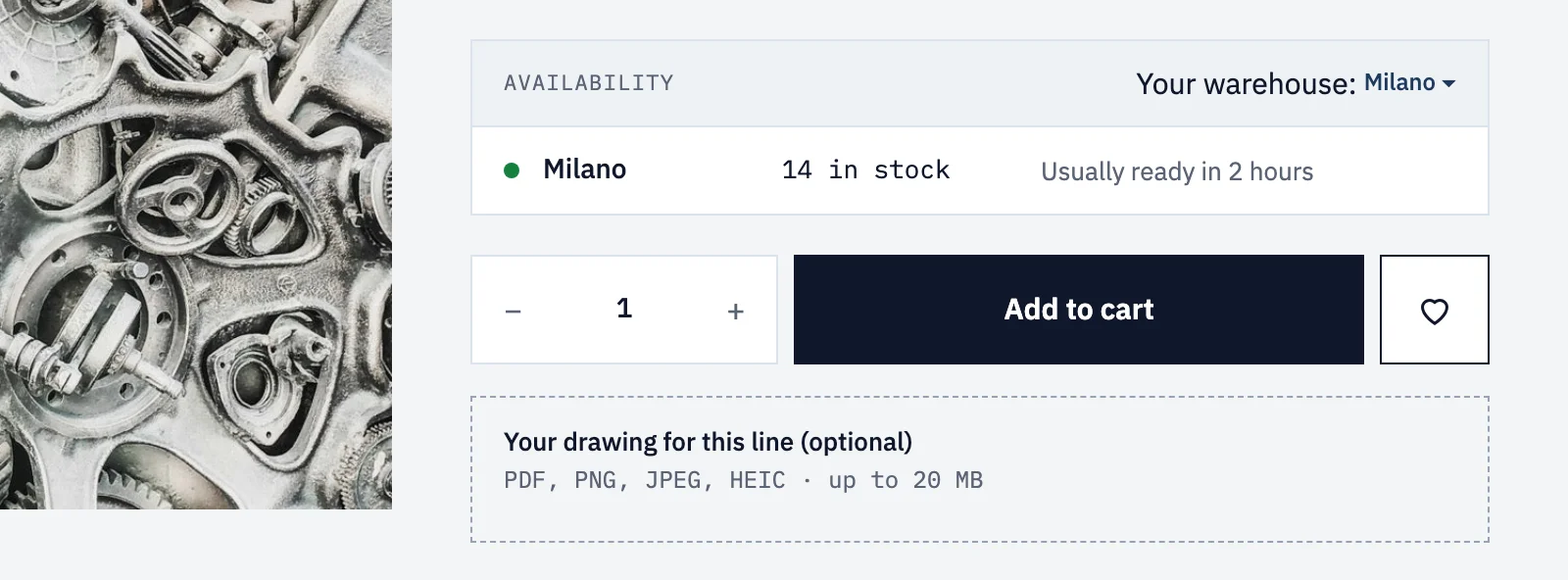
For someone buying spare parts, “in stock” is not enough. They need to know where. On Spannbach the product page shows the buyer’s warehouse with store-availability: for the M8 × 40 hex bolt, Milano, 1,240 in stock on 15 October, with its pickup time.
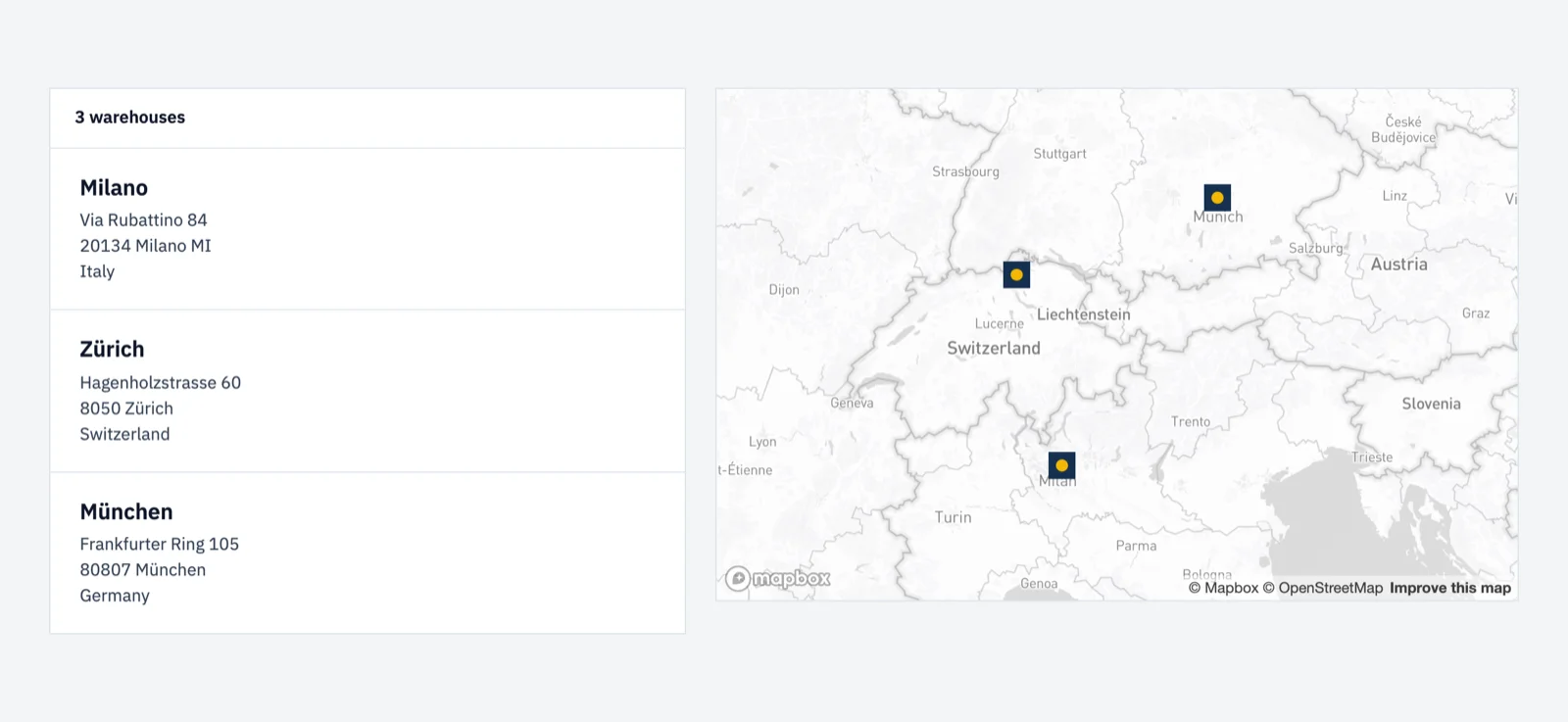
The /warehouses page puts Milano, Zürich and München on a map with store-locator. Both read the Shopify locations that offer local pickup.
5. Credit on the account
store-credit shows the customer’s store credit balance and its movements. On Spannbach it sits in the company buyer’s account. Shopify lets customers spend store credit at checkout, which suits companies with frequent returns or credits from the merchant.
One thing to be clear about: store credit is spent at checkout, but not on the invoice of a draft order. It does not pay a quote. Present it as credit for regular orders.
Where it fails without telling you
- The draft order has no email. The field’s Name setting must be exactly
email. Webflow renames fields when you copy a form (Email,Email 2), and then the request reaches Shopify without a customer to invoice. - The quote cart goes to checkout. Quotes need the server plan and Draft Orders turned on in the Smootify dashboard, on the licensed domain. Without them, a quote cart behaves like a normal cart and the quote button does nothing.
- Customers think they have ordered. Webflow’s Success message still says something like “Order received”. Rewrite it as a request. Spannbach says it plainly under the button: “This is not an order yet.”
- The button opens a page. A Webflow Button publishes a link, and a link does not submit the form. Use a Custom element with the tag
button.
To be told about each new request, import the Quote request notification workflow in the free Shopify Flow app and put your sales address in its email.
See it working
Spannbach is on the Templates page, with its Figma file.
The cart, the company attributes and the draft order fields are in the Quotes and B2B guide. Store credit is in Customer data, and pickup and the map in Pickup and store locator. On an Astro site the markup is the same: see Quotes and B2B for Astro.