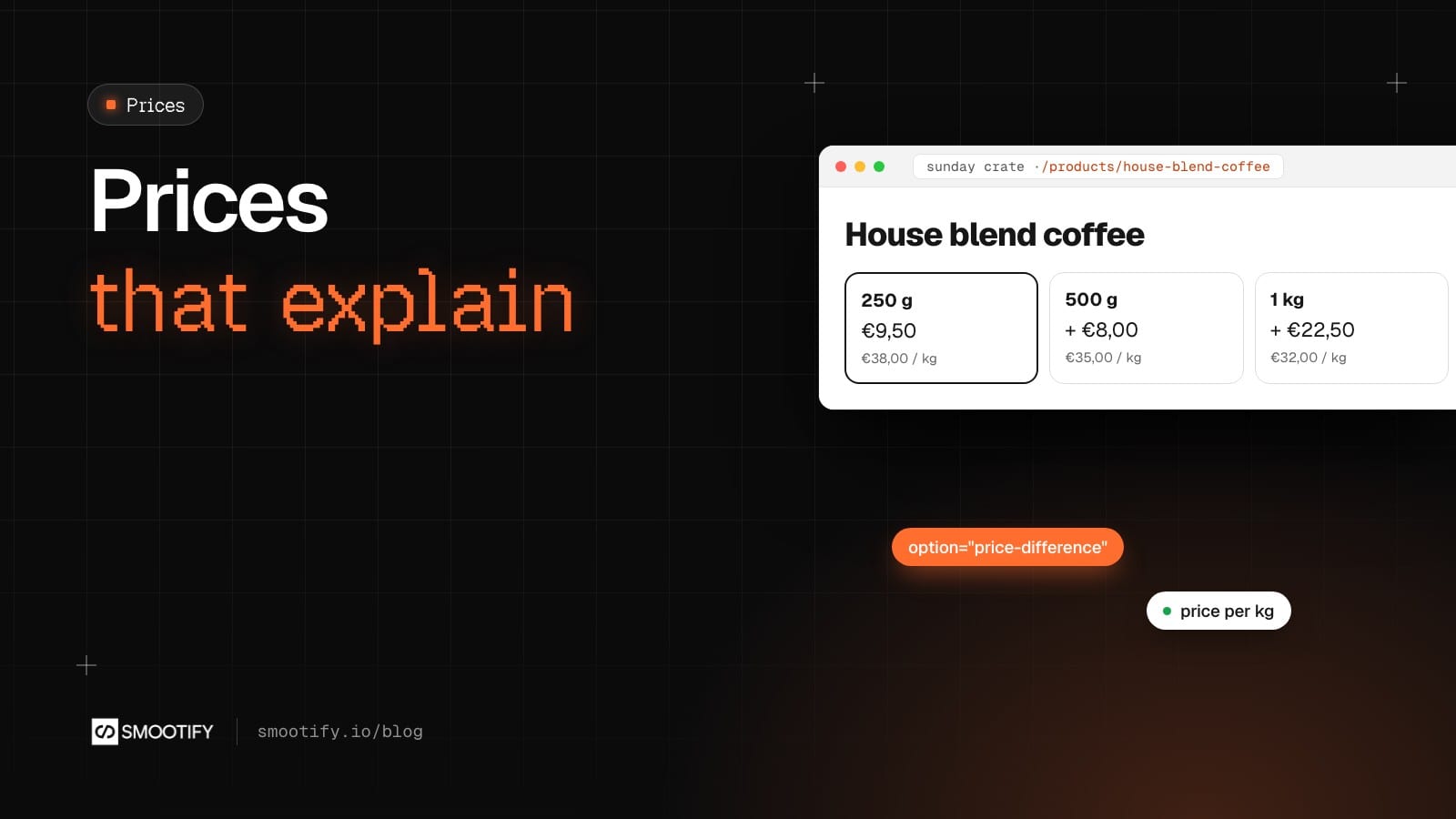
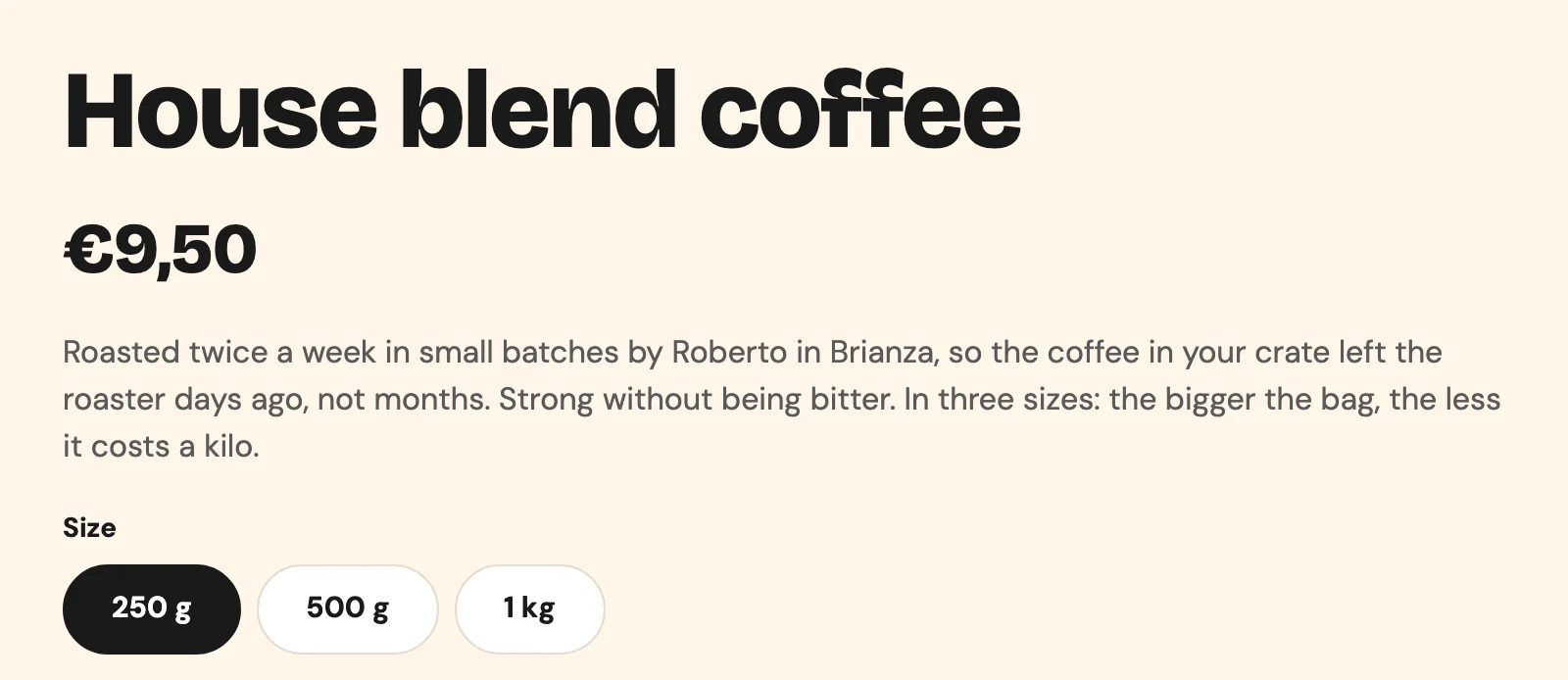
A customer on Sunday Crate wants coffee. House blend comes in three bags: 250 g at €9.50, 500 g at €17.50, 1 kg at €32.00. Is the big bag worth it? They divide in their head, or open the calculator on their phone, or give up and take the small one.
That arithmetic used to be the customer’s job on a headless Shopify store. The price said how much, never why. How much more is the big bag? What does it cost per kilo? How much am I saving in this cart, and from which discount? Can I just order what I ordered last week? With Smootify 1.x, either the customer worked it out, or an agency wrote custom code for each of those answers.
In 2.0 each of them is an attribute, on a Webflow element or in an Astro component. Sunday Crate’s page doesn’t use them yet: today it shows the price of the bag you pick and nothing else, which makes it a good place to see what each one would add.
What the bigger bag costs
Put option="price-difference" inside the value template of a variant picker, and each value shows what it adds to the cheapest one. On House blend it would read:
- 250 g
- 500 g + €8.00
- 1 kg + €22.50
The difference is computed from the variant prices, with the other options as the customer has chosen them. If a product has a second option that changes the price, such as the grind, the ”+” follows it. The cheapest value shows nothing. It works in the button of variant-swatches and in the item of variant-dropdown and variant-popover. A variant-selector is a native <select>, which can only hold text, so there the difference goes in the option text with data-format="{{value}} {{difference}}" on the Select field.
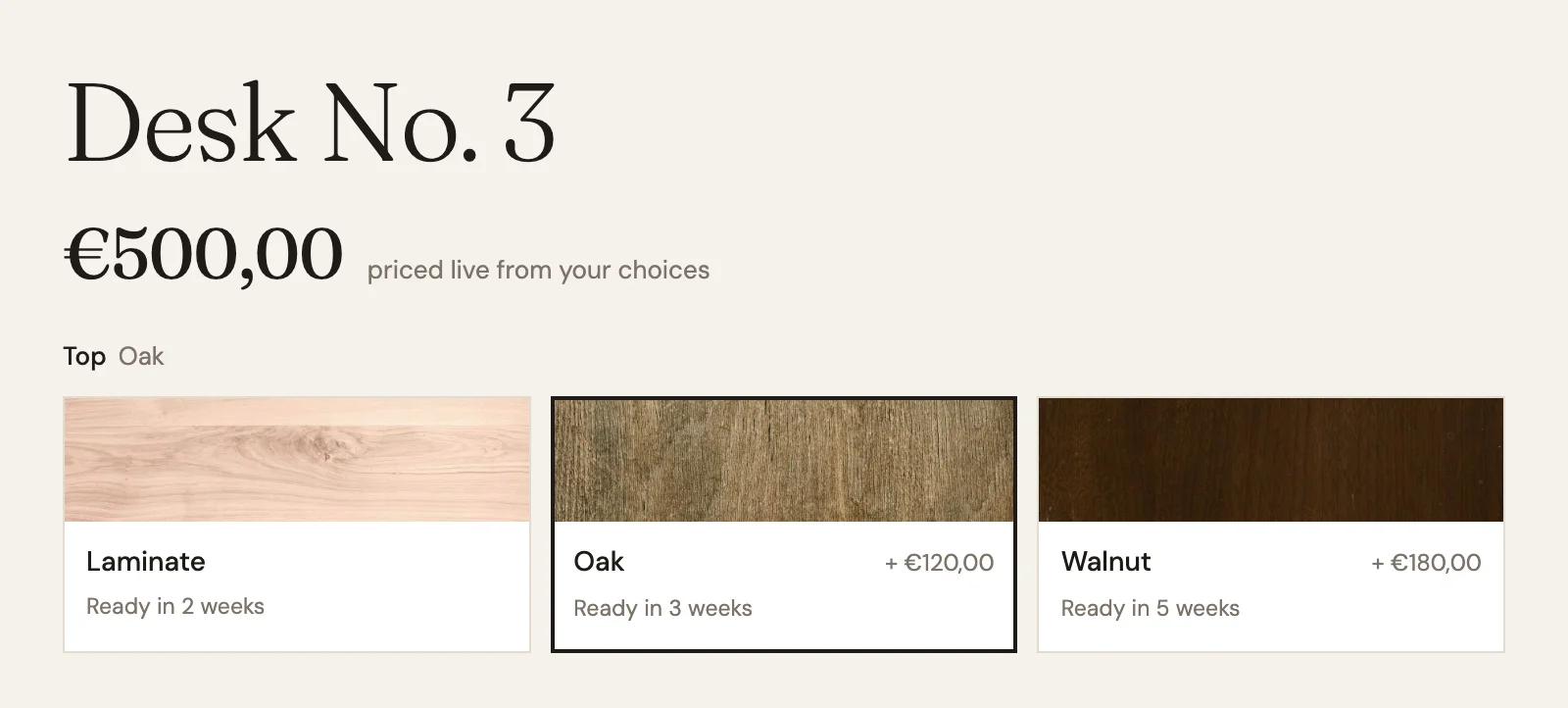
Before 2.0 this took a script that compared variant prices on every change. Now it is one attribute, and you can see it live on Millimetro, our furniture demo store: on Desk No. 3, the Oak top says + €120,00 and the Walnut top + €180,00 over Laminate.
What it costs per kilo
Next to the price, variant="unit-price" shows the price per reference unit. With House blend’s prices that is €38.00/ kg for the 250 g bag, €35.00/ kg for the 500 g and €32.00/ kg for the 1 kg. The difference and the price per kilo tell the same story from two sides. cart-item="unit-price" shows it on the cart line too.
This is a fix as much as a feature. In 1.x a price referred to 100 g came out as / G, a price per gram that was simply wrong. 2.0 writes the reference unit, such as 100 g or kg, and data-format with {{price}} and {{unit}} lets you word it your way. The unit price comes from Shopify: in the pricing of each variant, fill in the unit price measurement, the amount in the bag (250 g) and the unit to price it by (1 kg), and Shopify works out the price per unit. Without it, the element stays empty. Shopify offers this setting to stores in some countries only.
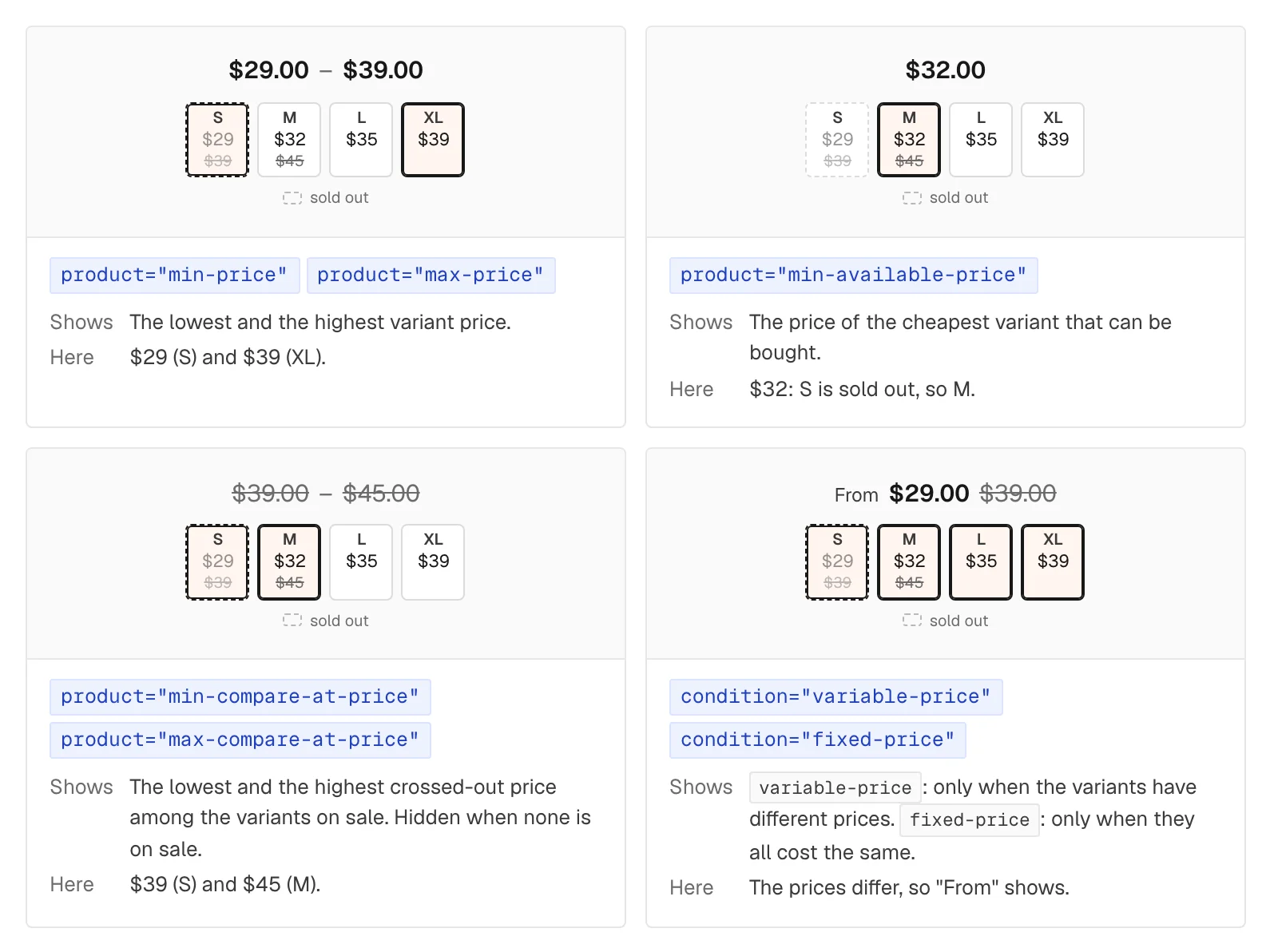
On product cards, product="min-compare-at-price" next to product="min-price" shows the lowest crossed-out price among the variants on sale, and hides itself when nothing is.
How much the cart saves, and why
In the cart, cart="savings" shows the crossed-out total minus the total: sale prices, line discounts and order codes together. On each line, cart-item="savings" shows what that line saves and cart-item="discount-percentage" shows it as a percentage. Two jars of Sunday Crate’s Taggiasca olives, €7.80 instead of €9.20, would read “You save €2.80, 15%”. A House blend line next to them, at full price, shows nothing, because both elements hide themselves when there is nothing to say.
The crossed-out total all of this rests on, cart="compare-at-total", is now correct. In 1.x it got the sum wrong as soon as a cart mixed discounted and full-price lines, and left the full-price lines out. 2.0 counts every line, so a “You save” built on it is right too.
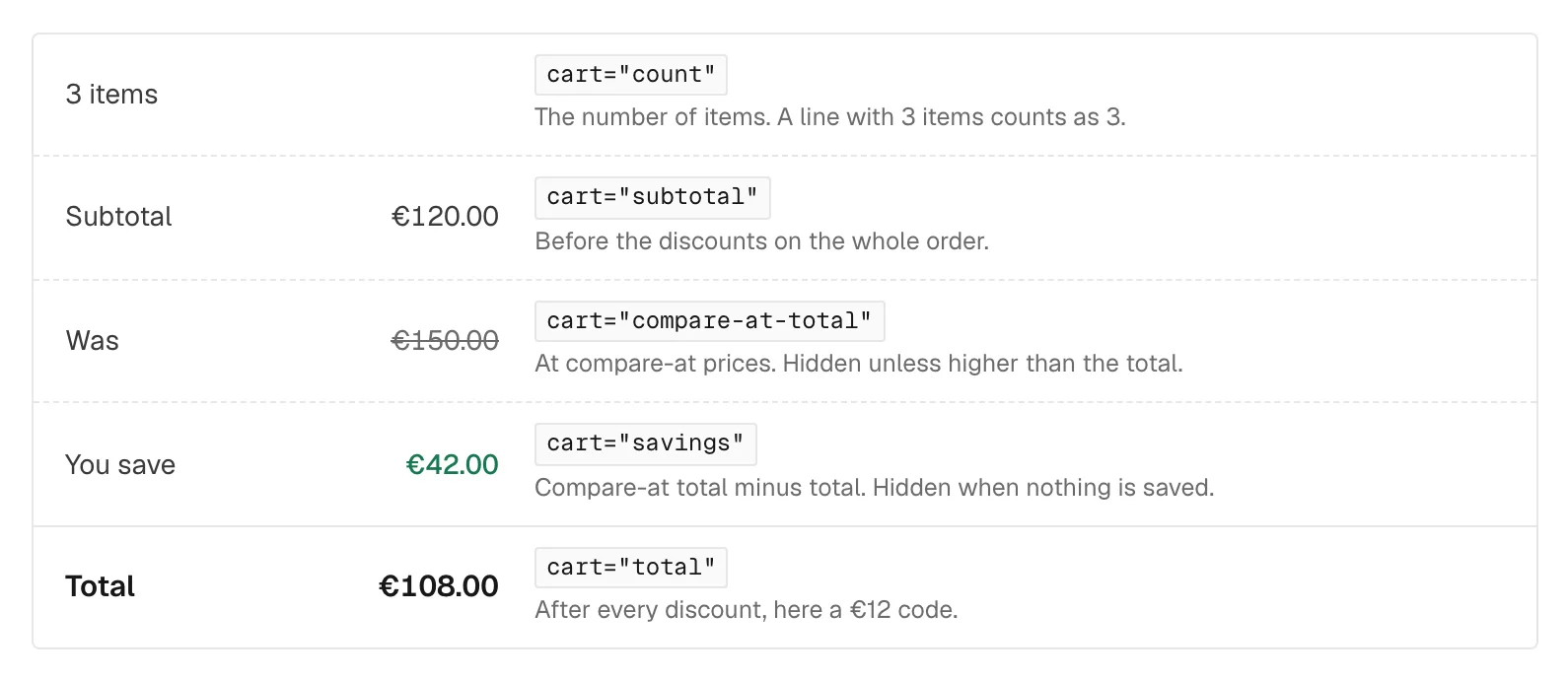
Automatic discounts now have a name. A store-wide “10% off orders over €100” used to lower the total without appearing anywhere: the customer saw a smaller number and no reason. In 2.0 automatic order discounts appear in the cart="discount" list after the codes, with their title and amount and without a remove button, since they cannot be removed. Type a code and it joins the list; the savings figure goes up as it applies.
Two more line values help on long carts: cart-item="variant-title" gives the variant in one text (“500 g”) and cart-item="sku" the SKU, useful for B2B buyers who order by code.
Order it again
In the account, a Custom element with the tag button and data-action="buy-again", inside the order list (customer-order) or the order page (order-page), puts an order’s products back in the cart: variants, quantities and properties such as an engraving. With data-buy-now="true" it goes straight to checkout. For a customer who buys the same coffee, jam and honey most weeks, one click refills the cart.
The limits, said plainly, because customers notice them:
- A subscription comes back as a one-time purchase. On a store like Sunday Crate, where the curated crates are subscribed every two or four weeks, this is the first thing a subscriber sees. Buy again does not restart the subscription.
- Some lines stay out: products that no longer exist, the components of a Shopify bundle, and lines priced by the product configurator or name your price.
- Prices are today’s prices, not the ones on the order. The total can differ from what was paid.
When nothing in an order can be bought again, the button hides itself.
Where it goes quiet
Each of these fails without an error, and the element just does not appear.
price-differenceoutside a variant picker. Inaddon-swatchesandproduct="option-values"it stays hidden and empty. It also belongs in the first button, the template.- All values cost the same. Nothing shows, which is correct.
- A “You save” label that stays.
cart="savings"andcart-item="savings"replace their content with the amount and hide only themselves. A label next to them stays visible when there is nothing to save, so plan the design for it. - Two discount percentages, two behaviours.
variant="discount-percentage"shows0%on a product not on sale: put it insidecondition="on-sale".cart-item="discount-percentage"hides itself. - An empty unit price. The variant has no unit price measurement in Shopify.
None of this needs an add-on. In Astro the attributes are the same, in your components: see the Astro product page guide. The details are in the guides: product page, swatches, product cards, cart, cart extras and orders.