A furniture maker sends a quote by email: one dining table, solid oak, 280 cm, €2,480. The customer says yes. Now what?
Most Shopify shops do one of three things. They create a product called “Custom order MM-2291” at €2,480, publish it, send the link, then remember to hide it. They make a “€1 deposit” product and ask the customer to set the quantity to 2,480. Or they send a bank transfer request and lose the order confirmation, the receipt and the customer’s account history. All three leave a mess behind, in the catalog or in the books.
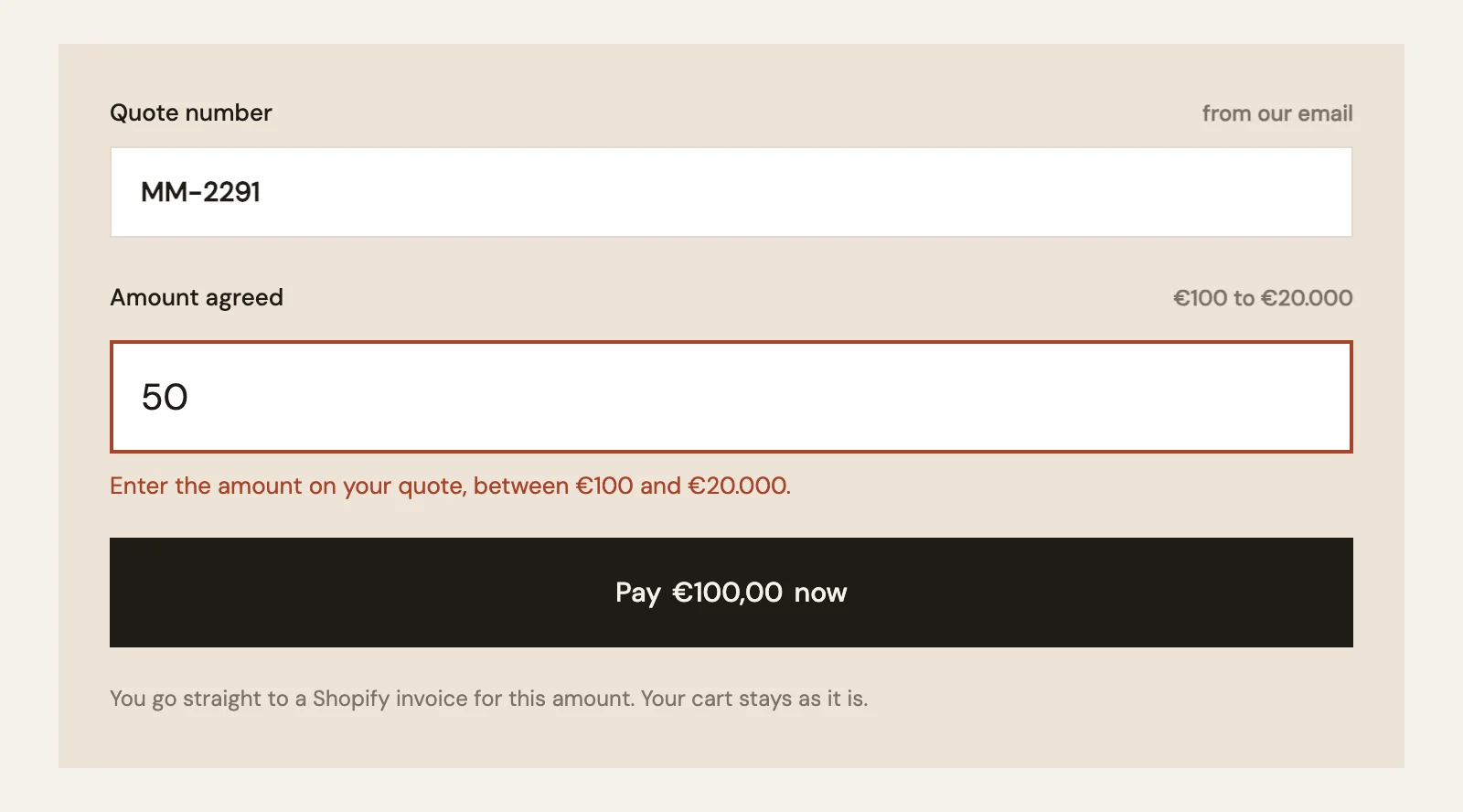
On Millimetro, the demo furniture shop, there is a page called Pay an agreed quote. The customer types the quote number and the amount, between €100 and €20,000, and clicks Pay. Nobody created a product for that table, and nobody will have to delete one. The same page runs on Millimetro built in Astro: the mechanism is Smootify’s, not the site builder’s.
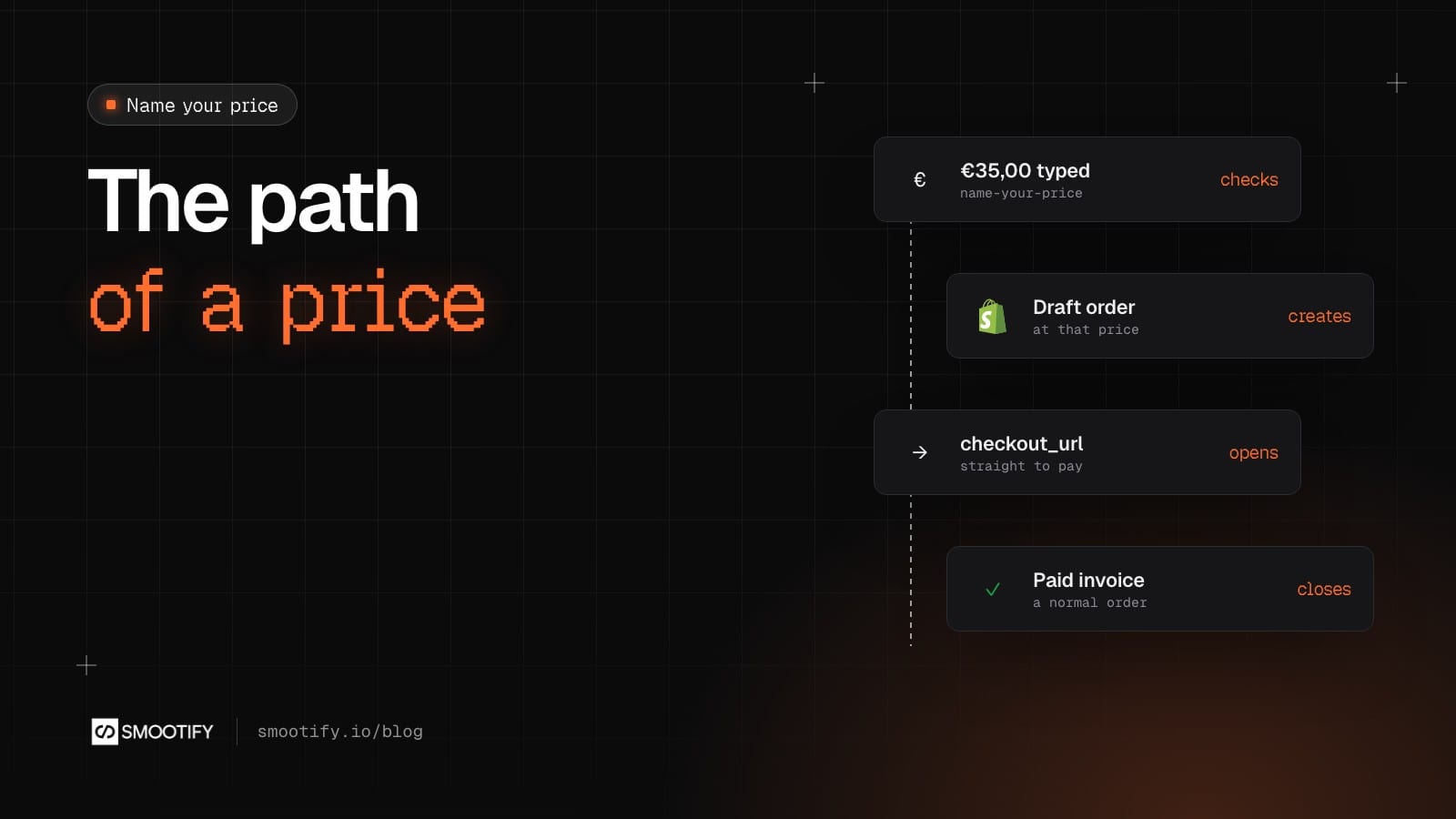
This post is about what happens between the moment the customer types a number and the moment they pay. That part is rarely explained, and it changes how you plan the checkout.
The amount is a field, the product stays one product
The element is name-your-price, with a Number Text field inside it. On the field, min and max set the range you accept. On the element, data-invalid-price is the message for an amount out of range; Millimetro’s says “Enter the amount on your quote, between €100 and €20.000.” Without it the customer reads “Invalid price”.
The product in Shopify, “Pay an agreed quote”, has one variant. Every payment goes through that same product, at the price each customer typed. No variant is created per amount, so the catalog, the analytics and the sync with your back office stay clean six months later.
Where the price goes next
From here, the path splits in two, depending on the button.
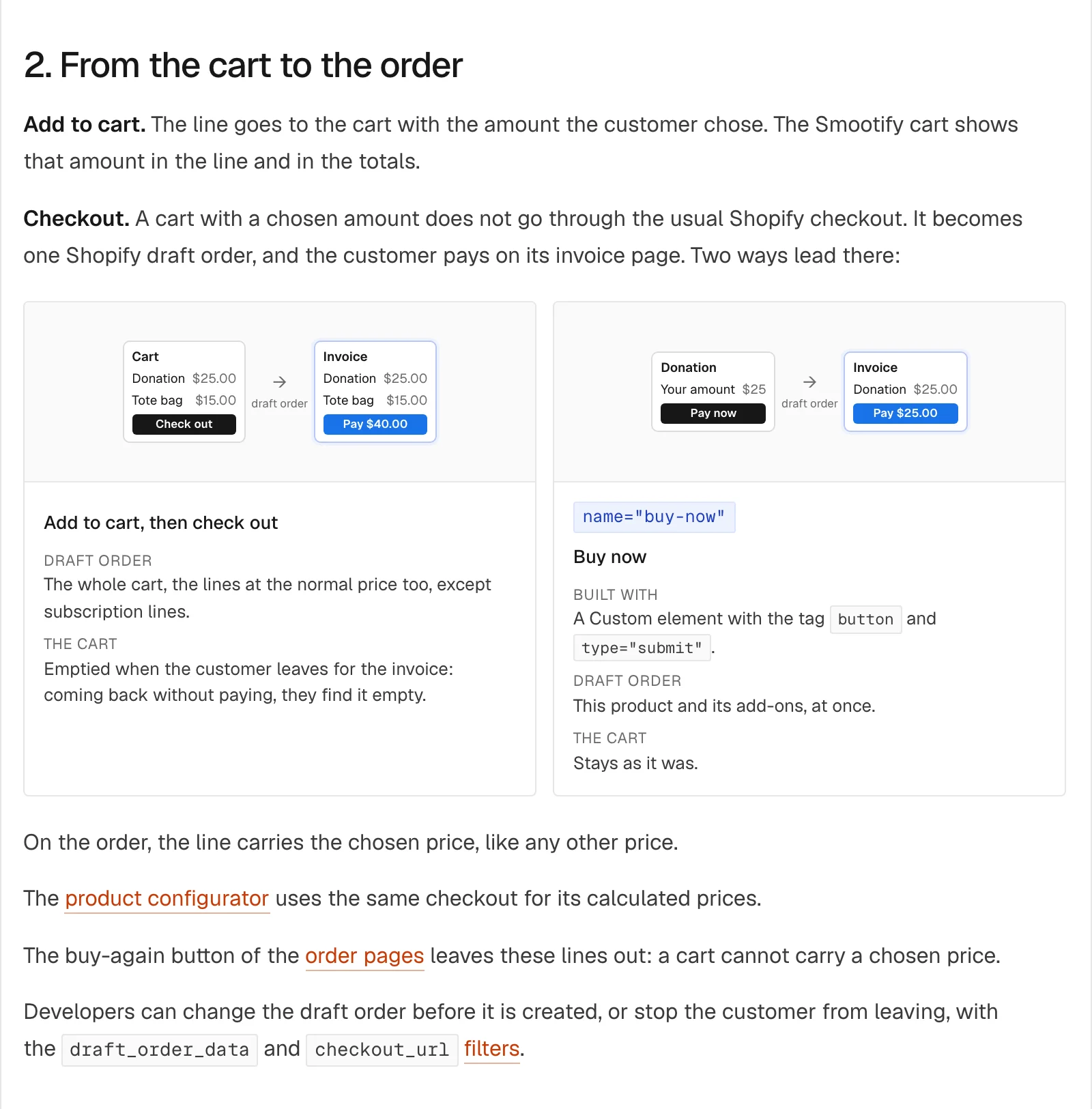
Buy now (a Custom element with the tag button, type="submit" and name="buy-now"). This is what the quote page uses.
- Smootify checks the amount against
minandmax. - It creates a Shopify draft order straight away, with this product at the typed price and any add-ons from the same form.
- The customer goes to the draft order’s invoice page, a payment page hosted by Shopify, with the amount already on it.
- The cart is not touched. Whatever the customer had in it is still there.
Add to cart. This is what Millimetro’s gift card page offers next to Buy now.
- Same check on the range. Out of range, nothing is added and the form shows your message.
- The line goes into the cart at the typed price. The Smootify cart shows that amount in the line and in the totals.
- At checkout, if even one line has a chosen price, the whole cart becomes one draft order, the lines at normal price included. Subscription lines stay out.
- The customer goes to the invoice, and the cart is emptied when they leave for it.
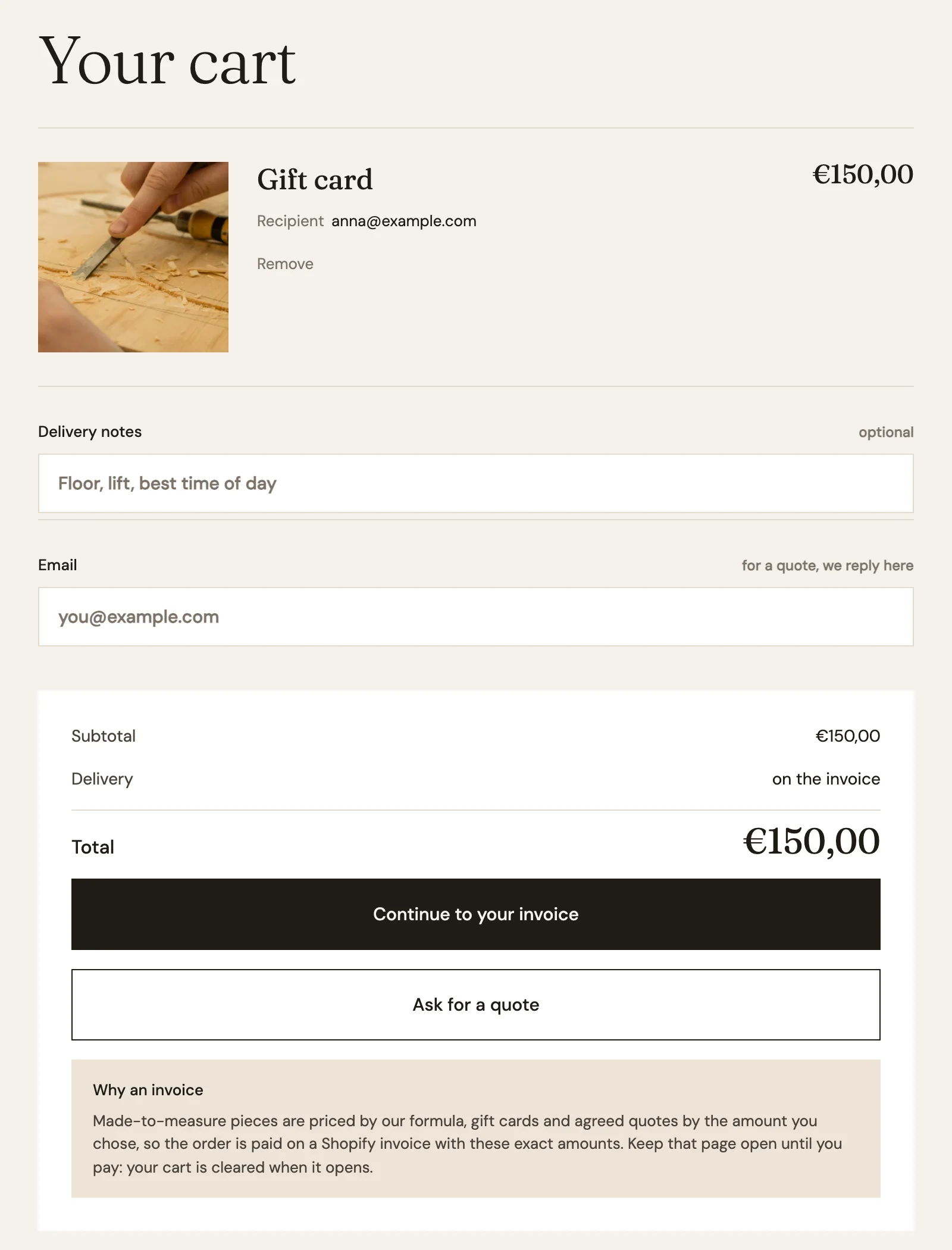
The 1.x docs (docs.smootify.io describes 1.x) say the feature works with both Add to cart and Buy now “by generating a draft order”. That is half the story. Buy now creates the draft order at once, for one product. Add to cart creates nothing until checkout, and then creates it for everything in the cart. Same result on paper, different timing and a different cart afterwards.
What it means to leave the usual checkout
The invoice page is a Shopify page, not a page of your site. It already carries the discount codes from the cart and accepts more codes and gift cards. It is not the usual checkout, so before launch check which payment methods and express buttons your customers see there.
One line converts everything. If a customer adds a €50 gift card at a chosen amount next to a €380 desk, the desk goes into the draft order too. Worth knowing before you offer a free-amount product as a cart upsell.
The cart is emptied only when the customer actually leaves. Developers can stop that exit with a checkout_url filter, for example to ask for terms to be accepted: the filter answers false, or throws an error whose message shows in the cart, and the customer stays on the page. On Buy now, the draft_order_data filter can change or stop the draft order before it exists, and checkout_url runs too, with no cart. Both are on the filters page.
Other ways to use the same field
The quote case is the one that pays best, but the same mechanics cover:
- A gift card of any amount. Millimetro’s Gift card (from €25 to €1,000) is a normal product with
name-your-priceand fields for the recipient. A Shopify Flow workflow creates the real Shopify gift card when the order is paid. - A deposit. 30% to confirm a made-to-measure piece, the rest on delivery.
- A balance or a surcharge. The difference after a deposit, or express shipping agreed on the phone.
- Donations and pay-what-you-want downloads.
A price calculated by a formula, such as a desk priced per square metre, uses the same checkout: that is the product configurator.
Where it fails without telling you
- No Number field inside the element.
name-your-priceremoves itself, and the form becomes a normal Add to cart. The product goes in at its Shopify price, with no error. This is the one to check first. - No
min. An empty field is a valid amount of 0, and the product can be added for free. minandmaxon the element instead of the field: any amount is accepted.- Testing on
.webflow.ioduring a trial. Server add-ons run on the licensed domain until the site is paid. - The customer comes back to an empty cart after leaving the invoice unpaid. That is the Add to cart path working as designed.
Name your price needs the server plan and the Name your price add-on turned on in the Smootify dashboard. The Draft Orders add-on is not needed; it only matters if you also want quotes from the cart.
The setup takes a few minutes and is on the Name your price page, and for Astro on Name your price in the Astro docs.